


Comprehensive Guide to Editing with the OpenDocs Markdown Editor
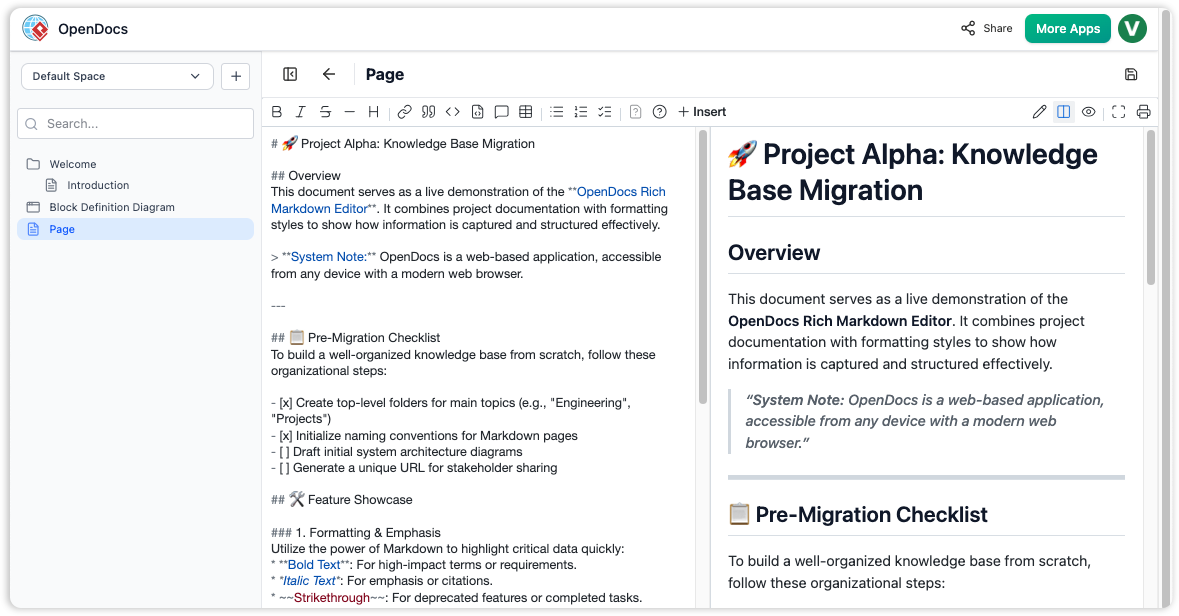
Welcome to the OpenDocs Knowledge Base. This guide explains how to effectively create, structure, and format your documentation using the OpenDocs Rich Markdown Editor. The editor provides a split-screen experience: the left side is for writing Markdown code, and the right side provides a real-time preview of how your document will look.
1. The Editor Interface
The editor is divided into two main panes:
-
Source View (Left): This is where you type your content using Markdown syntax.
-
Preview Pane (Right): This pane renders your Markdown into formatted HTML, allowing you to see exactly how headings, lists, and emphasis will appear to the reader.
The Toolbar
At the top of the editor, you will find a toolbar with quick-access icons. You can use these to insert formatting without memorizing syntax:
-
B / I / S: For Bold, Italic, and
Strikethroughtext. -
H: For Headers.
-
Link Icon: For inserting hyperlinks.
-
Code Icons: For inline code or code blocks.
-
+ Insert: A menu to add tables, images, and other complex elements.
2. Structuring Your Document
Headings
Organize your content using hash symbols (#). The number of hashes determines the heading level.
-
Syntax:
# Main Title(H1) -
Syntax:
## Section Title(H2) -
Syntax:
### Subsection Title(H3)
Example from Project Alpha:
The document title uses#and the “Overview” section uses##.
Horizontal Rules
To create a visual break between sections, use three dashes on a new line.
-
Syntax:
---
3. Text Formatting & Emphasis
Use the following syntax to highlight critical data or requirements.
-
Bold Text: Wrap text in double asterisks.
-
Syntax:
**Bold Text**
-
-
Italic Text: Wrap text in single asterisks.
-
Syntax:
*Italic Text*
-
-
Strikethrough: Wrap text in double tildes.
-
Syntax:
~~Strikethrough~~(Useful for deprecated features or completed tasks).
-
-
Links: Wrap the link text in brackets
[]and the URL in parentheses().-
Syntax:
[Link Text](https://example.com)
-
4. Organizational Elements
Task Lists (Checkboxes)
Create interactive checklists for tracking progress.
-
Unchecked Item: Use
- [ ]followed by your text. -
Checked Item: Use
- [x]followed by your text.
Example:
- [x] Create top-level folders(This will render as a checked box)
- [ ] Draft initial diagrams(This will render as an empty box)
Blockquotes
To highlight notes, warnings, or system messages, use the greater-than sign > at the start of the line.
-
Syntax:
> "Your quote or note here."
Example:
The “System Note” in the overview section is formatted as a blockquote to draw attention to accessibility information.
5. Advanced Features
Emojis
You can enhance your headers and text with emojis.
-
Syntax: Type a colon
:followed by the emoji name (e.g.,:rocket:,:clipboard:).
Code Snippets
-
Inline Code: Wrap text in single backticks:
`code`. -
Code Blocks: Wrap text in triple backticks:
code block
Summary of Shortcuts
| Feature | Markdown Syntax |
|---|---|
| Header 1 | # Title |
| Header 2 | ## Title |
| Bold | **text** |
| Italic | *text* |
| Link | [text](url) |
| Quote | > text |
| Task List | - [ ] text |
| Divider | --- |
