


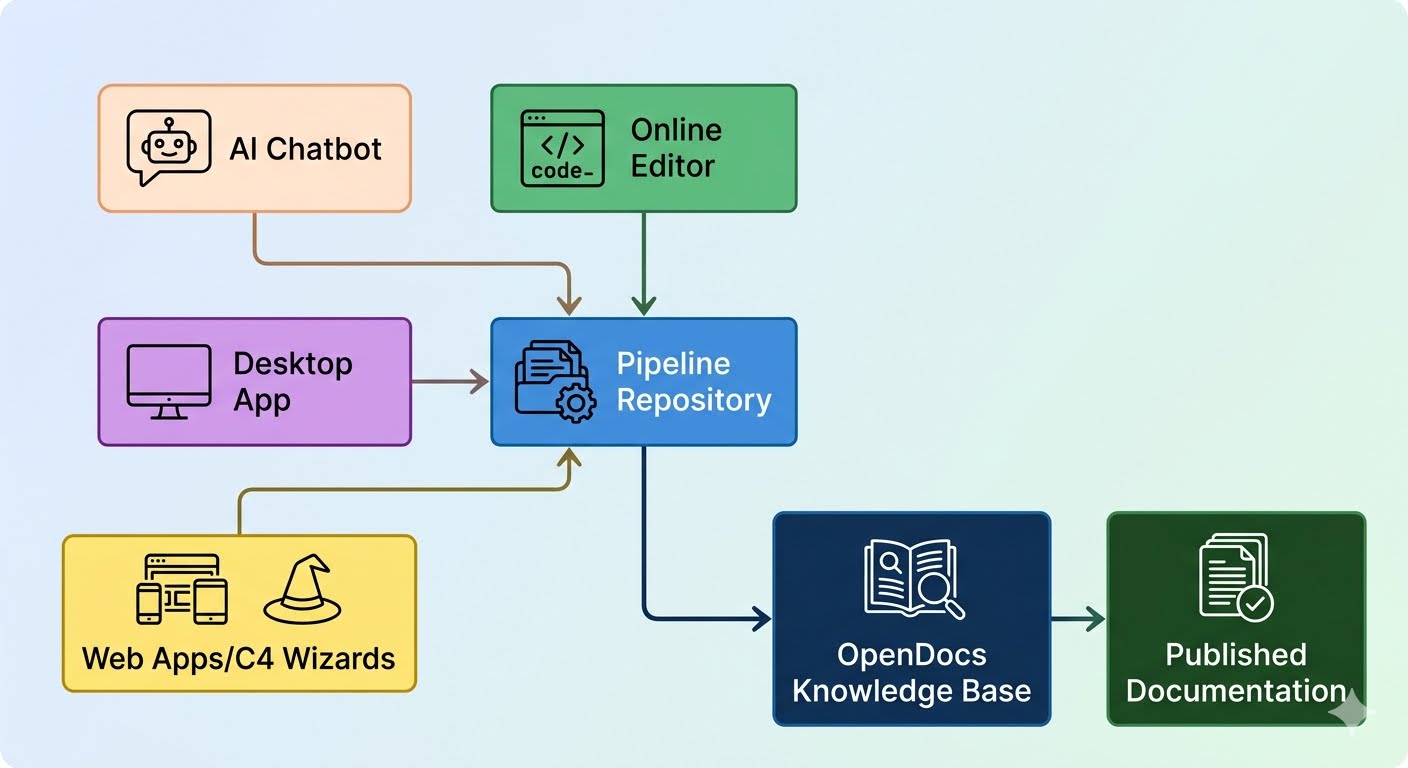
The Visual Paradigm OpenDocs Pipeline is a secure, cloud-hosted collaborative hub that bridges all five execution environments within the Visual Paradigm ecosystem. It enables team members to stream multi-source artifacts—including AI-generated diagrams, validated models, and C4 architecture hierarchies—directly into unified technical documentation without manual file transfers or screenshots.
By serving as a centralized artifact repository, the Pipeline eliminates traditional documentation friction: no more downloading PNGs, re-uploading to wikis, or managing version drift between diagrams and docs. Instead, diagrams maintain their editability, version history, and semantic relationships as they flow from creation tools into living knowledge bases.
Key Value Proposition: Transform fragmented “Concept-to-Docs” workflows into a unified, automated pipeline where visual models and documentation evolve together as a single source of truth.
What Is the Pipeline?
Core Definition
The Pipeline is the high-speed connective tissue of the Visual Paradigm ecosystem—a secure, cloud-based centralized repository designed to store, manage, and transfer artifacts (the valuable visual assets you create across platforms).
How It Works
-
Create: Generate diagrams in any Visual Paradigm environment
-
Send: Export artifacts to the Pipeline with optional metadata comments
-
Sync: Artifacts become instantly available across the ecosystem
-
Embed: Insert live, updatable diagrams into OpenDocs pages
-
Update: Swap revisions with one click as models evolve
Key Characteristics
| Feature | Benefit |
|---|---|
| Cloud-Hosted Repository | Access artifacts from any device, anywhere |
| Version-Aware | Automatic revision tracking with commit notes |
| Editability Preserved | Diagrams remain linked to source models, not static images |
| Role-Based Access | Configure permissions per project, team, or artifact |
| AI-Integrated | Native support for AI-generated and AI-refined diagrams |
Pipeline Architecture: Five Execution Environments
| Source Platform | Modeling Nature | Lifecycle & Versioning | Ideal Use Case |
|---|---|---|---|
| 1. AI Chatbot | Code-driven / Prompt-based | Static Snapshots: Immediate export as flat visual assets; no revision loops | Rapid brainstorming, text-to-diagram generation, initial concept visualization |
| 2. Online Editor | Visual canvas-driven | Manual Tracking: Each intentional pipeline push creates a descriptive, isolated visual revision | Styling tweaks, presentation graphics, collaborative browser-based editing |
| 3. OpenDocs | Consumer & Native Authoring | Live Link Insertion: Reads from global pipeline registry to selectively anchor and upgrade assets | Final documentation assembly, cross-referencing, publishing workflows |
| 4. Desktop App | Model-driven & Validated | Automatic Revisions: Tracks full relational integrity; auto-increments revisions on project commit | Enterprise architecture, validated engineering models, semantic consistency |
| 5. Web Apps | Context-driven Wizards | Structural Architecture: Translates multi-tier logic (e.g., C4 4-Level hierarchies) into sequential data structures | Complex framework modeling, C4 architecture, step-by-step guided design |
Step-by-Step Platform Integration Guides
1. AI Chatbot → Pipeline
Best for: Instant architectural brainstorming and text-to-diagram generation
Workflow Steps
-
Open the AI Chatbot via your Visual Paradigm workspace or navigate to chat.visual-paradigm.com
-
Prompt the AI using natural language or structured DSL:
"Generate a sequence diagram for our microservices authentication flow" "Create a C4 System Context diagram for an e-commerce platform" -
Review & Refine the generated diagram layout; use follow-up prompts to adjust styling or content
-
Export to Pipeline: Click the Export icon (top-right) → Select Send to OpenDocs Pipeline
-
Add Metadata (optional): Include a descriptive comment like “Baseline auth flow draft – Q2 2026” to aid version identification
-
Confirm: Your diagram is now stored in the cloud Pipeline repository and ready for insertion into OpenDocs
💡 Pro Tip: Use the Chatbot for rapid iteration on early-stage concepts. Once a diagram stabilizes, consider migrating it to Desktop for semantic validation and automated sync.
2. Online Editor → Pipeline
Best for: Styling, manual cosmetic tweaks, or updating standalone presentation graphics
-
Open your cloud diagram in Visual Paradigm Online (browser-based)
-
Edit visually: Manipulate shapes, lines, colors, annotations, or layout using the canvas tools
-
Export to Pipeline: Top menu → Export → Send to OpenDocs Pipeline
-
Add tracking remark: Enter a specific note like “Updated brand color tokens for client review v2.1”
-
Confirm export: The modification is preserved as a standalone visual snapshot in the Pipeline asset manager
Version Management
-
Each manual push creates an isolated revision with timestamp and comment
-
Revisions remain unlinked by default (preserves intentional snapshot behavior)
-
Use descriptive comments to enable easy identification during document updates
3. Desktop Application → Pipeline
Required for: Rigid, semantic engineering models requiring metadata validation and full project data consistency
Initial Setup & First Export
-
Authenticate: Ensure your Desktop client is signed into the target cloud repository
-
Open your system model and execute automated verification rules (syntax checks, loop detection, constraint validation)
-
Export to Pipeline: Right-click diagram → Export → Send to OpenDocs Pipeline
-
Register semantic mapping: Label this initial upload with a descriptive identifier (e.g., “Payment Service Architecture – v1.0”)
-
Save project when prompted to ensure proper version anchoring
Automated Synchronization (Ongoing)
✅ After initial registration, every future Project Commit to the cloud server will:
-
Automatically compute structural differences
-
Publish a new revision to the Pipeline
-
Preserve full relational integrity and metadata
🔁 No manual re-exporting required—the Desktop-to-Pipeline sync operates autonomously for validated models.
4. Web Apps & C4 Wizards → Pipeline
Tailored for: Building complex structural frameworks like the 4-level C4 software architecture model
C4 Model Wizard Workflow
-
Launch the framework wizard: Select “C4 Architecture Guide” from Web Apps menu
-
Level 1 – System Context: Input system boundaries, external users, and dependent systems
-
Level 2 – Containers: Configure deployable applications, databases, and external services
-
Level 3 – Components: Refine internal code modules and their interactions within containers
-
Level 4 – Code (optional): Map to actual code structures for detailed implementation views
Exporting Hierarchical Models
-
Complete the wizard: The system auto-establishes upstream-downstream references across all C4 layers
-
Stream to Pipeline: Select Stream Structure to Pipeline to export the entire hierarchical model block
-
Preserve relationships: All cross-level dependencies and navigation links are maintained in the Pipeline artifact
🎯 Use Case: Ideal for architecture review boards, onboarding documentation, and stakeholder presentations where multi-layer clarity is essential.
5. OpenDocs: Aggregation & Publishing
The final workspace where cross-functional team members embed and reconcile live visuals
Inserting Pipeline Artifacts
-
Open your technical manual in the OpenDocs document editor
-
Position cursor at the desired insertion point
-
Access Pipeline: Toolbar → Insert → Pipeline (left sidebar)
-
Select artifact: Browse the shared team collection; filter by comment, date, or source platform
-
Render inline: The diagram appears instantly with full resolution and interactive capabilities
Managing Visual Updates
-
Detect changes: A floating Revision Indicator (🔄) appears next to embedded diagrams when newer Pipeline versions exist
-
Review options: Click the indicator to view chronological timestamps, commit notes, and source platform side-by-side
-
Swap versions: Select the preferred structural or cosmetic revision to update your master document instantly
-
Preserve history: Previous versions remain accessible for audit trails or rollback scenarios
Advanced Workflow Patterns
Pattern 1: Iterative Refinement Loop
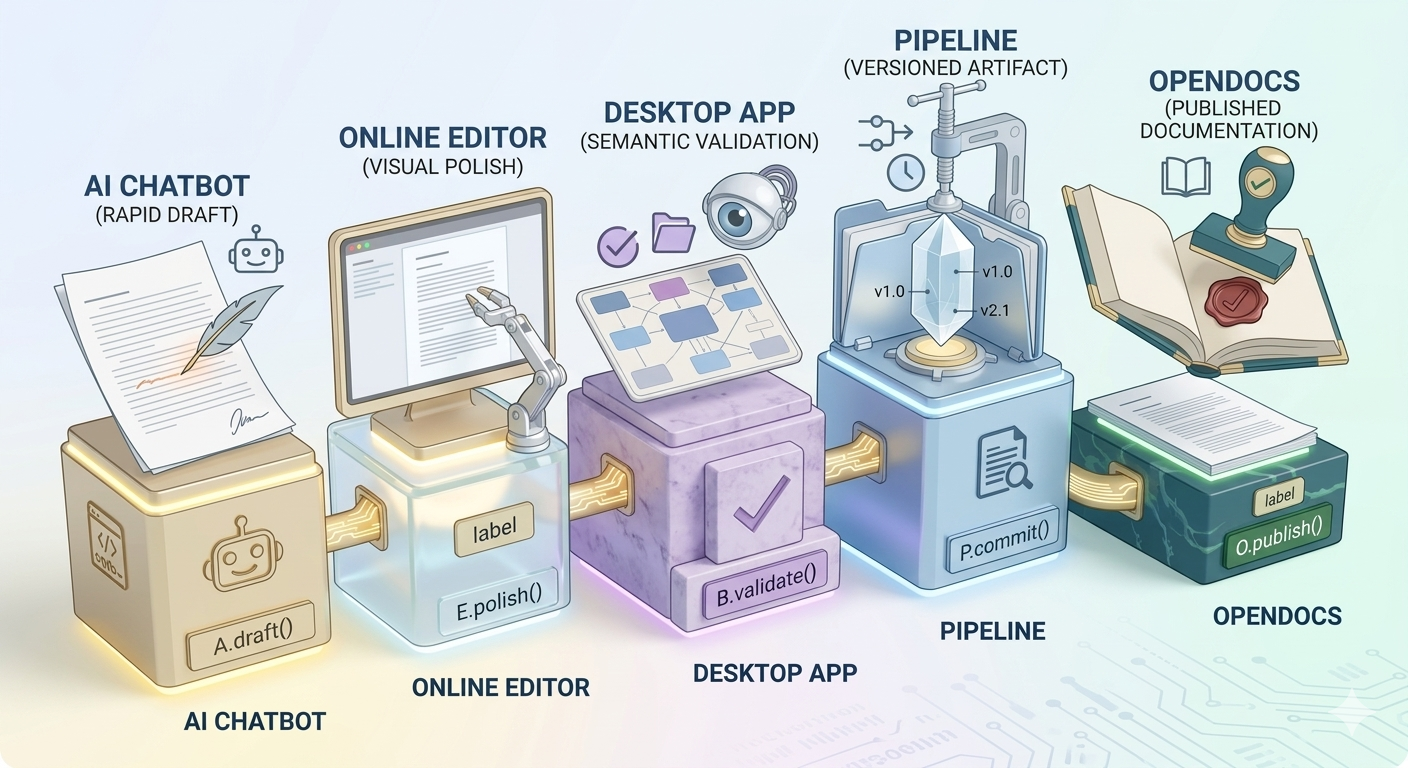
AI Chatbot (rapid draft)
   → Online Editor (visual polish)
   → Desktop App (semantic validation)
   → Pipeline (versioned artifact)
   → OpenDocs (published documentation)
Use when evolving concepts require both speed and rigor
Pattern 2: Parallel Team Collaboration
-
Architecture Team: Works in Desktop App with automated Pipeline sync
-
UX/Design Team: Uses Online Editor for presentation-layer updates
-
Technical Writers: Assemble final docs in OpenDocs, pulling from both sources
-
Pipeline: Serves as the neutral coordination layer with role-based permissions
Pattern 3: Living Documentation for Agile Teams
-
Sprint planning: Generate initial diagrams via Chatbot
-
Development: Refine models in Desktop with automated validation
-
Review: Embed Pipeline artifacts in OpenDocs sprint reports
-
Retrospective: Use revision history to track architectural decisions
Best Practices for Cross-Team Collaboration
✅ Do This
| Practice | Rationale |
|---|---|
| Isolate drafting from engineering | Use Chatbot/Online for ideation; reserve Desktop Pipeline for validated architectures |
| Enforce descriptive commit messages | Include intent, scope, and stakeholder in every manual push (e.g., “Auth flow v2.1 – Added MFA branch for security review”) |
| Leverage automated Desktop sync | Make major architectural changes in Desktop; let cloud commits update embedded docs automatically |
| Use Pipeline comments as documentation | Treat export comments as lightweight change logs visible to all OpenDocs collaborators |
| Configure folder permissions early | Structure Pipeline repositories by project/team to prevent accidental overwrites |
❌ Avoid This
| Anti-Pattern | Risk |
|---|---|
| Manual screenshot exports | Loses editability, version tracking, and semantic relationships |
| Skipping Desktop validation for production models | Risks introducing undetected modeling errors into documentation |
| Overusing static snapshots for evolving systems | Creates documentation drift as diagrams fall out of sync |
| Generic export comments (“update”, “fix”) | Makes revision selection ambiguous during document updates |
Troubleshooting & Common Questions
Q: My diagram isn’t appearing in the OpenDocs Pipeline picker
A: Verify: (1) You’re signed into the same cloud repository across tools, (2) The export completed successfully (check Pipeline activity log), (3) Your OpenDocs role has read permissions for the artifact’s folder
Q: Can I edit a Pipeline-embedded diagram directly in OpenDocs?
A: Yes—for diagrams sourced from Online Editor or Chatbot. Click the diagram’s Edit icon to open the source canvas. Desktop-sourced diagrams require editing in Desktop, then re-committing to trigger Pipeline sync
Q: How do I roll back to a previous diagram version in my document?
A: Click the Revision Indicator (🔄) next to the embedded diagram → Browse the revision timeline → Select the desired historical version → Confirm swap. Previous content is preserved in document history
Q: Does the Pipeline support non-diagram artifacts?
A: Yes—Flipbooks (interactive catalogs) and Bookshelves (organized resource libraries) can also be streamed to Pipeline and embedded in OpenDocs
Q: What happens if I delete a Pipeline artifact?
A: Deletion removes the artifact from the repository. Embedded instances in OpenDocs will show a “Source Unavailable” placeholder. Always coordinate deletions with documentation owners
Licensing & Access Requirements
| Feature | Required Edition |
|---|---|
| AI Chatbot → Pipeline export | Online Combo or Professional |
| Online Editor → Pipeline | Online Standard or above |
| Desktop App → Pipeline (manual) | Professional or Enterprise |
| Desktop App → Pipeline (auto-sync) | Professional or Enterprise |
| C4 Web App Wizards → Pipeline | Professional or Enterprise |
| OpenDocs Pipeline insertion | Any OpenDocs subscription |
| Advanced permissions & audit logs | Enterprise |
🔐 Security Note: All Pipeline artifacts are encrypted in transit and at rest. Enterprise customers can configure SSO, IP restrictions, and granular RBAC policies.
Next Steps & Resources
Get Started Today
-
Verify licensing: Confirm your edition supports desired Pipeline integrations
-
Configure access: Set up team folders and permissions in Pipeline admin console
-
Run a pilot: Select one diagram type (e.g., sequence diagrams) to migrate through the full Pipeline workflow
-
Train your team: Share this guide and schedule a hands-on workshop
Deep-Dive Resources
Need Personalized Guidance?
Let us know:
-
Which diagram types you plan to migrate first (UML, BPMN, C4, ERD, etc.)
-
Your team’s current licensing edition to confirm feature alignment
-
Whether you need help configuring cross-project access controls or audit policies
Final Thought: The Pipeline isn’t just a file-transfer tool—it’s the foundation for living documentation where visual models and textual knowledge co-evolve. By investing in Pipeline workflows today, teams future-proof their documentation against the inevitable churn of agile development.
