


1. Unified Visual Workspace
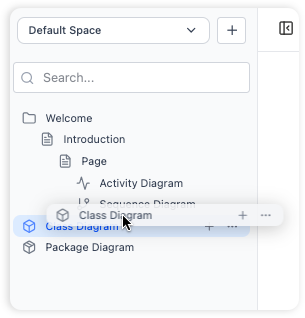
OpenDocs eliminates the need to switch between multiple applications by embedding a powerful drawing tool directly into your documentation environment. Instead of juggling separate tabs or external software, you can create, edit, and view diagrams in the exact same workspace where you write your text. This integrated design keeps your workflow focused and ensures all visual and textual assets remain organized in one central hub.
2. AI-Powered Instant Generation
For rapid visualization with minimal manual effort, OpenDocs features an AI-driven diagram generator. Rather than spending time dragging and dropping shapes with your mouse, you can simply describe your process, workflow, or concept in plain English. The AI instantly interprets your prompt and automatically draws the complete diagram for you. This feature is designed to be the fastest route from idea to visual representation, removing traditional formatting labor and getting your concepts onto the page immediately.

3. Manual Editing & Professional Shape Libraries
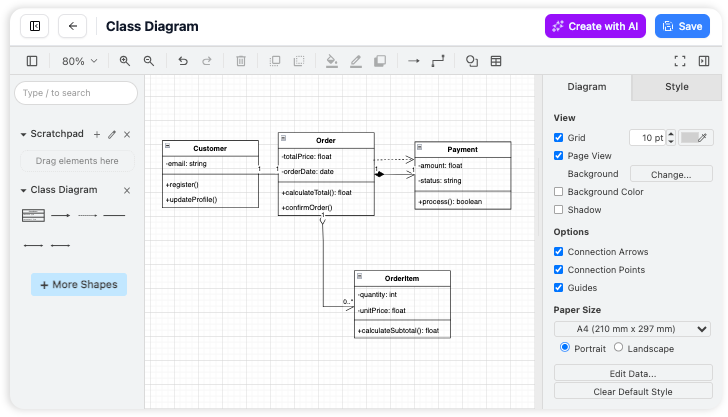
When precise control or customization is required, OpenDocs provides a fully integrated visual diagram editor. The platform includes a vast library of professional shapes, stencils, and smart connectors. Users can easily place elements, define decision points, map action sequences, and link components to create polished, publication-ready diagrams. The intuitive interface makes it straightforward to build professional-looking visuals without a steep learning curve.
4. Supported Diagram Types
The integrated editor is highly versatile and supports a wide range of visual documentation formats, including:
- Flowcharts & Process Maps
- UML Diagrams
- Activity Diagrams (featuring actions, decisions, and flow connectors)
- Network Diagrams
- Mind Maps
- Custom Visual Models for illustrating complex relationships and systems
5. Step-by-Step Workflow
Creating a diagram in OpenDocs follows a streamlined process:
- Initiate: Click the
"New Diagram"button in the sidebar to open the visual editor. - Select Creation Method: Choose to either type a plain-English prompt for AI-powered generation or start with a blank canvas for manual design.
- Design & Refine: Use the shape library and connectors to build your diagram, or review and adjust the AI-generated output to match your exact requirements.
- Save & Integrate: The diagram is automatically embedded within your page, allowing it to sit seamlessly alongside your Markdown text.
6. Combining Visuals with Documentation
Diagrams in OpenDocs are designed to complement, not replace, your written content. By placing visual models directly on the same page as your notes, you can effectively illustrate complex processes, clarify system architectures, and enhance overall comprehension. This tight integration ensures your knowledge base remains both visually rich and logically structured, transforming standard documentation into an interactive, easy-to-navigate resource.
