


A software documentation platform must accommodate diverse professional styles. While software engineers frequently demand the efficiency of keyboard-driven layouts, product managers and tech writers often prioritize highly contextual visual tools. Visual Paradigm OpenDocs bridges these styles by using an interface that shifts instantly between raw efficiency and visual design.
🖥️ The Main Dashboard Hub
When you authenticate into your enterprise domain, OpenDocs launches you into the main account dashboard. The workspace is divided into three distinct regions to minimize visual clutter:
The Navigation Sidebar: Houses the active Knowledge Tree folder infrastructure. This bar collapses out of view to maximize your screen real estate.
- The Main Workspace: A dynamic editor canvas that changes depending on your active tool or visualization mode.
- The Global Utility Header: Houses deep search tools, active profile preferences, global notifications, and the tenant workspace switcher.
🔄 The Dual Editor Mode: Markdown vs. WYSIWYG
The core feature of the OpenDocs editor is the Dual Mode Toggle. Authors can switch between code-driven writing and visual layout creation instantly, without breaking data structure or corrupting page formatting.
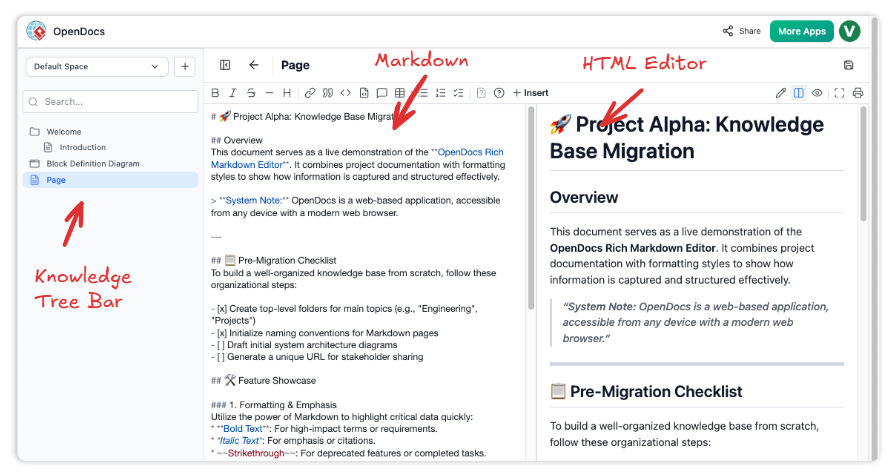
Markdown Mode
Engineered specifically for speed. Writers use plain-text shortcuts to format titles, code snippets, lists, and reference tables instantly. This layout keeps your hands on the keyboard and matches the fast-paced flow of standard code repositories.
WYSIWYG Mode
Designed for intuitive layout creation. This interface converts raw Markdown formatting into rich, stylized text instantly. Tables can be resized with simple drag-and-drop actions, font styles adapt instantly through an on-screen context bar, and complex visual elements can be configured without touching raw code.
🛠️ The Global Search Console (Ctrl + K / Cmd + K)
As an enterprise ecosystem grows, finding specific technical assets quickly becomes a critical bottleneck. OpenDocs features an indexed search engine accessible anywhere by pressing
Ctrl + K (Windows) or Cmd + K (Mac).- Deep Text Indexing: Searches through raw page titles, standard body copy, embedded code blocks, and revision logs.
- Visual Metadata Scan: Identifies text strings tucked inside your flowcharts, UML models, and embedded Visual Paradigm desktop diagrams.
- Command Line Action: Type
/inside the search console to skip clicking menus entirely and jump straight to actions like creating pages, changing settings, or opening specific spaces.
⚙️ Tailoring Your App Environment
To optimize daily productivity, you can configure your interface preferences via the Profile Settings menu:
Theme Customization
Users can toggle between a crisp, high-contrast Light Theme for daytime writing and an integrated Dark Theme to match low-light IDE programming environments.
Custom Component Docking
The peripheral sidebar panels—including active comment threads, dynamic page tables of contents, and visual asset libraries—can be pinned to the right edge of the screen or completely hidden for distraction-free content authoring.
With the core interface mastered, you are ready to start building your data repository. Let me know where we should head next in your OpenDocs guidebook:
- Generate Chapter 3: Building Your Knowledge Tree to explain deep page hierarchy structures.
- Generate Chapter 5: Unleashing the AI Prompt Assistant to map out the mechanical execution of text automation tools.
- Create a Keyboard Shortcuts Cheat Sheet to bundle into the appendices.
