


Master the Structure: A Deep Dive into the OpenDocs Knowledge Tree
In any documentation system, content is only as good as its discoverability. Visual Paradigm’s OpenDocs addresses this with its Knowledge Tree Bar—the organizational backbone of your workspace.
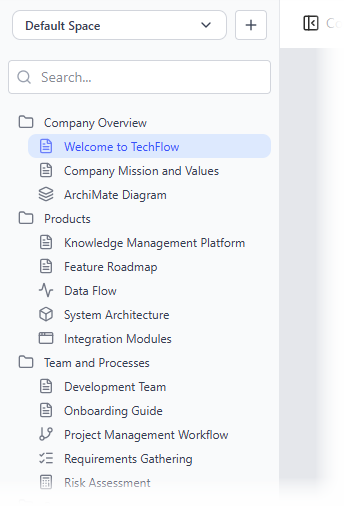
By analyzing the provided GUI screenshot, we can break down exactly how OpenDocs uses workspaces, nested directories, and distinct visual icons to turn complex corporate knowledge into an elegant, scannable library.
1. Top-Level Environment Controls
At the very peak of the sidebar, the interface provides global management controls to help users context-switch effortlessly between different projects or organizations:
-
Space Selector (Dropdown Menu): The current view is set to “Default Space”. This dropdown acts as a separate silo or partition for documentation. For example, an organization can separate a “Public Wiki” space from an “Internal Engineering” space.
-
The “+” Quick Add Button: Positioned directly next to the Space Selector, this action button allows administrators or creators to immediately spin up a completely new space without leaving the active window.
-
Universal Search Bar: Marked by a magnifying glass icon and the placeholder “Search…”, this input field provides a dynamic lookup. As teams grow, typing keywords here filters through titles, folders, and embedded documents instantly.
2. Directory Hierarchy and Structural Folders
OpenDocs relies on a familiar, intuitive folder system to bundle related information together. In the screenshot, the documentation is divided into three logical high-level categories represented by traditional Folder Icons:
-
Company Overview: Focuses on foundational organizational alignment. -
Products: Dedicated to technical specifications, roadmaps, and architectures of the system being built. -
Team and Processes: Houses execution methodologies, workforce onboarding, and risk strategies.
These folders can be expanded or collapsed to keep the sidebar clean and focused on the task at hand.
3. The Power of Visual Iconography (Document Types)
One of the most powerful aspects of the OpenDocs Knowledge Tree is its use of differentiated icons for nested items. Instead of treating every page as a generic text block, the system visually highlights the nature of the content. This allows users to understand what type of document they are opening before they even click it.
Based on the interface, we can classify these distinct asset types:
📄 Standard Text & Article Documents
Represented by a standard document page icon with lines of text. These are traditional Markdown pages meant for reading, onboarding, or general knowledge sharing.
-
Examples seen:
Welcome to TechFlow,Company Mission and Values,Knowledge Management Platform,Feature Roadmap,Development Team, andOnboarding Guide. -
UI Hint: The currently active page,
Welcome to TechFlow, is highlighted with a soft blue background bar, signaling to the user exactly where they are positioned in the tree.
🥞 Specialized Modeling & Architecture Diagrams
Visual Paradigm is renowned for its modeling tools, and OpenDocs inherits this by natively integrating various diagram types directly into the tree:
-
ArchiMate Diagram (Stacked Layers Icon): Located under Company Overview, the layered icon representing
ArchiMate Diagramindicates enterprise architecture modeling, mapping out business processes and IT infrastructure. -
Data Flow (Pulse/Waveform Icon): The zigzagging line icon next to
Data Flowdenotes a data flow diagram (DFD) or a metric stream detailing how data moves through the application. -
System Architecture (3D Cube Icon): The isometric box icon next to
System Architecturepoints to physical deployment diagrams, infrastructure topology, or high-level system blocks. -
Integration Modules (Window/UI Icon): The browser window icon next to
Integration Modulessuggests user interface mockups, API boundaries, or web-based components.
⚙️ Process & Management Artifacts
Located primarily under the Team and Processes folder, these unique icons represent tracking tools and structured methodologies:
-
Project Management Workflow (Branching Timeline Icon): The node-and-line icon next to
Project Management Workflowsuggests version branching, Git workflows, or a sequenced project path. -
Requirements Gathering (Checklist/Bullet List Icon): The checkmarks icon next to
Requirements Gatheringvisually establishes this document as a feature list, scope checklist, or user story backlog. -
Risk Assessment (Calculator/Grid Icon): The small grid icon next to
Risk Assessmentsignifies matrix analysis, financial calculations, or probability grading tables used to measure project risk.
Summary: Why This Layout Works
The OpenDocs Knowledge Tree avoids the trap of the “flat file mess” by combining strong categorical grouping with expressive iconography. A team member looking for a technical schematic can completely bypass text documents and jump straight to the 3D Cube or Stacked Layers icons, while a new hire knows exactly which Page icons to click to read their welcome guides. It is a highly optimized interface built specifically for multi-disciplinary teams.
