




Split A Cell In A Classic Collage
When doing creation with photo collages, sometimes we may find that the number of cells is not enough. However, it takes time to find a new one that fit your needs. In this case, we can split the cell horizontally or vertically in order to customize the collage by ourselves.
How To Split A Cell In Classic Collage
First of all, you need to click the collage you want to edit. Then click the cell one more time to select it.
It is because collage is also a kind of group , read Group And Ungroup Multiple Shapes for more information about grouping.

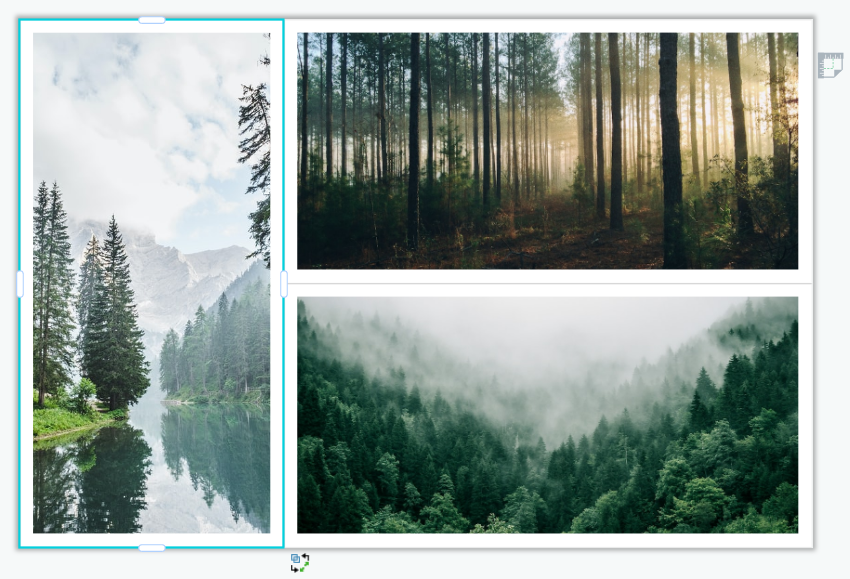
After selecting the cell, right-click and click “Split Horizontally” or “Split Vertically” according to your needs.
There are 2 choices for each of them: In Half / Here
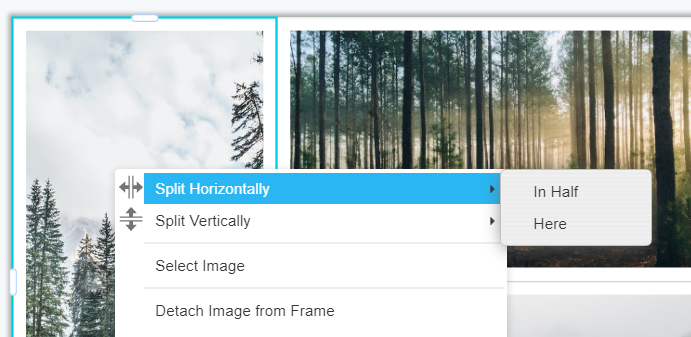
- In Half: the cell will be divided equally into two parts.
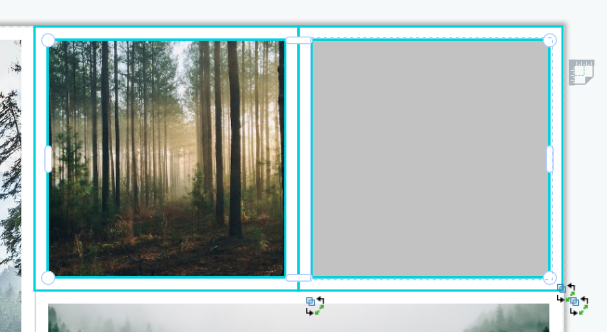
- Here: the cell will be divided at the point you press right-click
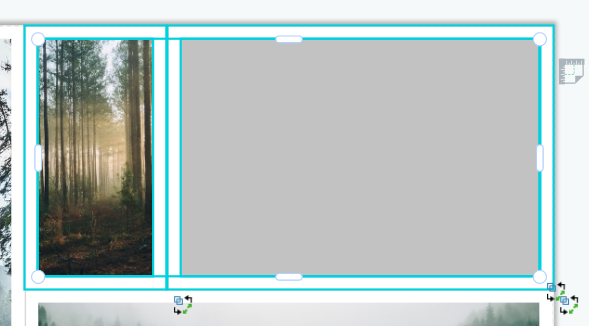
Customize the cells and collages as you like and finish the design with awesome photos!
This post is also available in Deutsche, Español, فارسی, Français, English, Bahasa Indonesia, 日本語, Polski, Portuguese, Ру́сский, Việt Nam, 简体中文 and 繁體中文.
