




Visual Paradigm Unified Platform: Comprehensive Guide
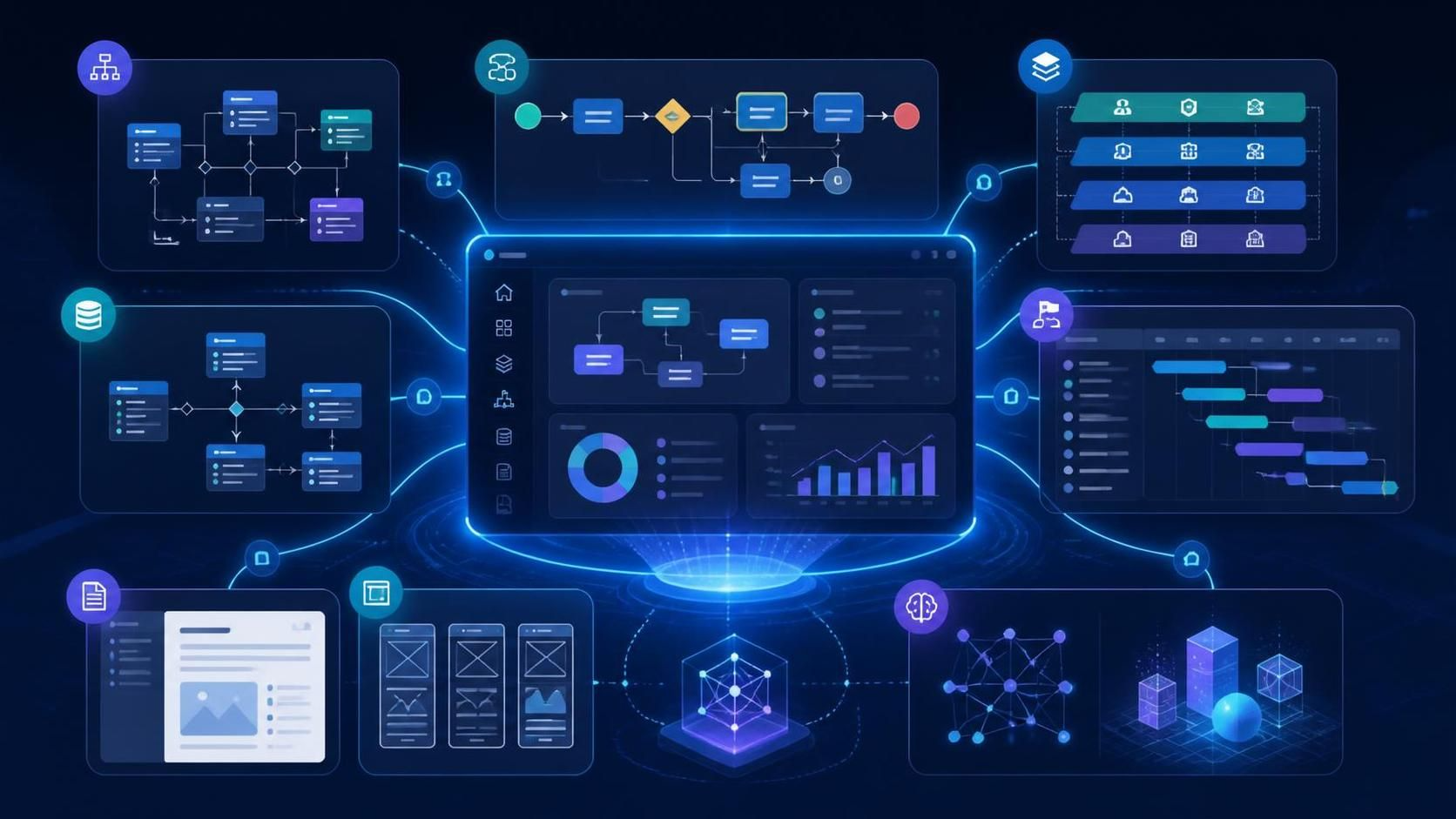
The Visual Paradigm Unified Platform is the central workspace for the Visual Paradigm ecosystem. It connects Visual Paradigm Desktop, VP Online, cloud-based design and planning applications, shared project artifacts, documentation tools, and AI-assisted utilities through one interface.
Its primary role is not to replace Visual Paradigm Desktop or VP Online. Instead, it acts as an integration and orchestration layer: a common home where users can discover tools, create artifacts, organize projects, access desktop models, and move from analysis to design, implementation, documentation, and collaboration.
1. What problem does it solve?
Visual Paradigm has historically consisted of several product areas:
-
A powerful desktop modeling environment
-
Browser-based diagramming and collaboration tools
-
Agile and project-management applications
-
Enterprise architecture and business-process tools
-
Database and code-engineering features
-
Documentation and publishing tools
-
Specialized web applications
-
AI-assisted design and modeling tools
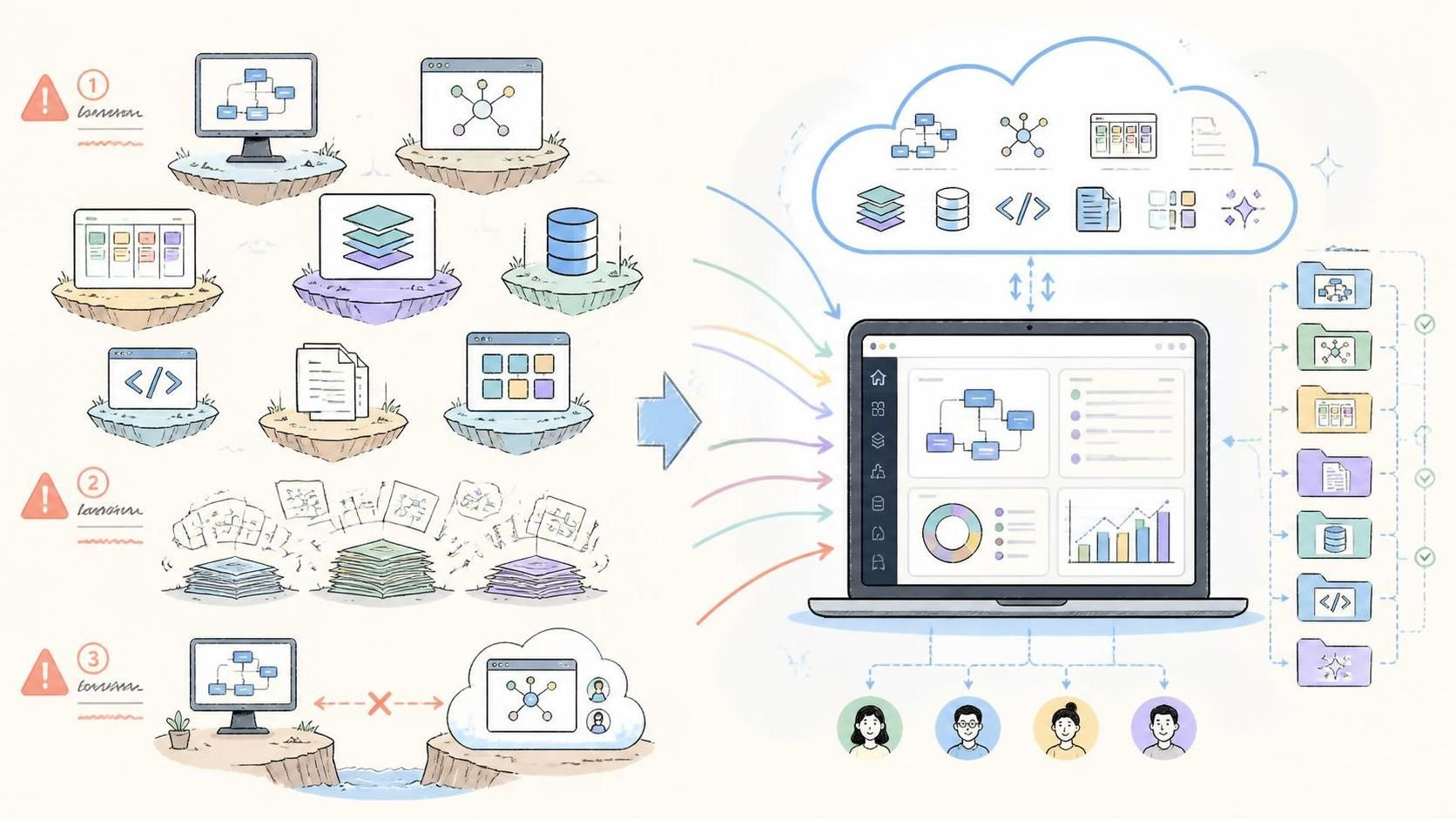
These capabilities are useful individually, but they can create three practical problems:
-
Tool fragmentation — Users may need to move between multiple applications or websites.
-
Scattered artifacts — Diagrams, documents, project plans, and presentations may be stored in different locations.
-
Desktop–cloud separation — Desktop models provide depth and offline capability, while online tools provide browser access and collaboration.
The Unified Platform addresses these problems by providing one centralized workspace with a drive-like artifact view, a common application launcher, and access to both desktop-connected and web-based resources.
2. Its role in the Visual Paradigm ecosystem
A useful way to understand the platform is to treat it as the front door and coordination layer for Visual Paradigm products.
It provides:
-
A central dashboard
-
A unified view of project artifacts
-
A launcher for Visual Paradigm applications
-
A common “Create” workflow
-
Access to online applications
-
A bridge between VP Desktop and cloud resources
-
A path from models to documentation
-
A place to access AI-powered tools
-
A more consistent experience for individual users and teams
The platform does not make every tool identical. UML modeling, BPMN analysis, Gantt planning, wireframing, and presentations still have different purposes. The platform makes those tools easier to find and use together.
In simple terms:
Visual Paradigm Desktop is the deep professional modeling environment. VP Online provides browser-based tools and collaboration. The Unified Platform connects them into one working environment.
3. Main components
3.1 Unified Platform dashboard
The dashboard is the central entry point. It typically provides access to:
-
Recent and shared work
-
Desktop projects and online artifacts
-
Project folders or drive-like storage
-
Application categories
-
Creation commands
-
Documentation and publishing resources
-
AI tools
-
Team or repository-related functions
Rather than beginning by deciding which separate application to open, users can begin with the artifact or outcome they want to produce—for example, a class diagram, a requirements document, a roadmap, or a presentation.
3.2 Unified Drive or artifact hub
The Unified Platform presents project resources in a centralized, drive-like space. These resources may include:
-
Visual Paradigm Desktop diagrams
-
Online diagrams
-
Documents
-
Presentations
-
Project plans
-
Wireframes
-
Business-analysis artifacts
-
Strategy canvases
-
Agile-planning materials
-
Other visual assets
This is particularly valuable for projects where technical and nontechnical deliverables must remain connected. A software architecture diagram, requirements document, product roadmap, and user-story map can be treated as parts of the same body of work rather than unrelated files.
3.3 Application launcher
The platform serves as a centralized launcher for Visual Paradigm’s large collection of specialized web applications. The available tools span areas such as:
-
Visual modeling
-
Enterprise architecture
-
Business analysis
-
Agile management
-
Project management
-
Software development
-
Database design
-
User-experience design
-
Presentations and visual communication
-
Documentation
-
AI-assisted creation
The official platform describes access to more than 100 applications, although the exact set may change over time and access to particular applications can depend on the user’s plan or license.
3.4 Centralized Create menu
The Create function is intended to reduce the time spent searching through menus or remembering which application handles a particular task.
Depending on the available tools and account permissions, users can start artifacts such as:
-
UML diagrams
-
BPMN diagrams
-
Flowcharts
-
Mind maps
-
User story maps
-
Wireframes
-
ER diagrams
-
Gantt charts
-
Roadmaps
-
Presentations
-
Strategy canvases
-
Documentation pages
-
Other visual or analytical assets
The important design principle is outcome-oriented creation: start with what you need to make, then use the appropriate application behind the scenes.
4. Relationship with Visual Paradigm Desktop
What Visual Paradigm Desktop does
Visual Paradigm Desktop remains the primary environment for deep, professional modeling and engineering work. It is especially suited to:
-
UML
-
SysML
-
BPMN
-
ArchiMate
-
Database modeling
-
Requirements modeling
-
Software architecture
-
Code engineering
-
Reverse engineering
-
Model validation
-
Large, structured projects
-
Offline work
Desktop is generally the better choice when a project requires a comprehensive model repository, advanced diagram relationships, formal engineering workflows, or local/offline work.
What the Unified Platform adds
The Unified Platform extends the Desktop experience by providing:
-
Access to online applications
-
A shared view of artifacts
-
Browser-based resources
-
Online documentation
-
Agile and planning tools
-
AI-powered tools
-
Easier access to collaboration features
-
A bridge between local modeling and cloud-oriented work
The platform can be opened from inside Visual Paradigm Desktop through its Unified Platform or Team-related menu, allowing users to move between desktop modeling and online resources without treating them as completely separate environments.
A typical Desktop-to-platform workflow
-
Create a detailed UML, BPMN, ArchiMate, or SysML model in VP Desktop.
-
Save the project in the appropriate local or connected repository.
-
Open the Unified Platform from Desktop or through a browser.
-
Locate the model or related artifacts in the centralized workspace.
-
Use an online tool to create supporting documentation, a roadmap, a presentation, or a planning artifact.
-
Share the resulting material with stakeholders who may not use VP Desktop.
This creates a hybrid workflow: deep local modeling combined with accessible web-based communication and collaboration.
5. Relationship with VP Online
VP Online is the browser-based side of the Visual Paradigm ecosystem. It is designed for web access, online diagramming, collaboration, and lightweight or focused work.
The Unified Platform acts as the broader home around VP Online. Rather than treating each online application as an isolated destination, it provides a common dashboard from which users can access online tools, artifacts, and projects.
VP Online is especially useful for:
-
Browser-based access
-
Remote collaboration
-
Quick diagram creation
-
Workshops
-
Stakeholder participation
-
Lightweight documentation
-
Sharing visual material
-
Working from devices where Desktop is unavailable
The Unified Platform adds:
-
A common entry point
-
Centralized artifact organization
-
Access to a wider family of applications
-
Better visibility across different types of work
-
A connection to Desktop-created content
A user might create the formal architecture in VP Desktop, then use VP Online applications to prepare a stakeholder-friendly diagram, workshop board, or project presentation.
6. Relationship with OpenDocs and documentation
Models are often valuable only when other people can understand and maintain them. The Unified Platform connects modeling work with documentation-oriented tools such as OpenDocs.
A common workflow is:
-
Build a model in Visual Paradigm Desktop.
-
Use a pipeline or related publishing function to bring diagrams into documentation.
-
Add explanations, requirements, decisions, assumptions, and links.
-
Publish the result as a web-based document or knowledge resource.
-
Keep the documentation connected to the evolving model.
This is useful for producing:
-
Software requirements specifications
-
Architecture descriptions
-
System design documents
-
Process manuals
-
Project handbooks
-
Technical knowledge bases
-
Stakeholder-facing reports
-
Training material
The benefit is more than simply inserting an image into a document. A model can become part of a structured, living explanation of how a system or business process works.
7. Relationship with the specialized applications
The Unified Platform is not a single-purpose modeling tool. It provides access to a broad collection of specialized applications. These applications can be grouped into several functional areas.
| Area | Typical capabilities | Example uses |
|---|---|---|
| Visual modeling | UML, BPMN, SysML, flowcharts, mind maps | Analyze and communicate systems |
| Enterprise architecture | ArchiMate, TOGAF, capability and application mapping | Plan enterprise change |
| Business analysis | Requirements, decision tables, process analysis | Discover and formalize business needs |
| Agile management | User stories, story maps, backlog planning, retrospectives | Plan and manage iterative delivery |
| Project management | Gantt charts, roadmaps, WBS, PERT, RACI | Schedule and coordinate work |
| Software development | Code engineering, API modeling, use-case analysis, database design | Move from design to implementation |
| UX and product design | Wireframes, storyboards, site and app concepts | Define user experiences |
| Documentation | OpenDocs, reports, publishing, knowledge pages | Explain and distribute project knowledge |
| Presentations and visuals | Slides, infographics, flipbooks, visual summaries | Communicate results |
| AI-assisted tools | Text-to-diagram, generation, analysis, refinement | Accelerate early drafts and repetitive work |
The exact names and availability of applications may evolve. The important point is that the Unified Platform provides a common discovery and access mechanism for them.
8. Relationship with AI features
AI is increasingly integrated into the Visual Paradigm ecosystem through tools that can help users transform text, requirements, or rough ideas into visual and structured outputs.
Examples include:
-
Text-to-diagram generation
-
AI-assisted UML creation
-
AI presentations
-
AI app and site concepts
-
AI-assisted process analysis
-
Use-case analysis
-
Diagram refinement
-
Natural-language interaction with modeling tasks
For example, a user might describe:
“Create an order-processing workflow that validates payment, checks inventory, and sends a confirmation.”
An AI-assisted application may generate an initial process or sequence representation. The modeler can then inspect, correct, and refine it.
AI tools are best used for:
-
Brainstorming
-
First drafts
-
Rapid prototyping
-
Converting informal descriptions into structured artifacts
-
Generating alternative views
-
Preparing presentation material
-
Helping nontechnical stakeholders participate
They should not automatically be treated as authoritative designs. Generated models still require review for correctness, completeness, naming, architecture, and compliance with project standards.
9. Common usage cases
9.1 Software architecture and system design
A development team can use the platform to manage a complete design workflow:
-
Capture requirements and use cases.
-
Create activity, sequence, component, and deployment diagrams.
-
Model the database and APIs.
-
Generate or reverse-engineer code where appropriate.
-
Document architectural decisions.
-
Produce stakeholder presentations.
-
Link technical models to planning and delivery work.
The Unified Platform is useful here because architecture work rarely ends with a single diagram. It produces a collection of related technical and explanatory artifacts.
9.2 Enterprise architecture
An enterprise architect can use:
-
ArchiMate models
-
Capability maps
-
Application and technology landscapes
-
Business-process diagrams
-
Roadmaps
-
Gap analysis
-
Portfolio views
-
TOGAF-related planning materials
The platform helps connect formal architecture models with communication artifacts such as executive presentations, strategy documents, and transformation plans.
9.3 Business-process analysis
A business analyst may use the platform to:
-
Capture the current process.
-
Model it in BPMN or another suitable notation.
-
Identify bottlenecks and handoffs.
-
Define a future-state process.
-
Document requirements.
-
Create improvement plans.
-
Communicate changes to business and technical stakeholders.
Specialized analysis applications can support workshops, process discovery, decision analysis, and structured improvement activities.
9.4 Agile product development
A product owner or agile team can combine:
-
User story mapping
-
Backlog refinement
-
Affinity mapping
-
Prioritization frameworks
-
Development plans
-
Roadmaps
-
Sprint or retrospective tools
-
Requirements documentation
A possible workflow is:
-
Capture user needs.
-
Organize them into epics and stories.
-
Map stories to releases.
-
Prioritize the backlog.
-
Create supporting process or system diagrams.
-
Document decisions.
-
Present the roadmap to stakeholders.
This is especially useful when agile planning needs to remain connected to requirements and solution design.
9.5 Requirements engineering
The platform can support requirements work from early discovery through specification:
-
Problem descriptions
-
Stakeholder analysis
-
Use cases
-
Use-case descriptions
-
User stories
-
Activity diagrams
-
Scenario analysis
-
Requirements documents
-
Traceability-oriented documentation
A team can begin with informal statements, refine them into structured requirements, model system behavior, and publish a readable specification.
9.6 Database and API design
A technical team can use the ecosystem for:
-
Entity–relationship diagrams
-
Database schema design
-
Data modeling
-
API design
-
REST-related modeling
-
Code engineering
-
Mapping models to implementation structures
The Unified Platform is useful when these technical models need to be accompanied by requirements, architecture diagrams, documentation, and project schedules.
9.7 UX and product design
Product teams can combine:
-
Wireframes
-
Storyboards
-
User journeys
-
Site concepts
-
App concepts
-
User stories
-
Presentations
-
Requirements documentation
For example, a product concept can progress from a user story map to low-fidelity wireframes, then to a system design and implementation plan.
9.8 Consulting and client delivery
Consultants often need to produce different kinds of deliverables for different audiences. The platform can help organize:
-
Workshop outputs
-
Current-state models
-
Future-state designs
-
Recommendations
-
Roadmaps
-
Architecture documents
-
Executive presentations
-
Process manuals
This reduces the need to maintain separate, disconnected repositories for diagrams, reports, and presentations.
9.9 Education and training
Instructors and students can use the platform to:
-
Teach UML and BPMN
-
Create system-analysis exercises
-
Model business processes
-
Build project plans
-
Produce architecture documents
-
Create presentations
-
Explore AI-assisted modeling
The browser-based tools can be convenient for demonstrations and collaborative exercises, while Desktop provides more advanced capabilities for formal modeling assignments.
10. A practical end-to-end workflow
The following workflow illustrates how the platform can support a project from idea to delivery.
Step 1: Capture the problem
Start with a problem statement, stakeholder list, brainstorming board, or business canvas.
Possible outputs:
-
Problem description
-
Stakeholder map
-
Business model canvas
-
SWOT or PESTLE analysis
-
Initial process sketch
Step 2: Define requirements
Convert the initial idea into structured requirements:
-
User stories
-
Use cases
-
Business rules
-
Acceptance criteria
-
Decision tables
-
Nonfunctional requirements
Step 3: Model the solution
Use the appropriate modeling notation:
-
Activity diagram for workflow
-
Sequence diagram for interactions
-
Class diagram for structure
-
Component diagram for architecture
-
Deployment diagram for infrastructure
-
BPMN for business processes
-
ERD for data
-
ArchiMate for enterprise architecture
Step 4: Plan delivery
Create:
-
Product roadmap
-
Work breakdown structure
-
Gantt chart
-
Development plan
-
RACI matrix
-
Backlog
-
Release or iteration plan
Step 5: Document the result
Bring diagrams and decisions into a structured documentation space:
-
Explain the purpose of each model.
-
Add assumptions and constraints.
-
Link requirements to design elements.
-
Record architecture decisions.
-
Add implementation and operational guidance.
Step 6: Communicate
Prepare audience-specific materials:
-
Technical design documentation
-
Business-process guide
-
Executive presentation
-
Training material
-
Project status report
-
Stakeholder summary
Step 7: Maintain the project
As requirements or designs change:
-
Update the source models.
-
Revise linked documentation.
-
Refresh plans and roadmaps.
-
Regenerate or update presentation material.
-
Review generated AI content.
-
Keep the artifact repository organized.
11. How to access and use it
From a web browser
A typical browser-based workflow is:
-
Sign in to the Visual Paradigm online environment.
-
Open the Unified Platform dashboard.
-
Browse recent work or project artifacts.
-
Use the application launcher to select a tool.
-
Use Create to start a new artifact.
-
Organize the result in the appropriate project or workspace.
From Visual Paradigm Desktop
The general workflow is:
-
Sign in or connect Desktop to the relevant online repository.
-
Open the Team or Unified Platform menu.
-
Launch the Unified Platform inside the Desktop environment.
-
Browse online tools and synchronized resources.
-
Return to Desktop for advanced modeling or engineering tasks.
The exact menu labels can vary by version and configuration, but current product guidance describes access from Desktop through the Team/Unified Platform area.
12. Licensing and access considerations
Access to the Unified Platform itself may be available broadly, but individual applications and advanced functions can have separate licensing requirements.
In particular:
-
Some online applications may require Professional Edition or higher.
-
Active maintenance or a subscription may be required for certain features.
-
Team repositories and collaboration features may depend on account configuration.
-
AI tools may have their own usage limits or plan requirements.
-
Availability can vary by product edition and current licensing policy.
Therefore, the platform should be viewed as the common workspace, while the capabilities available inside it may depend on the user’s Visual Paradigm edition, subscription, maintenance status, and organizational setup.
13. Best practices
Organize by project, not by application
Avoid creating isolated folders based only on tool names, such as “BPMN,” “UML,” and “Presentations.” A project-oriented structure is usually more useful:
-
Project overview
-
Requirements
-
Business processes
-
Architecture
-
Data and APIs
-
Agile planning
-
Documentation
-
Presentations
-
Delivery and operations
Establish a source of truth
Decide which artifact is authoritative. For example:
-
VP Desktop model: source for formal architecture
-
Backlog tool: source for delivery status
-
OpenDocs: source for published project knowledge
-
Roadmap: source for release-level planning
The Unified Platform makes resources easier to access, but it does not eliminate the need for ownership and governance.
Use the right level of modeling
Do not create every possible diagram. Select diagrams based on the decision they need to support:
-
Use BPMN to explain business processes.
-
Use sequence diagrams to explain interactions.
-
Use class diagrams to explain domain structure.
-
Use component diagrams to explain software architecture.
-
Use deployment diagrams to explain infrastructure.
-
Use ArchiMate to explain enterprise-level relationships.
Treat AI output as a draft
Review AI-generated diagrams and documents for:
-
Incorrect assumptions
-
Missing alternate paths
-
Ambiguous terminology
-
Invalid relationships
-
Incomplete requirements
-
Security or compliance problems
-
Inconsistent naming
Document decisions, not just diagrams
A diagram shows structure or behavior, but usually not why a choice was made. Add:
-
Context
-
Assumptions
-
Alternatives considered
-
Constraints
-
Risks
-
Decision rationale
-
Consequences
Keep technical and business views connected
A strong project repository should let a reader move from:
-
Business goal
-
To requirement
-
To process or use case
-
To architecture
-
To implementation task
-
To documentation or training material
That connection is one of the main benefits of using the Unified Platform as an ecosystem rather than as a simple diagram launcher.
14. What the Unified Platform is—and is not
It is:
-
A centralized workspace
-
An artifact and project hub
-
An application launcher
-
A bridge between Desktop and web tools
-
A way to discover specialized applications
-
A coordination point for modeling, documentation, planning, and communication
-
An entry point to AI-assisted visual work
It is not:
-
A replacement for Visual Paradigm Desktop
-
A single diagramming notation
-
A project-management methodology by itself
-
A substitute for architecture governance
-
A guarantee that all artifacts are automatically traceable
-
A replacement for reviewing AI-generated content
-
A universal integration layer for every external tool
15. Summary
The Visual Paradigm Unified Platform is best understood as the central operating environment for Visual Paradigm’s collection of modeling, planning, documentation, design, and AI tools.
Its value comes from connecting activities that are often separated:
-
Requirements and architecture
-
Business analysis and software design
-
Desktop modeling and browser-based collaboration
-
Diagrams and documentation
-
Agile planning and technical implementation
-
Early ideas and formal deliverables
-
Human modeling expertise and AI-assisted generation
For a small task, it can simply be a convenient way to find the right application. For a large project, it can serve as the organizing layer that connects models, documents, plans, presentations, and team workflows across the full project lifecycle.
This post is also available in Deutsche, فارسی and Français.
