




Generating UML Activity Diagrams with AI in Visual Paradigm
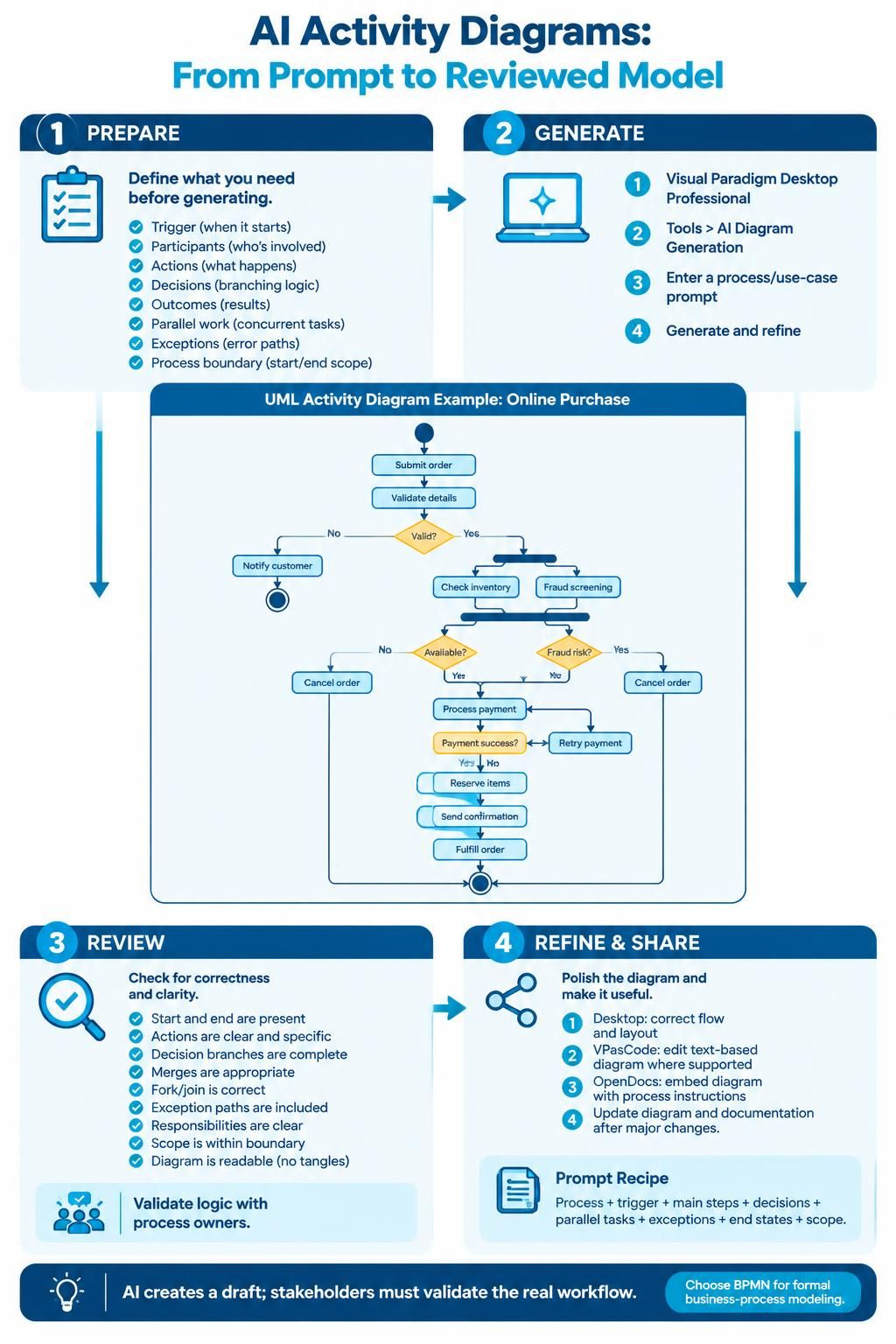
Visual Paradigm Desktop can turn a written process description, use-case scenario, or workflow requirement into a UML activity diagram. The AI can propose actions, decisions, flows, forks, and joins, then arrange them into a readable starting diagram. Treat the result as a draft to review and refine—not as a substitute for validating the process with its stakeholders. The feature announcement specifies Visual Paradigm Desktop Professional edition and directs users to Tools > AI Diagram Generation.
1. Prepare the workflow description
Before opening the generator, collect the process information the diagram should represent:
-
Trigger: What starts the workflow?
-
Participants or responsibilities: Who or what performs each action?
-
Actions: What happens, in order?
-
Decisions: What conditions change the path?
-
Outcomes: How does each path end?
-
Parallel work: Which tasks can happen at the same time?
-
Exceptions: What happens when a task fails, times out, or is rejected?
Be specific about the boundaries of the process. For example, say whether a diagram begins when a request is submitted or when it is first reviewed. Clear boundaries help prevent the AI from inventing steps outside the intended scope.
2. Open AI Diagram Generation
-
Open your project in Visual Paradigm Desktop Professional.
-
Make sure the application is updated to a version that includes the feature.
-
Open Tools > AI Diagram Generation.
-
Enter a natural-language description of the process or use-case scenario.
-
Generate the activity diagram, then inspect and refine it.
If the menu option is missing, check the product edition and application version first; the announcement lists Professional edition as required.
3. Write a prompt that produces a useful first draft
A strong prompt gives the AI enough process logic to model, without mixing unrelated workflows together. Use this template:
Create a UML activity diagram for [process name].
Start when: [trigger].
Participants or responsibilities: [roles or systems].
Main flow: [steps in order].
Decision points: [condition and outcomes for each branch].
Parallel work: [tasks that can happen concurrently, if any].
Exceptions: [failure, rejection, timeout, or recovery behavior].
End states: [how each path concludes].
Keep the diagram within the scope of [process boundary].
For example:
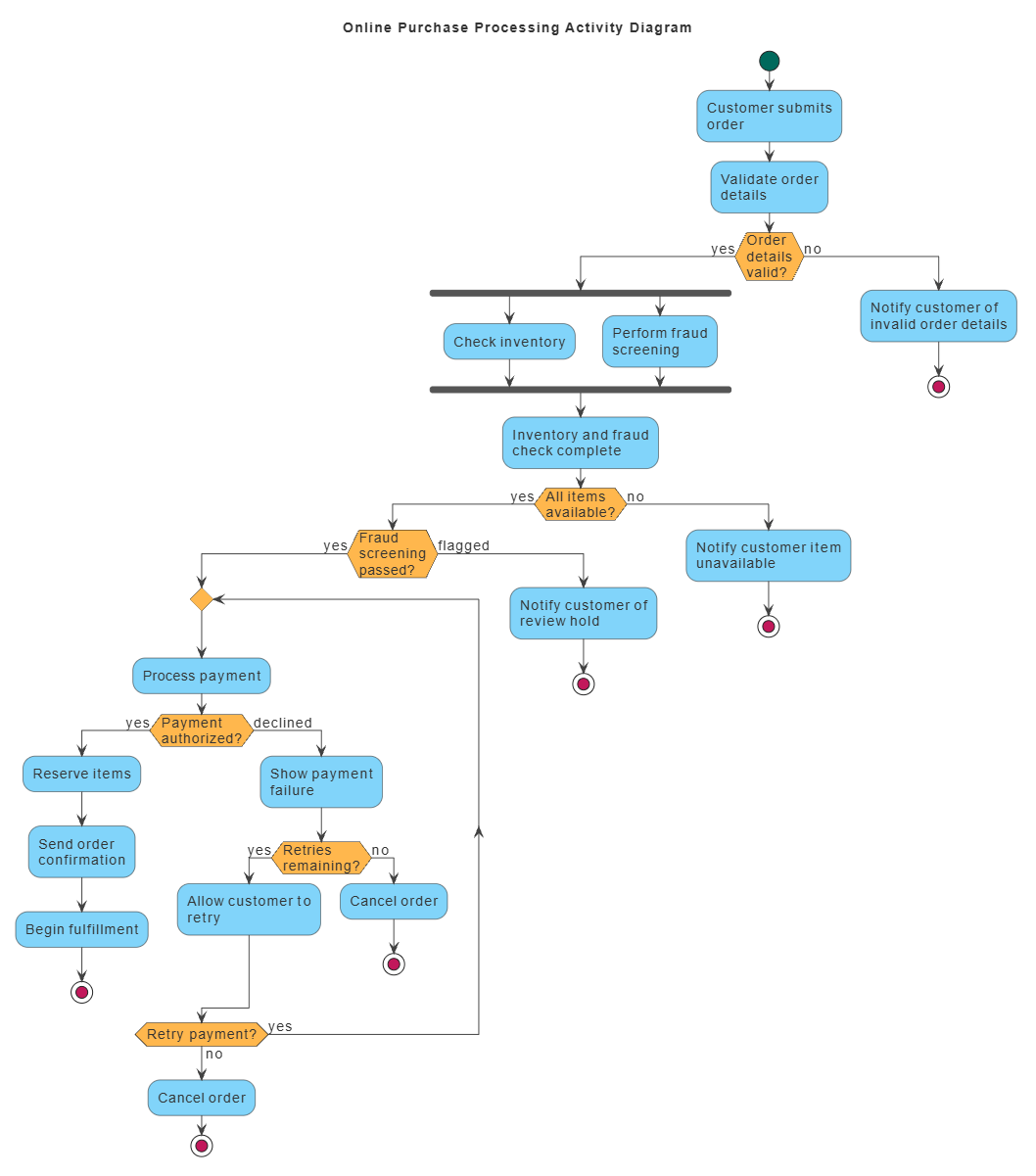
Create a UML activity diagram for processing an online purchase. Start when the customer submits an order. Validate the order details, then check inventory. If an item is unavailable, notify the customer and end that path. If everything is available, process payment. If payment is declined, show the failure and allow one retry; if the retry fails, cancel the order. If payment succeeds, reserve the items, send an order confirmation, and begin fulfillment. Show inventory checking and fraud screening as parallel tasks, and join them before payment. Include clear decision branches and end states.
1. Enter AI Prompt to the VP AI Chatbot:
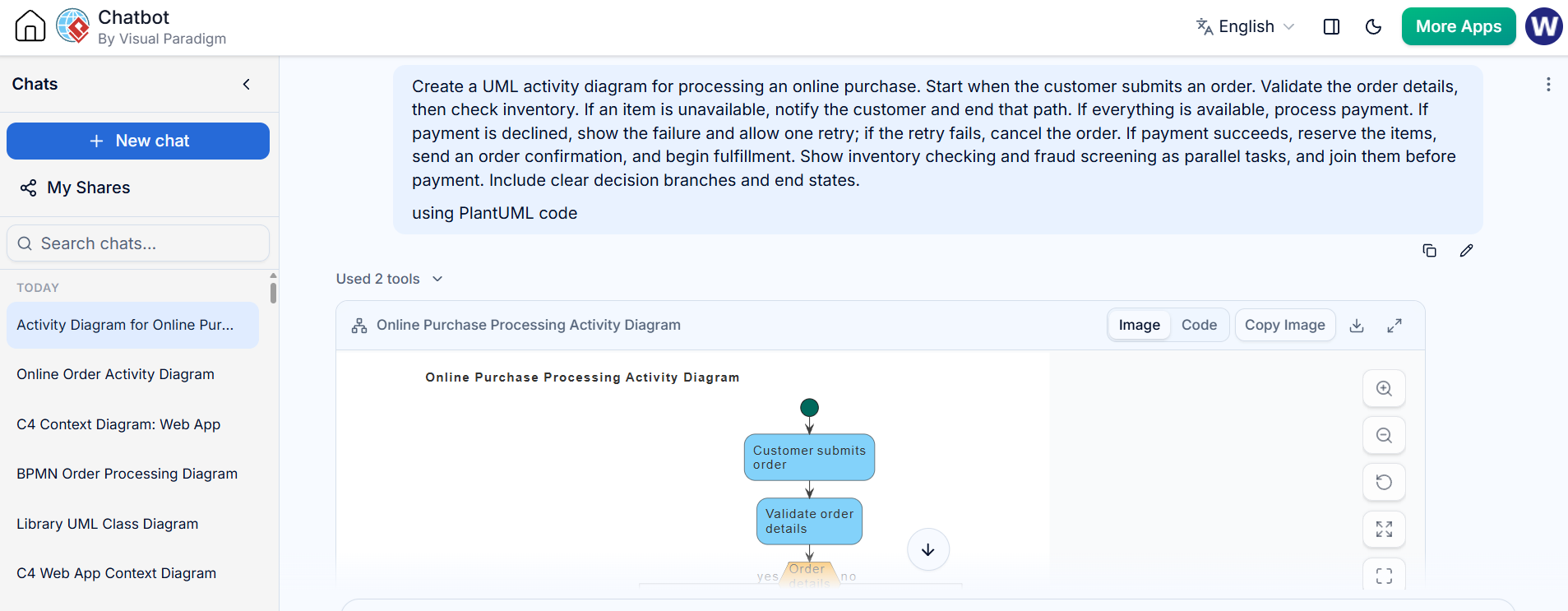
This prompt makes the sequence, conditions, parallel work, exception behavior, and outcomes explicit. The announcement describes generating activity diagrams from text, use cases, and workflow requirements, including support for parallel processing and exceptions.
2. (Optional) Edit the Diagram in VPasCode Tool:
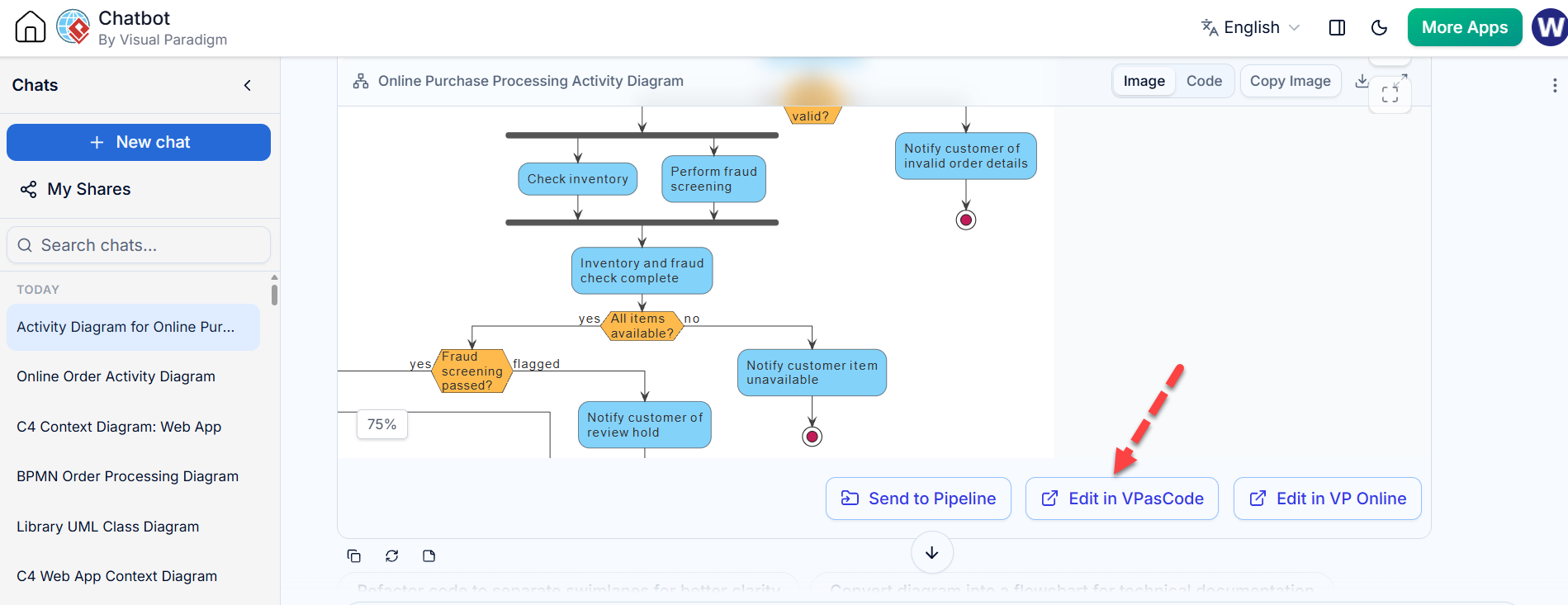
Activity Diagram Rendered in the VPasCode tool:
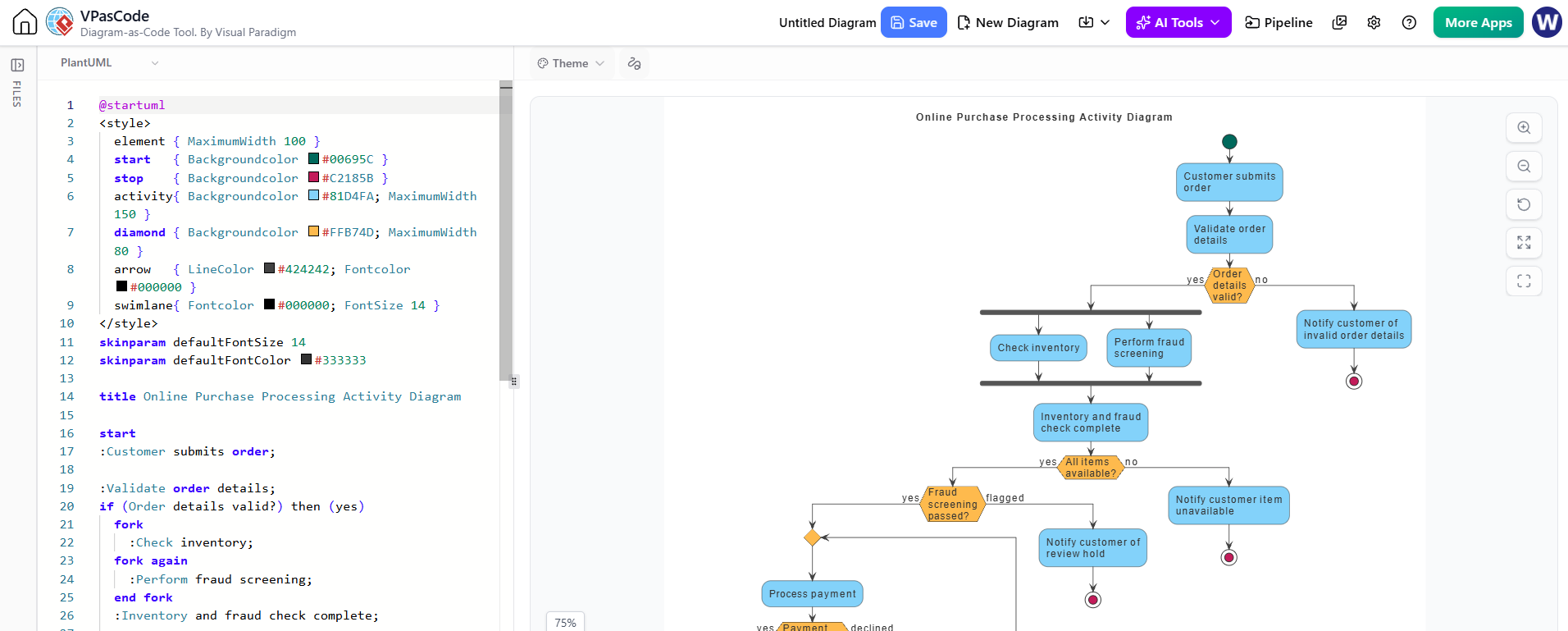
Generated PlantUML Code for the Activity Diagram:
@startuml
<style>
  element { MaximumWidth 100 }
  start   { Backgroundcolor #00695C }
  stop    { Backgroundcolor #C2185B }
  activity{ Backgroundcolor #81D4FA; MaximumWidth 150 }
  diamond { Backgroundcolor #FFB74D; MaximumWidth 80 }
  arrow   { LineColor #424242; Fontcolor #000000 }
  swimlane{ Fontcolor #000000; FontSize 14 }
</style>
skinparam defaultFontSize 14
skinparam defaultFontColor #333333

title Online Purchase Processing Activity Diagram

start
:Customer submits order;

:Validate order details;
if (Order details valid?) then (yes)
  fork
    :Check inventory;
  fork again
    :Perform fraud screening;
  end fork
  :Inventory and fraud check complete;

  if (All items available?) then (yes)
    if (Fraud screening passed?) then (yes)
      repeat
        :Process payment;
        if (Payment authorized?) then (yes)
          :Reserve items;
          :Send order confirmation;
          :Begin fulfillment;
          stop
        else (declined)
          :Show payment failure;
          if (Retries remaining?) then (yes)
            :Allow customer to retry;
          else (no)
            :Cancel order;
            stop
          endif
        endif
      repeat while (Retry payment?) is (yes) not (no)
      :Cancel order;
      stop
    else (flagged)
      :Notify customer of review hold;
      stop
    endif
  else (no)
    :Notify customer item unavailable;
    stop
  endif
else (no)
  :Notify customer of invalid order details;
  stop
endif

@endumlExport Full Size Activity Diagram from VPasCode or AI Chatbot:
4. Review the generated diagram
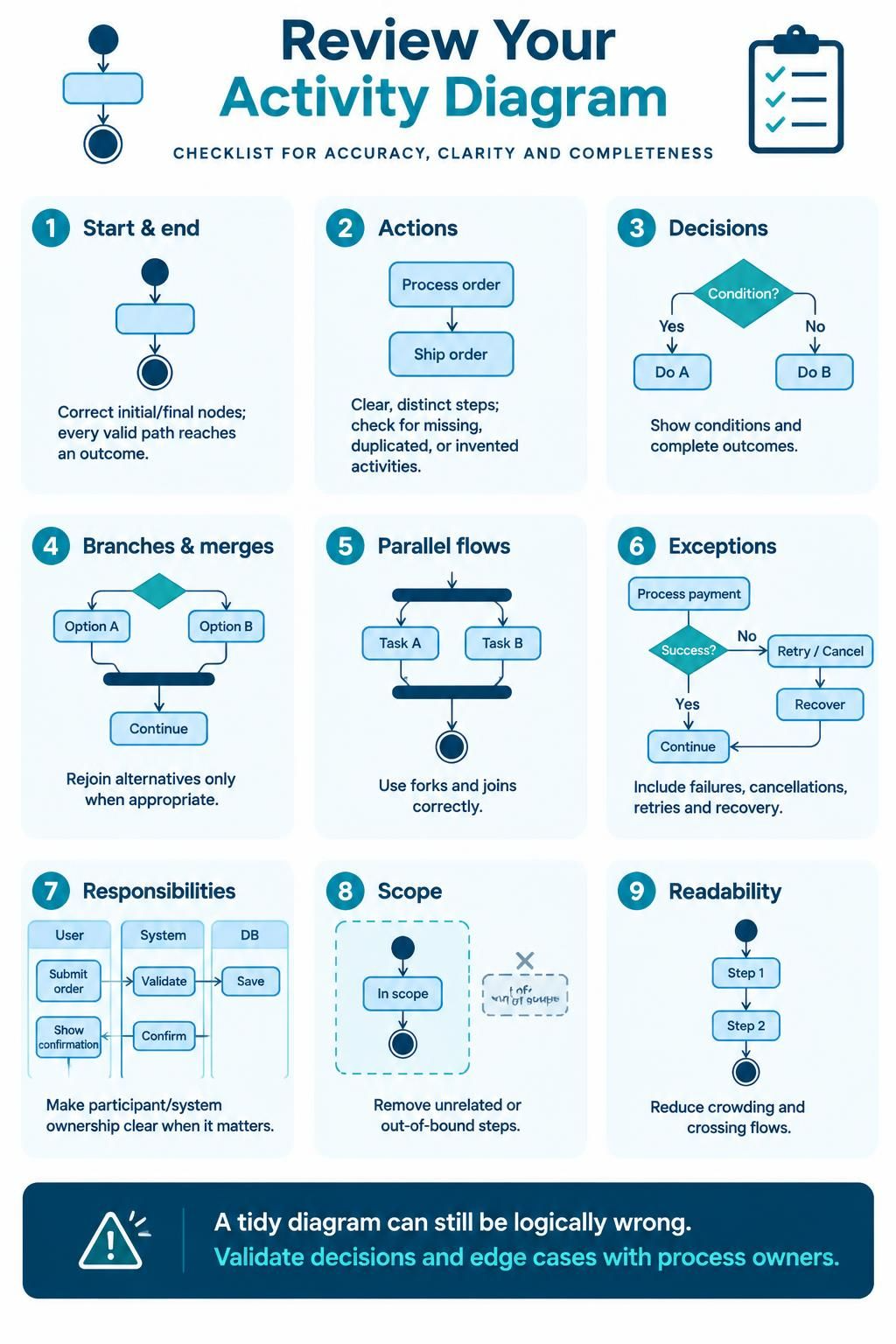
Check the diagram against the real workflow before using it in a specification or presenting it to a team.
-
Start and end: Are the initial and final nodes in the right places? Does every valid path reach an outcome?
-
Actions: Are actions clear, distinct steps? Look for missing, duplicated, or invented activities.
-
Decisions: Does each decision show the condition that determines its outgoing paths? Are the outcomes complete and understandable?
-
Branches and merges: Do alternative paths rejoin only when appropriate?
-
Parallel flows: Are concurrent activities represented with a fork and joined at the right point?
-
Exceptions: Are failures, cancellations, retries, and recovery paths included where needed?
-
Responsibilities: If responsibility matters, make sure the workflow makes clear which participant or system performs each action.
-
Scope: Remove steps that belong to a different process or are outside the agreed boundary.
-
Readability: Rearrange crowded nodes or crossing flows so the diagram is easy to follow.
A visually tidy diagram can still contain incorrect logic. Confirm the decisions and edge cases with the people who own the process.
5. Refine the diagram in the Visual Paradigm ecosystem
The AI-generated diagram is a starting point for further modeling. The article says it can be refined within an existing Desktop project. Visual Paradigm also describes a workflow in which diagrams can be edited through VPasCode or brought into Desktop for more detailed modeling; OpenDocs can be used to place a diagram alongside written process instructions.
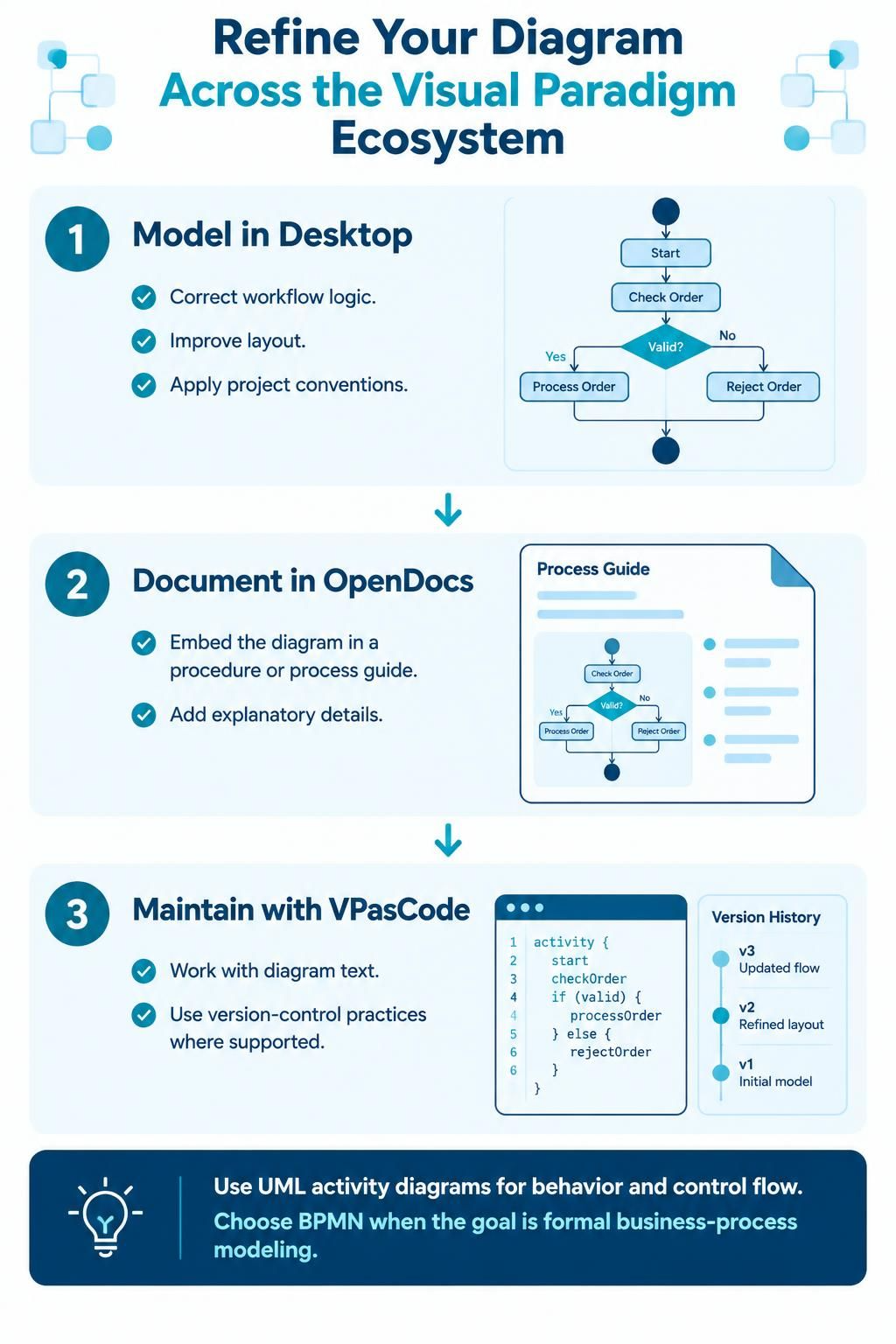
A practical handoff might look like this:
-
Model in Desktop: Correct the flow, improve layout, and make the diagram consistent with the project’s modeling conventions.
-
Document in OpenDocs: Embed the diagram in a procedure or process guide and explain steps that need more detail than the diagram can show.
-
Maintain text-based changes where useful: Visual Paradigm describes VPasCode as a way to work with diagram text and use version-control practices for process changes. Check the options available in your current setup before choosing this workflow.
Use UML activity diagrams to describe behavior and control flow. If the primary goal is formal business-process modeling with BPMN, Visual Paradigm’s activity-diagram guidance recommends choosing a BPMN process diagram instead.
6. Common prompt and modeling problems
-
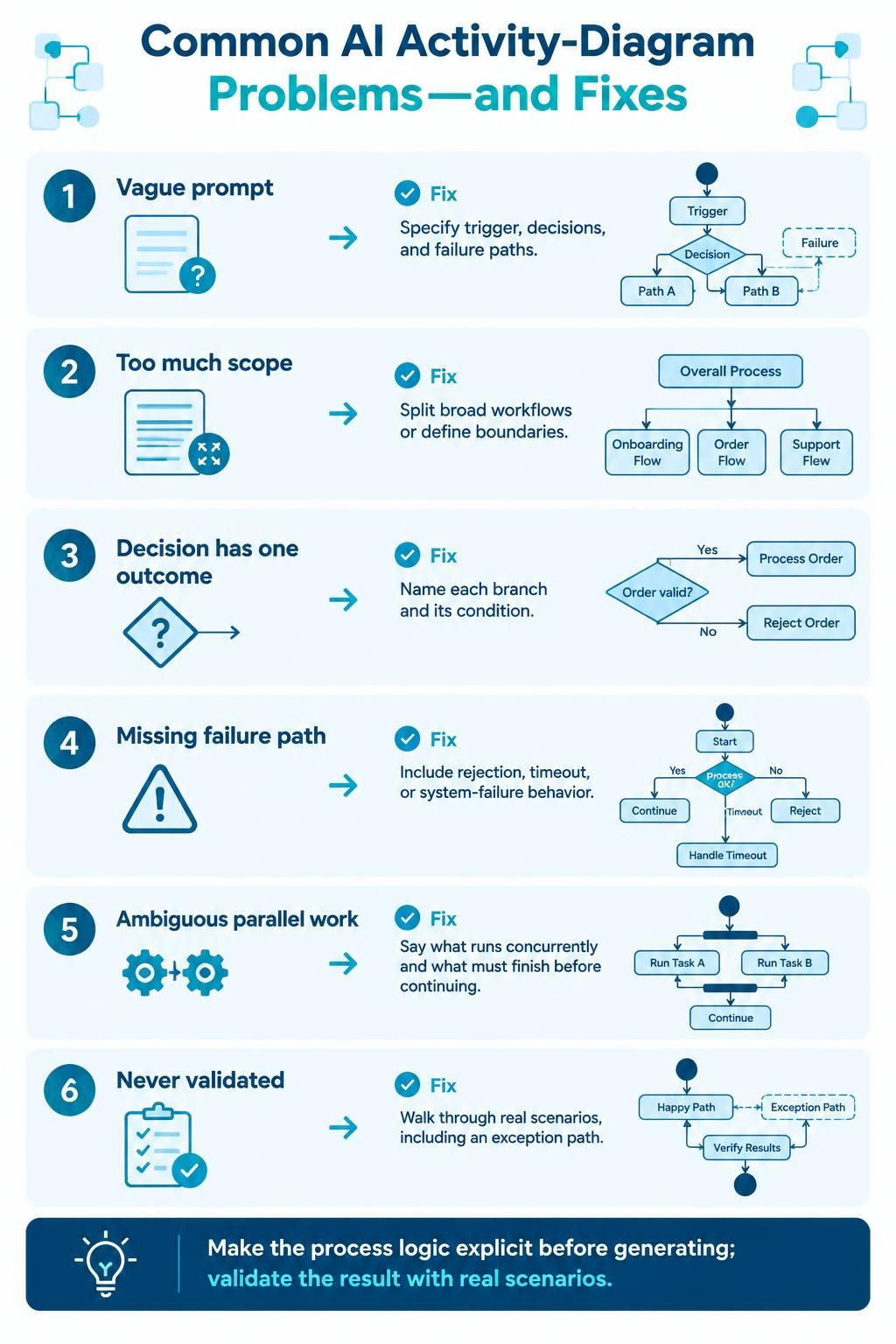
The prompt is too vague: “Show how orders are processed” leaves out triggers, decisions, and failure paths. Add those details.
-
Too much is included: Split a broad enterprise workflow into smaller processes, or specify the exact boundary for the diagram.
-
A decision has only one stated outcome: Name each branch and the condition that selects it.
-
A failure path disappears: Describe what happens after rejection, timeout, or system failure—not only the normal path.
-
Parallel tasks are ambiguous: State which activities can run concurrently and what must finish before work continues.
-
The result looks plausible but was never validated: Walk through the diagram using real scenarios, including at least one exception path.
7. Suggested team workflow
For consistent results across a project, agree on a prompt format and a review checklist. Have the process owner confirm the business logic, and have the modeler check that the diagram accurately expresses it. Keep written assumptions with the diagram, especially where a requirement is incomplete or a branch was inferred. After major process changes, update both the diagram and its accompanying documentation.
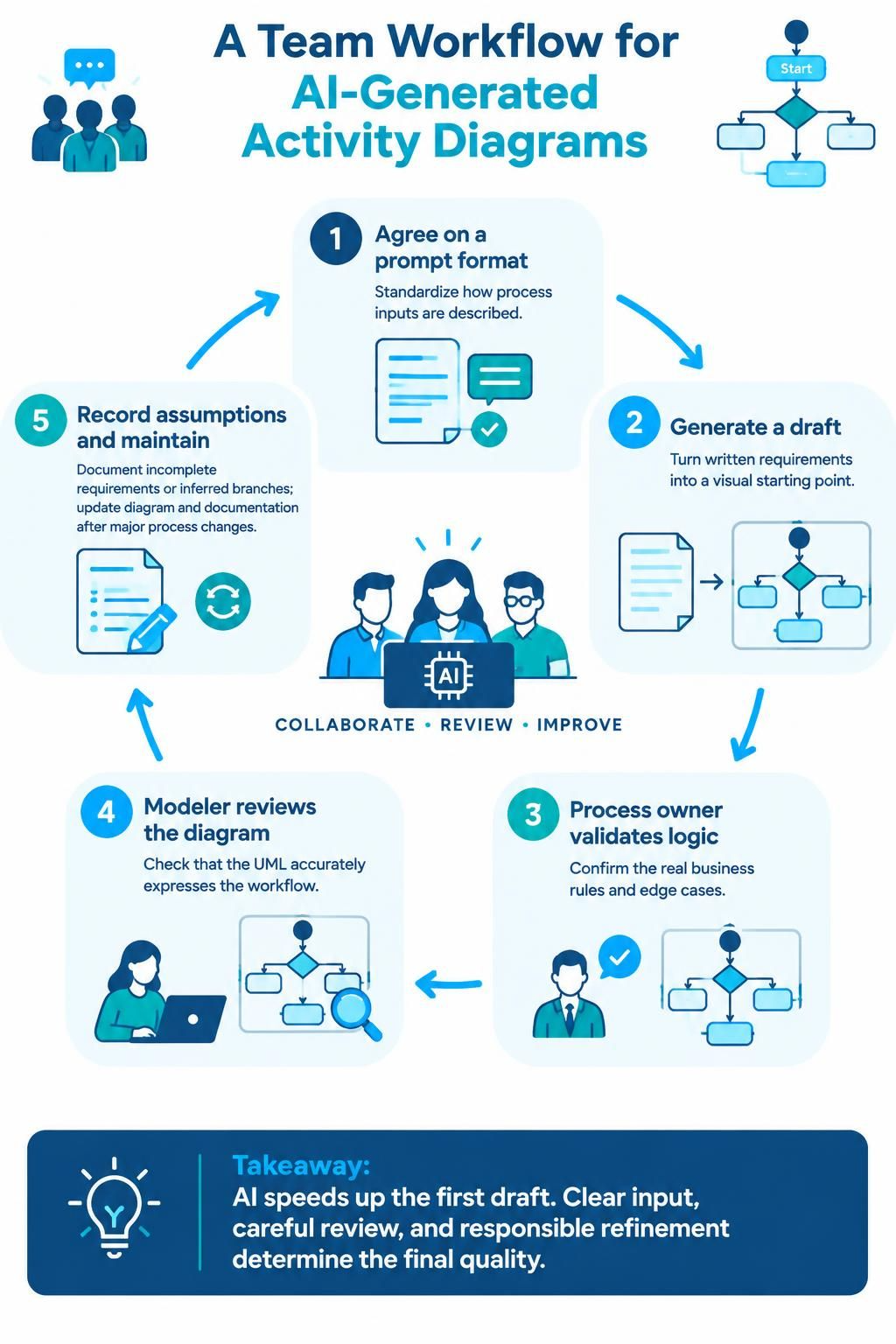
The central benefit of AI generation is speed: it helps turn written requirements into a visual draft quickly. The quality of the finished model still depends on clear input, careful review, and refinement by the people responsible for the process.
This post is also available in Portuguese.
