




Mastering Data Objects in BPMN: A Comprehensive Guide to Modeling Information Flow
Introduction
Business Process Model and Notation (BPMN) is the global standard for visualizing business processes. While most practitioners focus on the flow of activities—what happens and in what order—the true power of a process often lies in the information that drives it. Whether it’s a customer application, an invoice, a database record, or an email, data is the fuel that keeps business operations running.
In BPMN, Data Objects are artifacts that represent this information. Unlike Sequence Flows, which dictate the chronological order of execution, Data Objects exist alongside the main control flow. They are linked to activities through Data Associations, allowing modelers to show exactly what information is required to start a task, what is produced by it, and where it is stored.
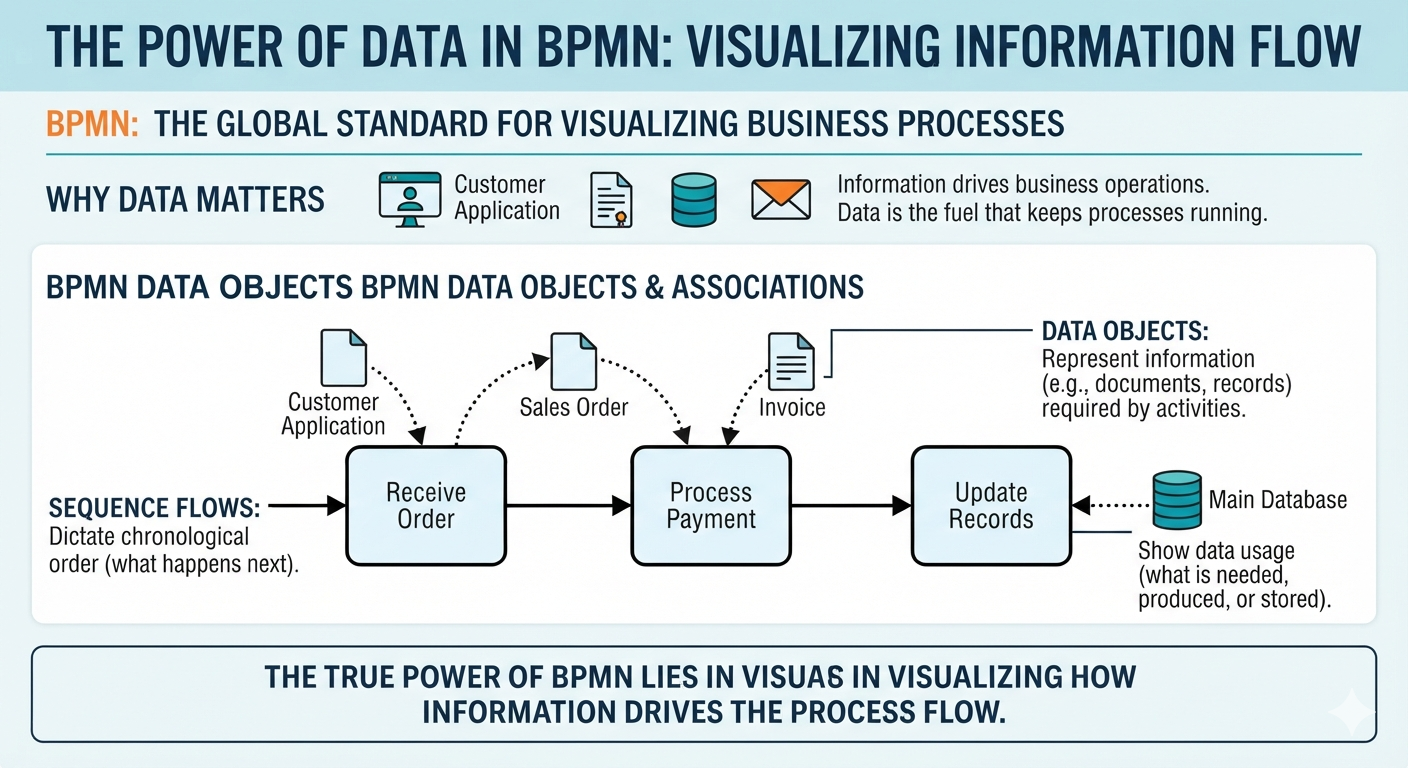
This guide provides a comprehensive overview of how to model data in BPMN, covering the core elements, visual symbols, and practical examples to help you create clearer, more informative process diagrams.
The Core Elements of Data in BPMN
The BPMN specification defines specific elements to handle different aspects of data handling. Understanding the distinction between transient data, persistent storage, and process boundaries is key to effective modeling.
1. Transient Data: Data Objects
A Data Object represents information that flows through the process. These are typically documents, forms, emails, or digital records that are created, modified, or consumed during the execution of tasks. They are “transient,” meaning they usually exist only for the duration of the process instance.
-
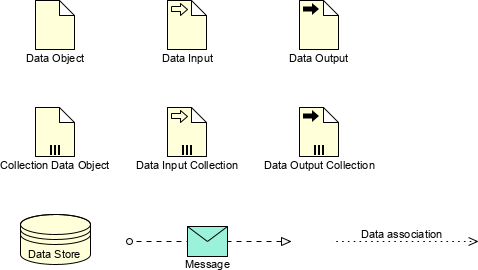
Collection of Data Object: When dealing with multiple items of the same type (e.g., a list of order lines or a batch of resumes), BPMN uses a collection variant. Visually, this is often indicated by parallel lines on the document icon.
2. Process Boundaries: Inputs and Outputs
Processes do not exist in a vacuum; they require inputs and produce outputs.
-
Data Input: Represents external data required to start the process. It acts as an input parameter.
-
Data Output: Represents the final result or deliverable produced by the process.
-
Collections: Just like standard objects, inputs and outputs can also be collections (e.g., a bulk import of stock items as input, or a generated report list as output).
3. Persistent Storage: Data Stores
While Data Objects are temporary, a Data Store represents a repository where data persists beyond the lifetime of a single process instance. This could be a database, a cloud storage bucket, or a physical filing cabinet. Activities can read from or write to a Data Store, ensuring information is available for future processes or other systems.
4. Connecting Data: Associations
Data does not move via Sequence Flows (the solid arrows that connect tasks). Instead, it is linked using Associations—dotted lines that connect Data Objects, Inputs, Outputs, or Data Stores to Activities. These associations show logical relationships without affecting the execution order.
Visual Reference: BPMN Data Symbols
The following image illustrates the standard symbols for these data elements. Notice the visual cues: arrows inside the document icons indicate direction (input vs. output), triple lines indicate collections, and the cylinder shape is universally recognized for persistent storage.
Practical Examples of Data Object Usage
To understand how to apply these concepts, let’s explore four common scenarios in business process modeling.
1. Basic Data Association: Passing Information Between Tasks
In many processes, one activity creates data that another activity consumes. This relationship is modeled using Associations.
Consider a mortgage assessment process. The “Make Assessment” sub-process generates an Assessment document. This document is then used as an input for the “Archive Details” sub-process. In the diagram below, dotted lines with arrowheads clearly show this flow: the assessment is an output of the first task and an input to the second.
Additionally, notice the Rejection Letter. It is attached directly to the Sequence Flow between “Send Rejection” and “Archive Details.” This is a useful shorthand in BPMN. When data is passed directly between two sequential activities, attaching the object to the flow line simplifies the diagram while still conveying that the letter is generated and then archived.
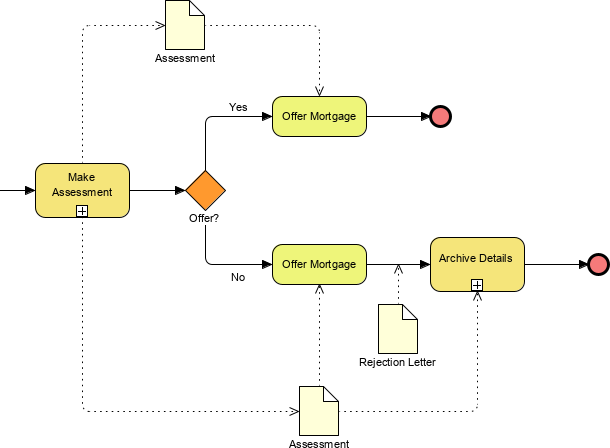
In this workflow, the decision node (“Offer?”) determines the path. If the answer is no, a rejection letter is generated and both the assessment and the letter are archived, demonstrating how different data objects branch along with the process flow.
2. Data State Changes: Tracking Artifacts Along the Flow
Sometimes, it is critical to show how a specific artifact changes state as it moves through a process. In this hiring scenario, the “Application” is the central artifact.
-
Screen Applicants: The application is reviewed.
-
Approve Application: The status is updated.
-
Hire Applicant: The final offer is made.
By attaching the data object to the sequence flow, we visualize the application “traveling” with the process. The labels [Screened] and [Approved] indicate that the same document is being modified at each stage. This approach makes it easy for stakeholders to understand that the data is not just created and discarded, but is actively transformed throughout the lifecycle.
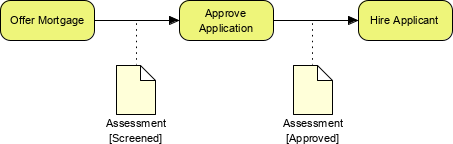
Note how the document icons are placed beneath the activities, linked by dashed lines. This visual placement reinforces that the data is an integral part of the task execution.
3. Defining Process Interfaces: Inputs and Outputs
Not all data is created within the process. Often, a process is triggered by external data and results in a specific deliverable. This is modeled using Data Input and Data Output objects.
In the transformation example below, the process explicitly requires an Initial Document to begin. The “Transform Document” activity processes this input and produces a Final Document. Using distinct Input and Output objects helps define the clear boundaries of the process, making it easier to integrate with other systems or subprocesses.
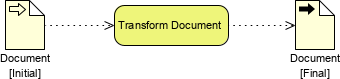
The directional arrows inside the document icons (pointing right for input, pointing out for output) provide immediate visual clarity on the role of each data element.
4. Persistent Data: Interacting with Data Stores
While Data Objects are temporary, many processes need to interact with long-term storage. Data Stores allow activities to read from or write to databases or file systems.
In the example below, we see two different interactions with a central Data Store:
-
Component A performs write operations (update, insert, or delete). This represents the creation or modification of persistent records.
-
Component B performs read operations (select). This represents retrieving existing data for use in a task.
This separation is crucial for understanding system architecture within a business process. It clarifies which steps are responsible for data maintenance versus those that simply consume existing information.

The cylinder icon is the standard symbol for data stores, instantly recognizable to both technical and business audiences as a repository of persistent information.
BPMN Data Object Example – Order Fulfillment Data Lifecycle
The generated diagram demonstrates how data artifacts run parallel to the operational execution steps of an order fulfillment process. While the solid Sequence Flow arrows determine the exact chronological order of execution, the dotted Data Associations map the lifecycle, transformation, and storage of business information.
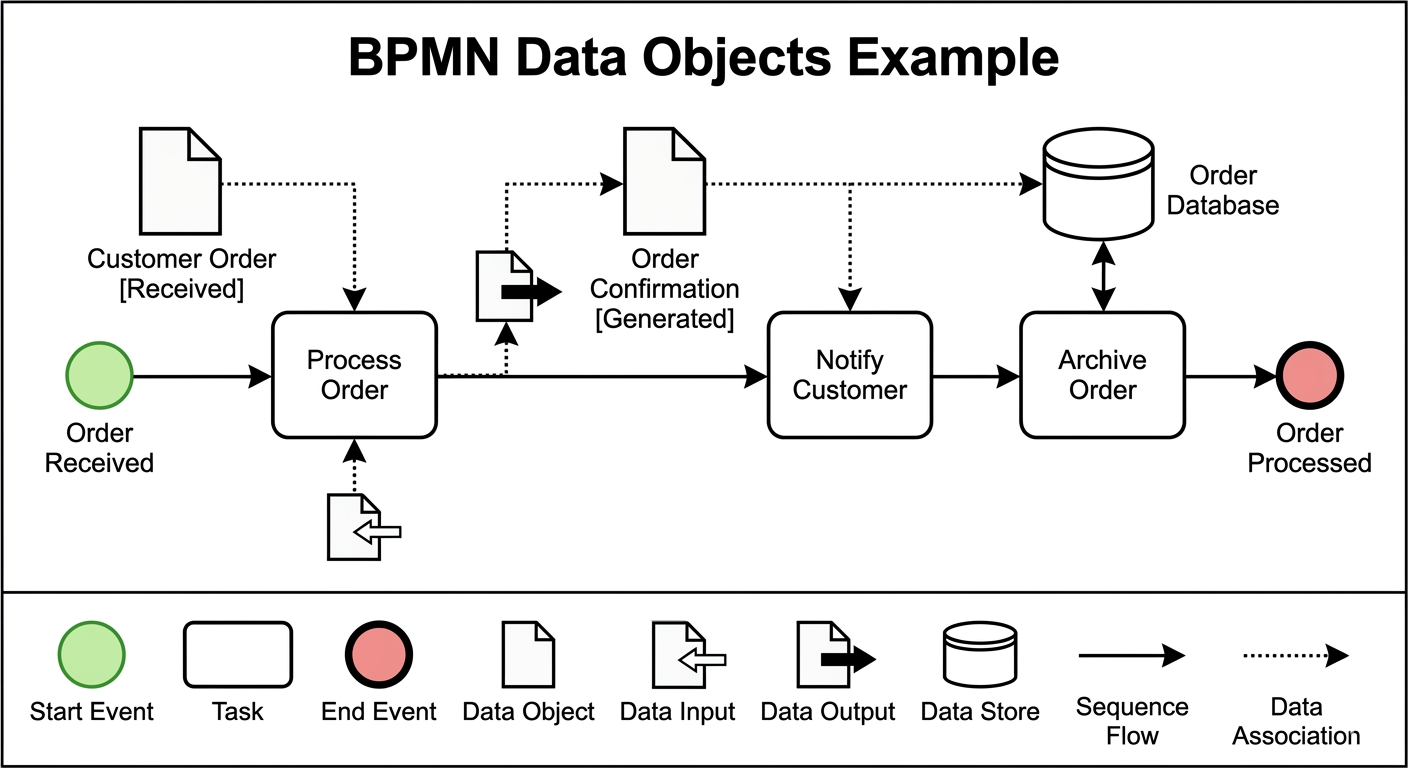
- Input Elements: The task relies on two incoming sources: a generic Data Input artifact (indicated by the white-filled arrow overlapping the file icon below the task) and a standard Data Object labeled Customer Order.
- State Notation: The text inside the brackets
[Received]specifies the data object’s state, signaling that the incoming order details are raw, unverified, and ready for baseline processing.
- Data Outputs: The task writes out a Data Output element (the black-filled arrow overlapping the file icon).
- State Change: This output populates a new data object called Order Confirmation, which explicitly transitions into the
[Generated]lifecycle state.
- Reading Mechanism: A dotted line with an arrow directs from the Order Confirmation [Generated] object into the task. This illustrates a “read-only” dependency. The task consumes the information trapped inside the confirmation document (such as the customer’s contact details) to send the notification without altering the file itself.
- Data Store Interface: Instead of utilizing a transient data object file, this task connects directly to an Order Database—represented by the cylinder icon (Data Store).
- Bidirectional Sync: The double-headed arrow indicates a synchronous read/write transaction. The task writes the finalized transaction records into long-term infrastructure, while the database simultaneously receives updates from the Order Confirmation object to finalize the record. Once finished, the process exits into the End Event (“Order Processed”).
Conclusion
Effectively modeling data in BPMN transforms a simple flowchart into a robust business process model. By moving beyond just “who does what” and incorporating “what information is used,” you provide critical context that bridges the gap between business operations and IT systems.
Key Takeaways:
-
Use Data Objects for transient information that passes between tasks.
-
Use Data Inputs/Outputs to clearly define what starts a process and what it delivers.
-
Use Data Stores for information that must persist after the process ends.
-
Use Associations (dotted lines) to link data to activities, keeping them distinct from the Sequence Flow that drives execution.
By mastering these elements, you ensure that your BPMN diagrams are not just maps of actions, but comprehensive blueprints of your organization’s information flow.
This post is also available in فارسی, Français, English, Polski, Ру́сский and 简体中文.
