
Visual Paradigm Desktop: AI, Diagram as Code, and an End-to-End Workflow for Modern Teams
Visual Paradigm Desktop is a modeling and engineering workbench for creating and maintaining diagrams as part of a larger project. Its wider ecosystem adds AI-assisted drafting, shared project collaboration, text-based Diagram-as-Code workflows, and documentation tools. Together, these can support a process from an initial idea through design, team review, and published documentation.
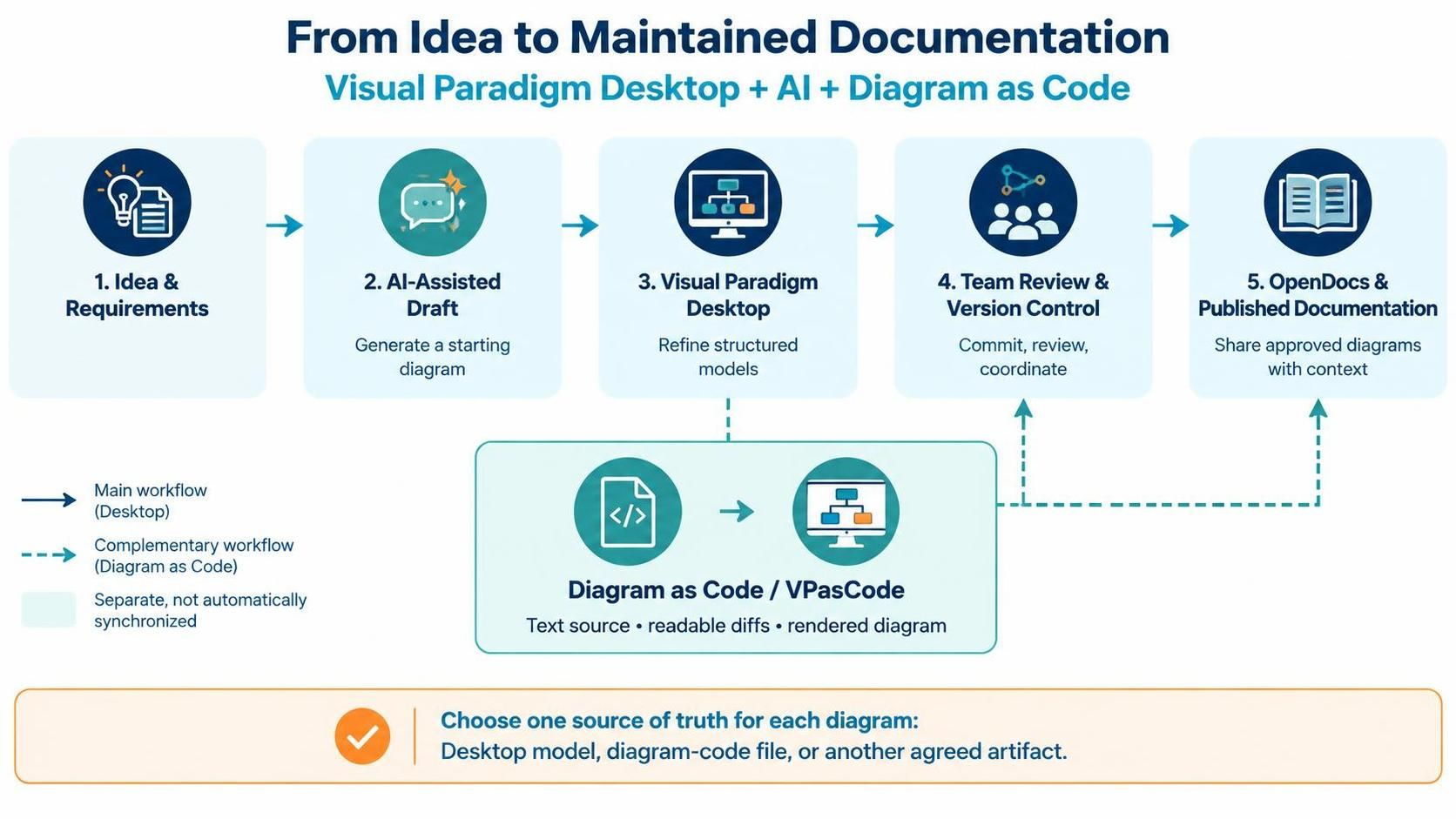
The key is to treat the components as complementary—not as one automatically synchronized system. For each diagram, decide where its authoritative source lives: in a Desktop project, a text-based diagram file, or another agreed-upon artifact.
What Desktop contributes
Desktop is designed for structured, editable project models. Teams can use it to create diagrams such as UML, BPMN, ERD, and architecture models, and to connect modeling work with relevant engineering activities. Its role is especially useful when a diagram needs to be maintained as part of a broader project rather than as a standalone image.
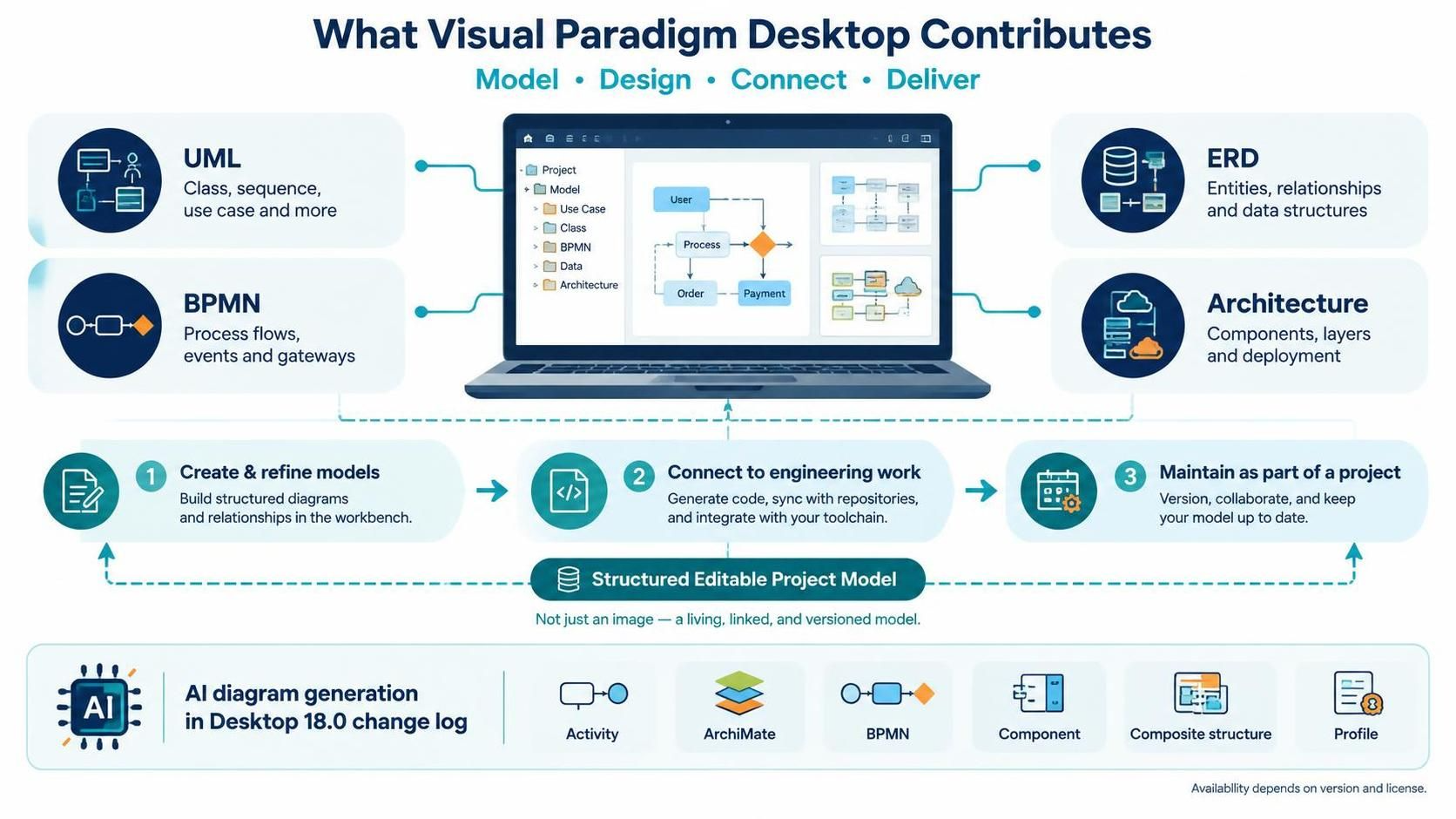
Recent Desktop updates have expanded AI-generated diagram support across multiple diagram types. The published 18.0 change log lists AI generation for activity, ArchiMate, BPMN, component, composite-structure, and profile diagrams, among other changes. Feature availability can depend on the installed version and license.
How AI fits into the workflow
AI can help a team move from a written description to a first diagram draft. Give it the diagram’s scope, the participants or components, the important steps and relationships, and any alternative or failure paths that matter.
For example:
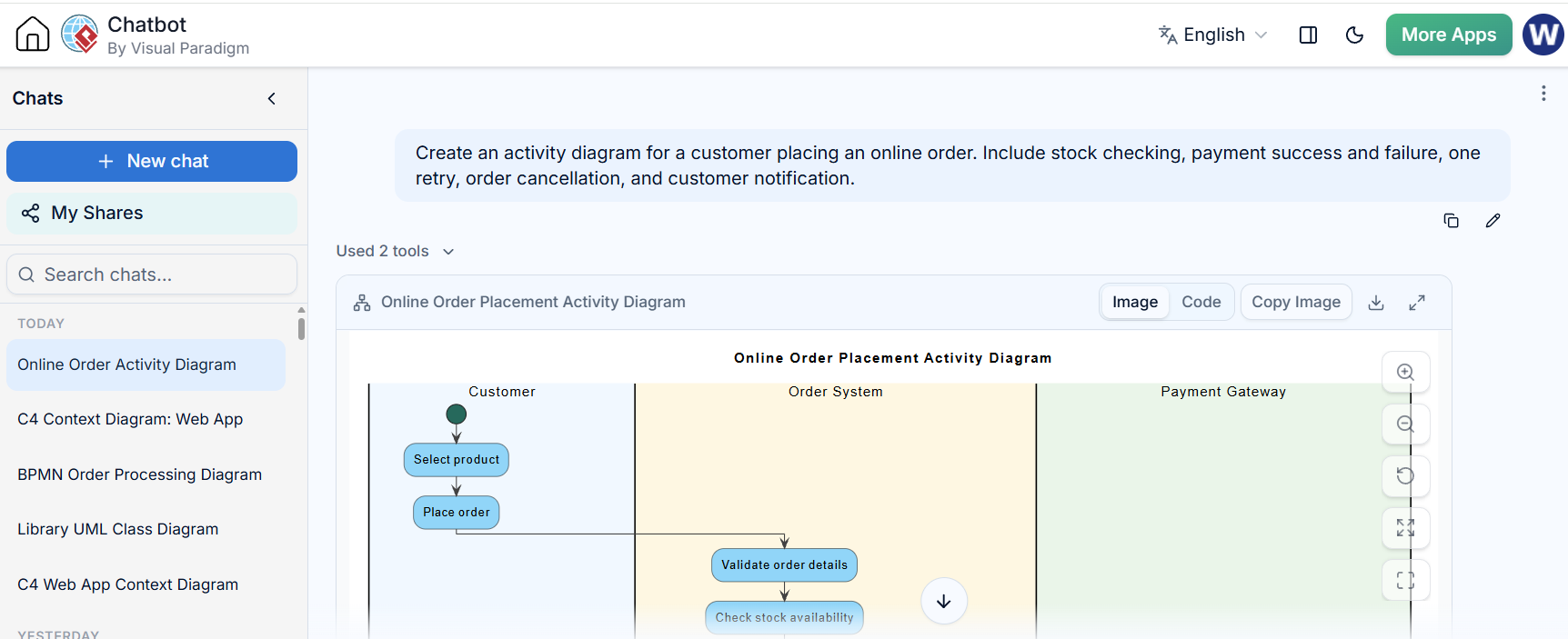
Create an activity diagram for a customer placing an online order. Include stock checking, payment success and failure, one retry, order cancellation, and customer notification.
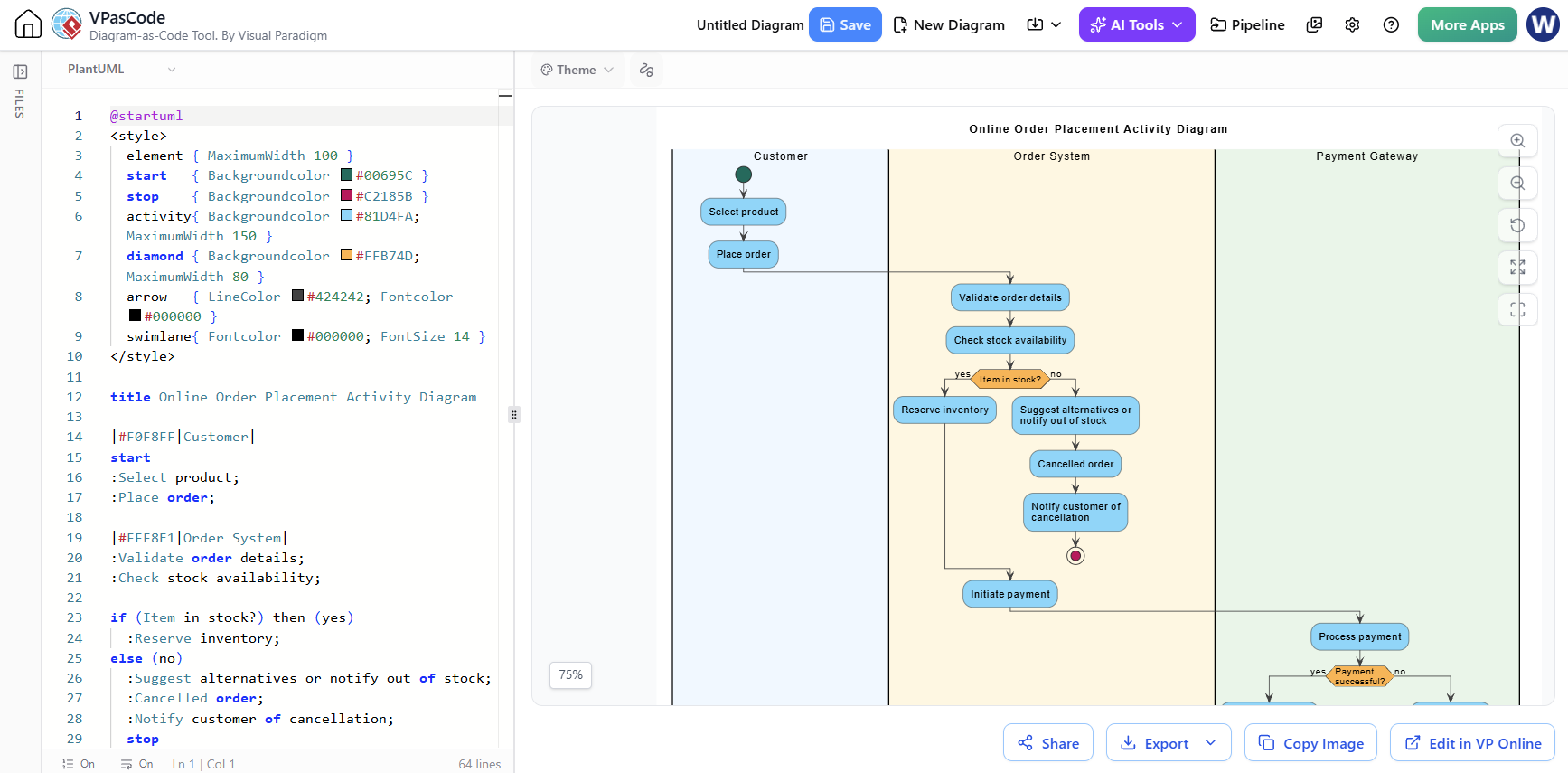
@startuml
<style>
  element { MaximumWidth 100 }
  start   { Backgroundcolor #00695C }
  stop    { Backgroundcolor #C2185B }
  activity{ Backgroundcolor #81D4FA; MaximumWidth 150 }
  diamond { Backgroundcolor #FFB74D; MaximumWidth 80 }
  arrow   { LineColor #424242; Fontcolor #000000 }
  swimlane{ Fontcolor #000000; FontSize 14 }
</style>

title Online Order Placement Activity Diagram

|#F0F8FF|Customer|
start
:Select product;
:Place order;

|#FFF8E1|Order System|
:Validate order details;
:Check stock availability;

if (Item in stock?) then (yes)
  :Reserve inventory;
else (no)
  :Suggest alternatives or notify out of stock;
  :Cancelled order;
  :Notify customer of cancellation;
  stop
endif

:Initiate payment;

|#E8F5E9|Payment Gateway|
:Process payment;
if (Payment successful?) then (yes)
  :Confirm payment;
else (no)
  :Request retry;
  |#F0F8FF|Customer|
  :Re-enter payment details;
  |#E8F5E9|Payment Gateway|
  :Process payment (retry);
  if (Payment successful?) then (yes)
    :Confirm payment;
  else (no)
    |#FFF8E1|Order System|
    :Cancelled order;
    :Release reserved inventory;
    :Notify customer of payment failure;
    stop
  endif
endif

|#FFF8E1|Order System|
:Create order record;
:Commit inventory;
:Generate order confirmation;

|#F0F8FF|Customer|
:Receive order confirmation notification;
stop
@endumlTreat the generated diagram as a draft. Review it for missing cases, incorrect relationships, ambiguous names, and terminology that conflicts with the project.
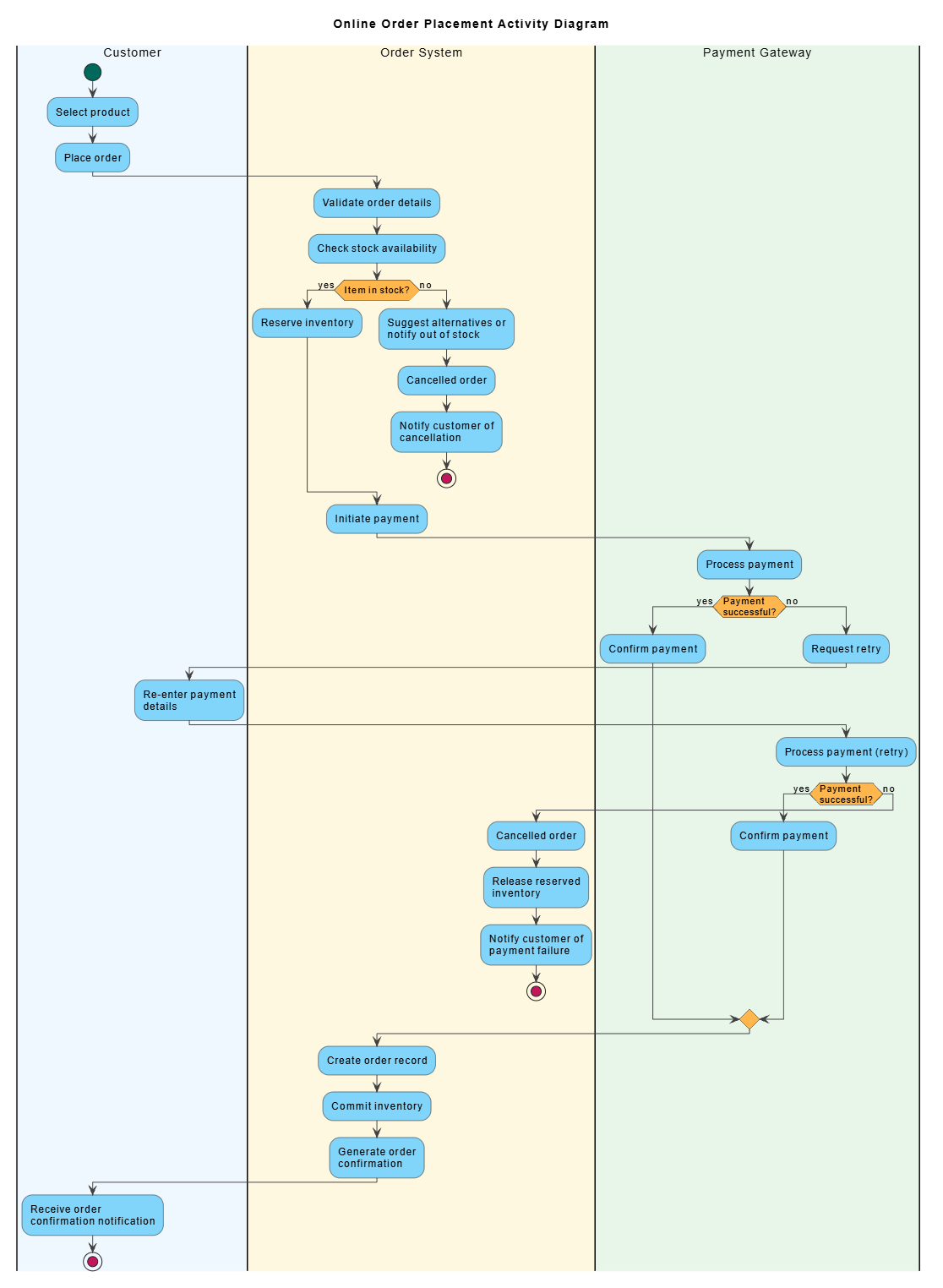
A documented Desktop integration lets users open the AI Chatbot from Tools > Chatbot, generate an activity diagram, and use Import to Visual Paradigm to add it to the current project. The imported diagram can then be edited and incorporated into the project. The announcement notes that full activity-diagram compatibility requires Professional Edition or higher.
The practical division of labor is straightforward: use AI to accelerate exploration and initial drafting, then use Desktop’s modeling tools and project context to review and maintain the model.
How Diagram as Code fits
Diagram as Code means writing a diagram definition in text and rendering it as a visual diagram. Visual Paradigm’s VPasCode is a browser-based workspace for writing and previewing diagram definitions in formats such as PlantUML, Mermaid, Graphviz, and D2. Its live preview shows the rendered result as the script changes.
Text-based diagram definitions can be useful in development workflows because they can be stored as files and reviewed as text. A team may keep a PlantUML or Mermaid source file alongside application code and use its normal version-control practices—commits, branches, diffs, and reviews—to track changes. A text diff can make edits easier to inspect than comparing exported images.
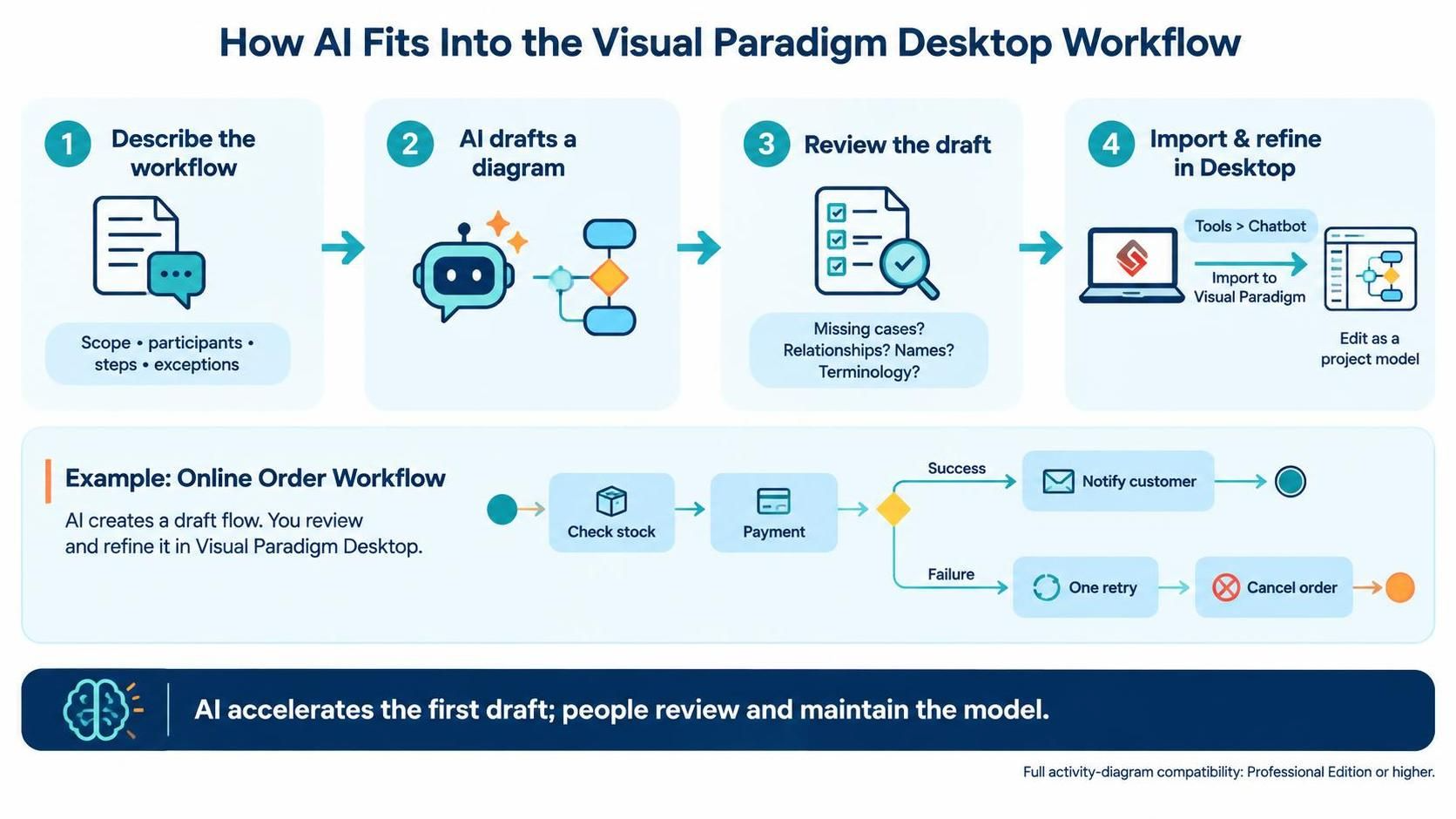
VPasCode’s documented AI tools can generate diagram code from prompts, modify existing scripts from natural-language instructions, help correct syntax errors, and translate diagram labels. These capabilities make AI-assisted drafting available in a text-based workflow as well as in the broader Visual Paradigm environment.
Diagram as Code and Desktop serve different needs:
| Approach | Best suited to | What the team maintains |
|---|---|---|
| Visual Paradigm Desktop | Rich, editable diagrams within a structured modeling project | A Visual Paradigm project and its model elements |
| VPasCode | Text-defined diagrams that teams want to edit and review as source | Diagram code, such as PlantUML or Mermaid files |
| Both | Teams that need text-based review for some diagrams and richer project modeling for others | Separate, clearly governed artifacts where appropriate |
Do not assume that every VPasCode script automatically becomes an equivalent native Desktop model—or that every Desktop model has a lossless text-based equivalent. If both forms are used, decide which one is authoritative and how updates will be made.
How the ecosystem components work together
| Component | Role in the team workflow |
|---|---|
| Visual Paradigm Desktop | Create and maintain detailed, editable models; use engineering and modeling features where relevant. |
| AI Chatbot and AI tools | Generate a starting diagram from a description, then refine supported diagrams in Desktop or work with diagram code in VPasCode. |
| Team repository | Share Desktop projects, commit and update changes, resolve conflicts, and coordinate editing with available collaboration controls such as locks and permissions. |
| VPasCode | Create, preview, and share text-based diagrams; use source files in a version-control workflow. |
| Pipeline and OpenDocs | Send diagrams from Desktop to a shared artifact area and include them in project documentation. The Pipeline can preserve revisions for artifacts used in OpenDocs. |
| Unified Platform | Provide a centralized workspace for access to Desktop projects and online artifacts or apps. |
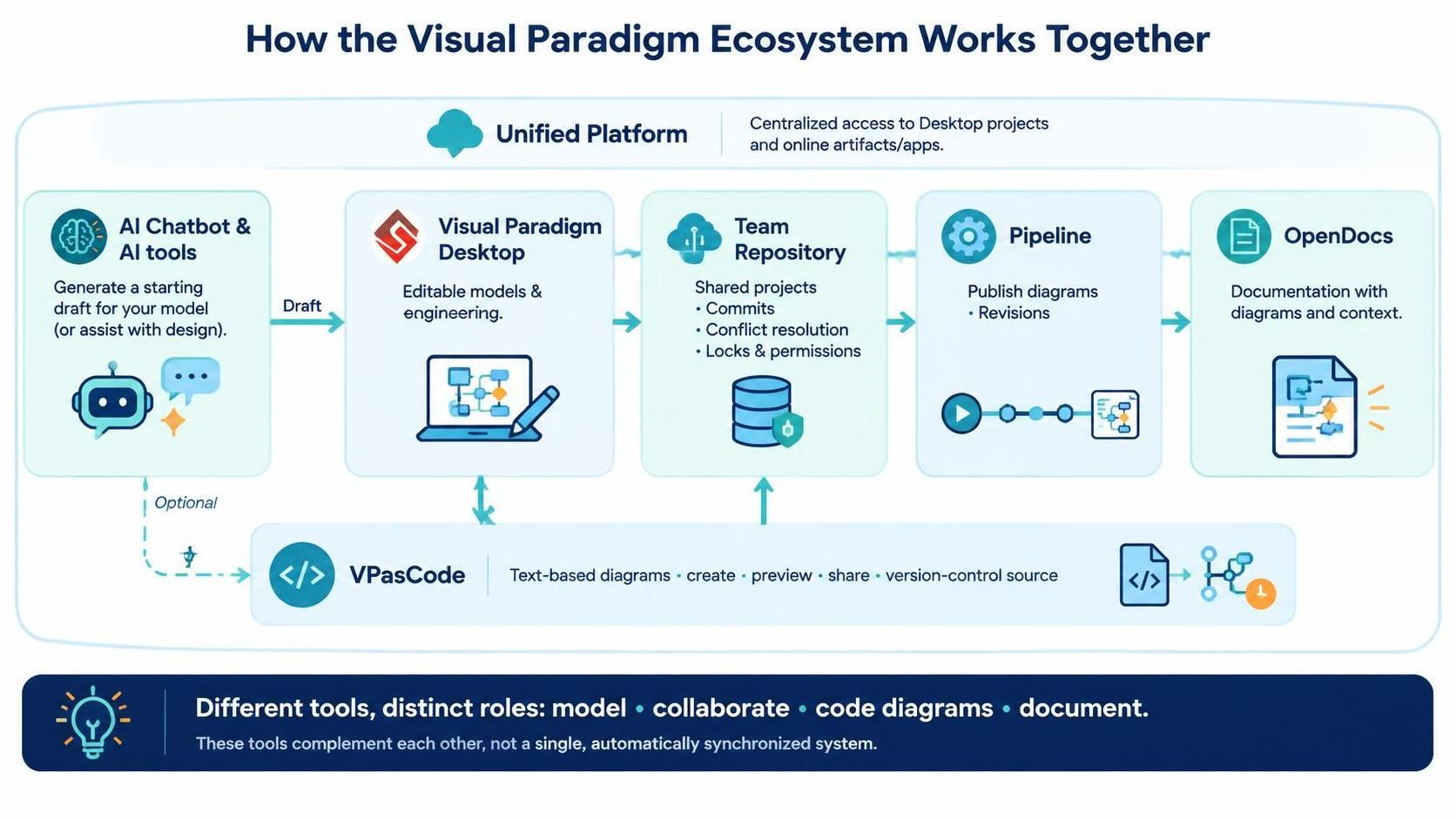
These components support different activities: Desktop is for modeling, the team repository is for shared project work, VPasCode is for text-based diagrams, and OpenDocs is for combining diagrams with explanatory documentation.
An end-to-end process for a modern development team
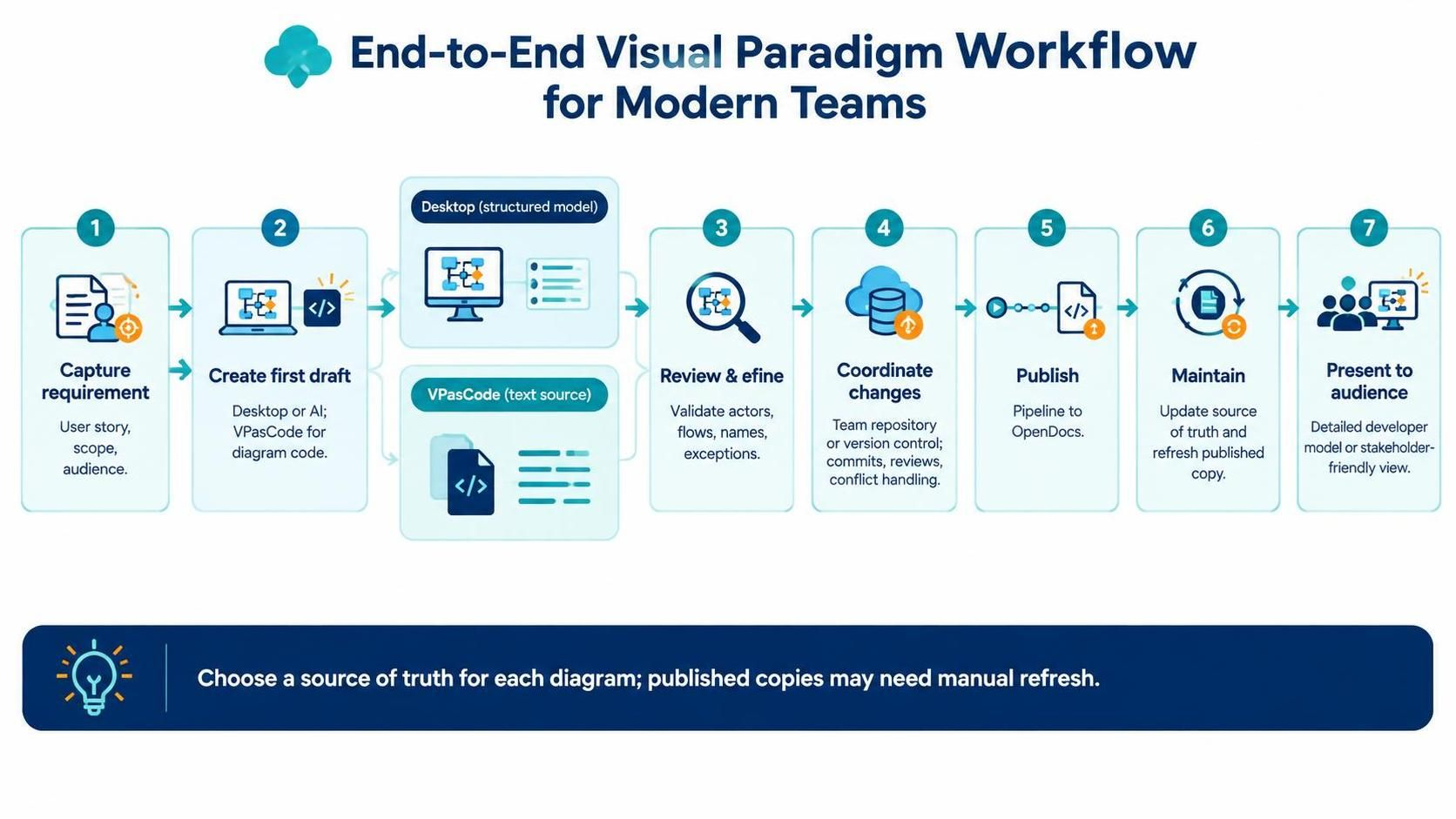
1. Capture the requirement
Start with a user story, business process, system requirement, or architecture decision. Establish the diagram’s purpose, scope, audience, and expected level of detail. Decide whether the team needs a formal model, a text-based diagram, or both.
2. Create a first draft
Draft the diagram directly in Desktop or use an AI tool to produce a starting point. For text-based diagrams, VPasCode can generate or revise diagram code from a prompt. Include important alternatives, errors, and exceptions in the description rather than leaving them implicit.
3. Review and refine the model
Check the result against the actual requirements. Confirm that the key actors, components, relationships, flows, names, and failure paths are correct. In Desktop, refine the diagram as a project model; in VPasCode, revise the source and inspect the live preview.
4. Coordinate changes with the team
For shared Desktop projects, use the team repository workflow to commit and update changes, resolve conflicts, and coordinate edits. Use available locks, permissions, and revision features where appropriate.
For Diagram as Code, store the source files in the team’s chosen version-control system and review changes alongside related code or requirements. Keep the rendered output available for discussions, but ensure the source definition—not just an exported image—is maintained.
5. Publish approved diagrams to documentation
Send approved diagrams to the OpenDocs Pipeline and insert them into the relevant documentation pages. Add explanatory text so readers know what the diagram describes, who it is for, and what decisions or changes it records.
6. Maintain the published version
When a model changes, update the appropriate source of truth, then publish the updated artifact and refresh the documentation that uses it. Do not assume a Desktop edit automatically changes every copy already embedded in a document.
7. Present the right level of detail
Developers may need a detailed model; product, operations, or business stakeholders may need a simpler process view. OpenDocs can combine diagrams with explanatory documentation, giving teams a place to present the context as well as the visual.
Choosing the source of truth
For each diagram, record one authoritative source:
-
Desktop model: Choose this when the diagram belongs to a structured Visual Paradigm project and needs rich model editing.
-
Diagram code: Choose this when a text file, readable diffs, and repository-based review are central to how the team works.
-
A deliberately maintained pair: Use both only when there is a clear reason. Specify which one is primary and who is responsible for keeping the other representation aligned.
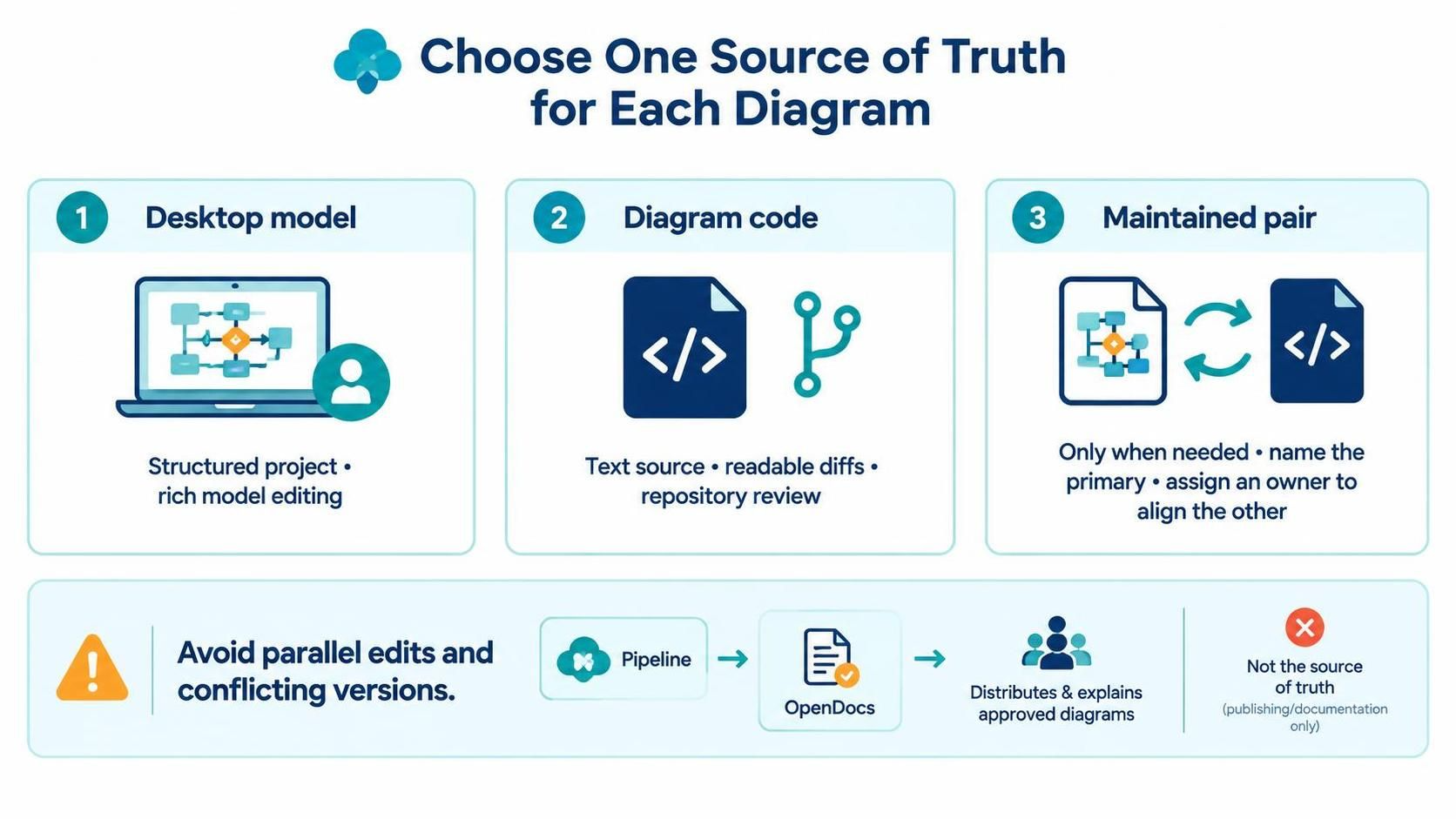
This small governance decision prevents parallel edits from creating conflicting versions. The Pipeline and OpenDocs help distribute and explain approved diagrams, but they do not replace the need to decide where authoritative changes should be made.
Recent developments and practical considerations
Recent updates show AI and Diagram as Code becoming more prominent across the Visual Paradigm ecosystem. The product updates page announced cloud file saving for VPasCode on November 17, 2026, along with updates to its Markmap editor. Earlier updates included Mermaid themes and a more prominent AI tools menu. These are VPasCode updates; they should not be confused with features built directly into Desktop’s diagram editor.
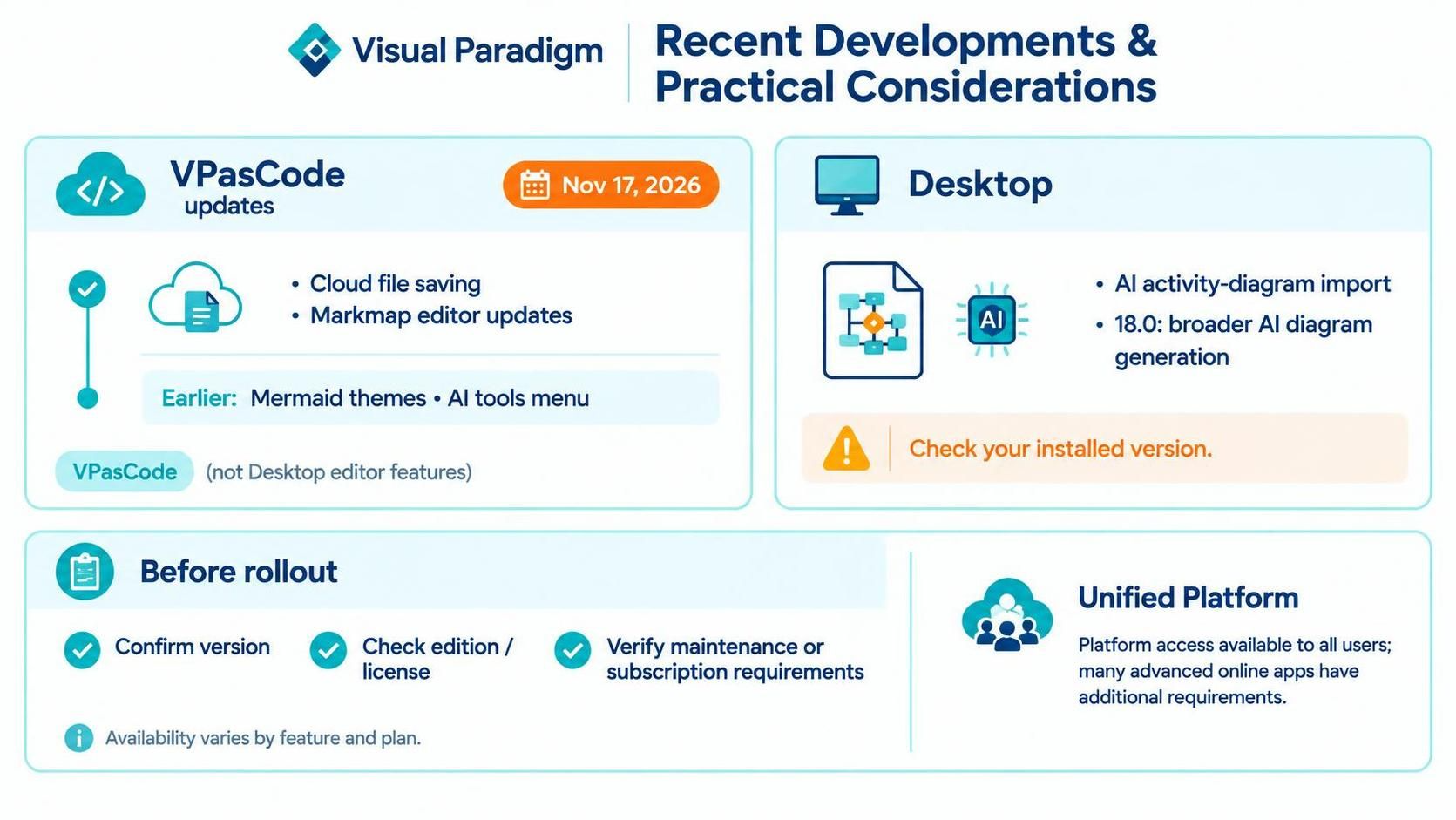
For Desktop, notable changes include AI-generated activity-diagram import and broader AI diagram-generation support in the published 18.0 change log. Confirm your specific version and license before planning a team rollout, since particular integrations and advanced capabilities may have edition or maintenance requirements. The Unified Platform page says access to the platform is available to all users, while many advanced online apps require Professional Edition or higher with active maintenance or a subscription.
Recommended approach
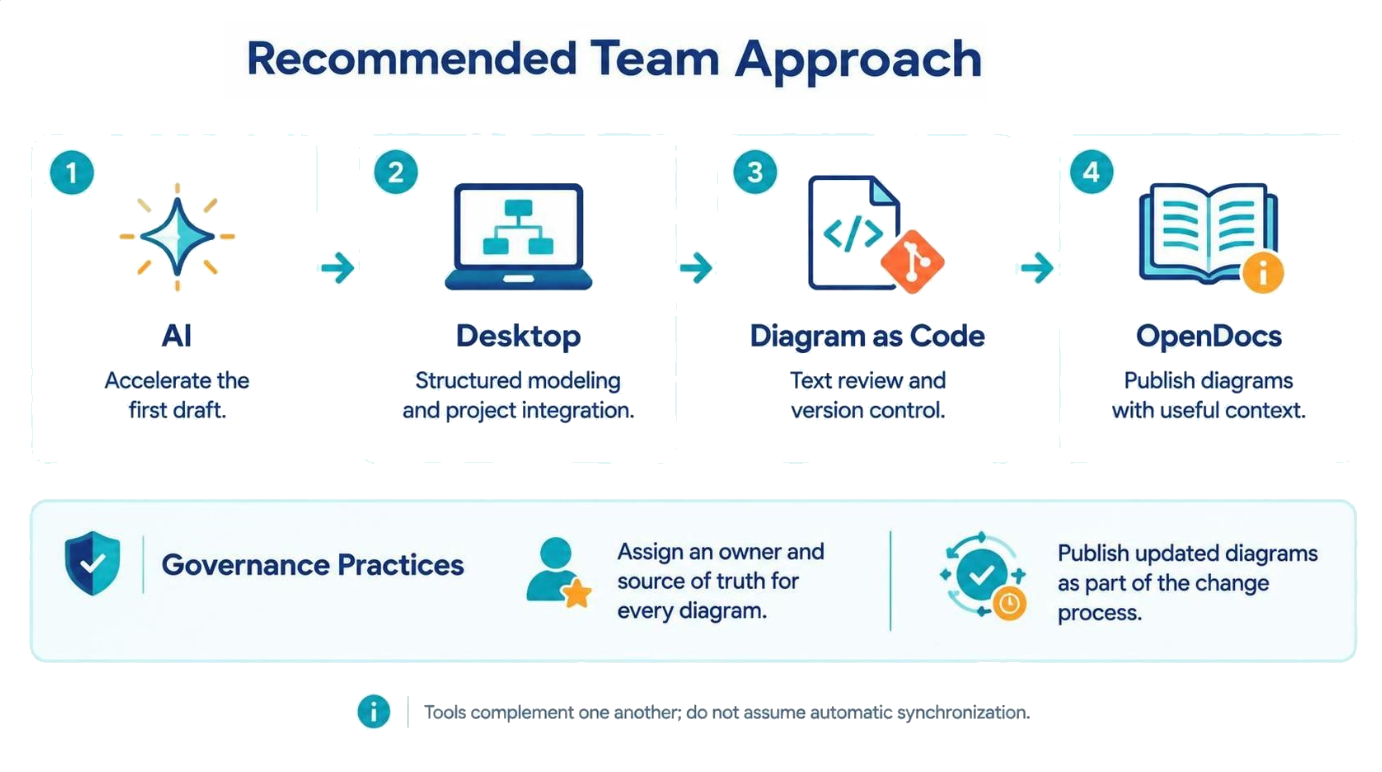
Use AI to accelerate the first draft, Desktop for structured modeling and project integration, Diagram as Code when text-based review and version control are a priority, and OpenDocs to publish diagrams with useful context. Make ownership explicit for every diagram, and include publishing updated diagrams as part of the team’s change process. This creates a practical path from an idea to a reviewed model and maintained documentation without assuming that every ecosystem component automatically stays in sync.