




Visual Paradigm Pipeline: A Comprehensive Guide
The Visual Paradigm Pipeline is the centralized connection layer between Visual Paradigm’s diagramming and modeling tools and Visual Paradigm OpenDocs. It allows teams to create visual assets, store them as managed cloud artifacts, track their revisions, and embed them into living documentation without repeatedly exporting, uploading, and replacing image files.
The core workflow is:
Create or generate → Commit to Pipeline → Embed in OpenDocs → Review changes → Update documentation
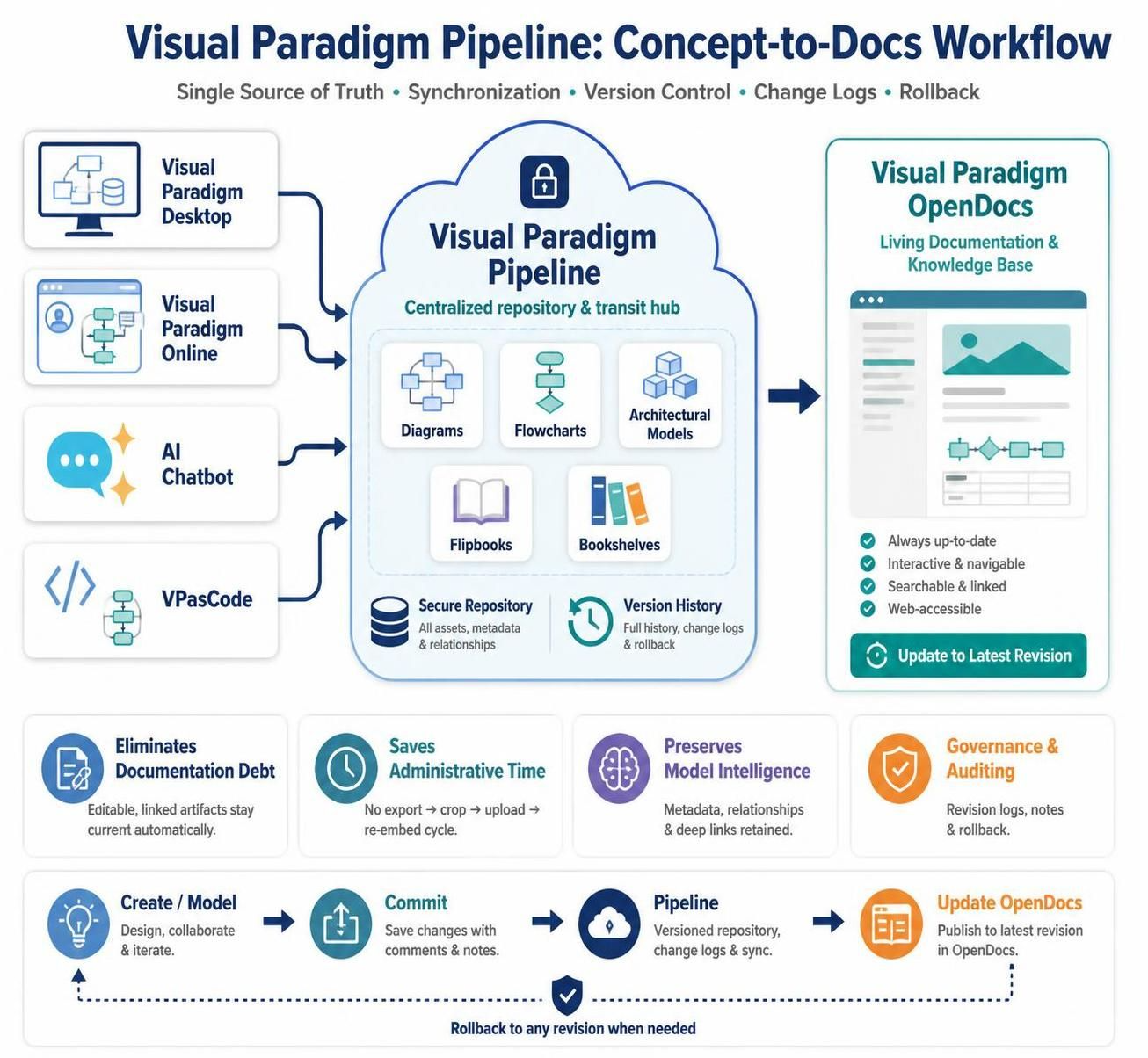
The Pipeline is intended to keep diagrams and documentation synchronized as a project evolves. Instead of treating diagrams as static PNG or JPG files, it maintains a relationship between the published visual and its source asset.
1. What the Pipeline Does
The Pipeline performs four main functions:
-
Centralized asset storage
It stores diagrams and other visual assets in a shared, cloud-based repository. -
Transit between tools
It connects Visual Paradigm Desktop, Visual Paradigm Online, the AI Diagramming Chatbot, VPasCode, and OpenDocs. -
Revision management
It records changes to visual assets and allows users to review newer revisions or restore earlier versions. -
Live documentation integration
It allows visual assets to be embedded into OpenDocs as managed elements rather than manually uploaded image files.
Assets sent through the Pipeline can include UML, BPMN, ERD, ArchiMate, flowcharts, architecture diagrams, sequence diagrams, flipbooks, and bookshelves, depending on the source tool and publishing workflow.
2. The Pipeline Ecosystem
The Pipeline is easiest to understand as a three-layer ecosystem.
Generation layer
This is where diagrams and models are created.
-
Visual Paradigm Desktop: Used for advanced enterprise modeling, database design, software architecture, UML, BPMN, ERD, and other professional modeling tasks.
-
Visual Paradigm Online: Used for browser-based, collaborative diagramming and visual planning.
-
AI Diagramming Chatbot: Converts natural-language descriptions into diagrams and structured visual models.
-
VPasCode: Creates diagrams through text-based diagram languages such as PlantUML, Mermaid, Markmap, Graphviz, and ECharts.
The AI Chatbot can accelerate initial diagram creation, while VPasCode provides a more controlled, code-oriented way to refine and maintain diagrams.
Pipeline layer
The Pipeline is the transit and management layer. It stores submitted assets, assigns them an identifiable reference, tracks revisions, and makes them available to authorized users and connected tools.
This layer is particularly valuable because it maintains the relationship between a published diagram and its source model. When the source changes, OpenDocs can identify that a newer revision is available.
Documentation layer
Visual Paradigm OpenDocs is the destination for creating project documentation, technical manuals, system specifications, wikis, and knowledge bases.
Pipeline-managed assets can be inserted into OpenDocs as live or managed visual elements. The documentation can therefore contain both explanatory text and linked visual models that remain connected to their source.
3. Why Use the Pipeline?
Traditional documentation often follows this pattern:
-
Create a diagram.
-
Export it as PNG, JPG, SVG, or PDF.
-
Upload it to a wiki or document.
-
Insert the image manually.
-
Modify the original diagram later.
-
Export it again.
-
Replace the old image everywhere it appears.
This creates several problems:
-
Multiple copies of the same diagram may exist.
-
Documentation can become out of date.
-
Teams may not know which revision is authoritative.
-
Source files and exported images can become separated.
-
Metadata, relationships, and model intelligence may be lost.
-
Updating diagrams across multiple documents consumes administrative time.
The Pipeline replaces this process with a managed connection between the source asset and the documentation. The result is a more reliable single source of truth for visual information.
4. Core Concepts
Managed asset
A managed asset is a visual artifact stored through the Pipeline rather than uploaded manually as an ordinary image. It can have a name, source, revision history, and relationship to one or more documents.
Examples include:
-
System architecture diagrams
-
User journey flows
-
Database models
-
API sequence diagrams
-
Business process models
-
Product roadmaps
-
Organizational diagrams
-
Digital flipbooks
-
Bookshelves and knowledge collections
Revision
A revision is a saved version of an asset. A new revision may be created when a user changes a diagram and commits or publishes the update.
Revision history helps teams:
-
See what changed
-
Identify who made an update
-
Review the sequence of changes
-
Compare current and previous states
-
Restore an earlier version when necessary
Live documentation
Live documentation contains visuals that remain connected to managed source assets. When a source diagram changes, the corresponding OpenDocs content can indicate that an update is available. Authors can then decide when to apply the newer revision.
Single source of truth
The Pipeline reduces uncertainty about which diagram should be used. Rather than keeping independent copies in email attachments, shared drives, slide decks, and wikis, teams can reference a centrally managed asset.
5. Standard Pipeline Workflow
Step 1: Create the visual asset
Start with the tool most appropriate for the task.
For example:
-
Use Desktop for a detailed enterprise architecture.
-
Use Online for collaborative process mapping.
-
Use the AI Chatbot to generate an initial system flow from a natural-language description.
-
Use VPasCode when you want a text-based, code-like diagram definition.
A useful AI prompt might be:
Create a sequence diagram for an online order process involving a customer,
web application, payment service, inventory service, and order database.
Show successful payment, payment failure, and inventory-unavailable scenarios.
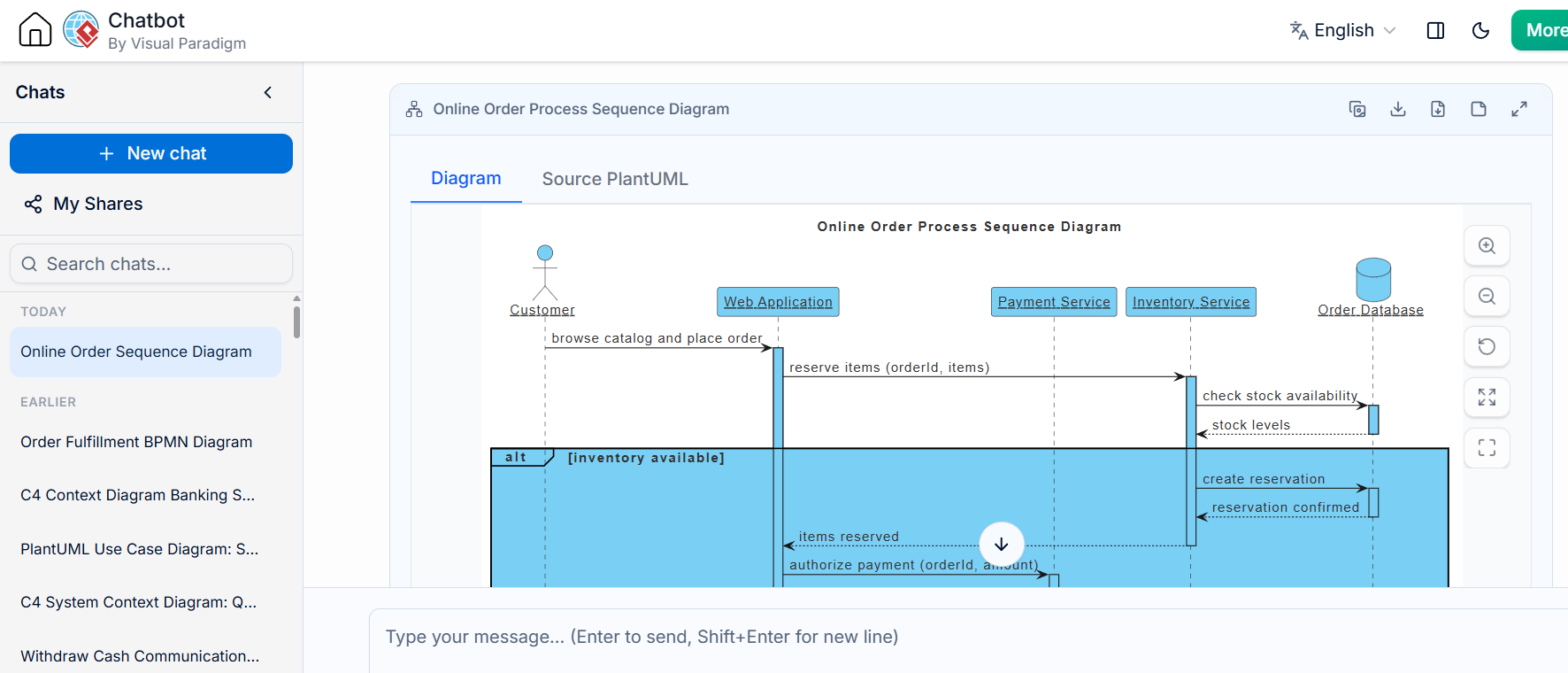
If using VPasCode, the result can be refined through diagram code. For example:
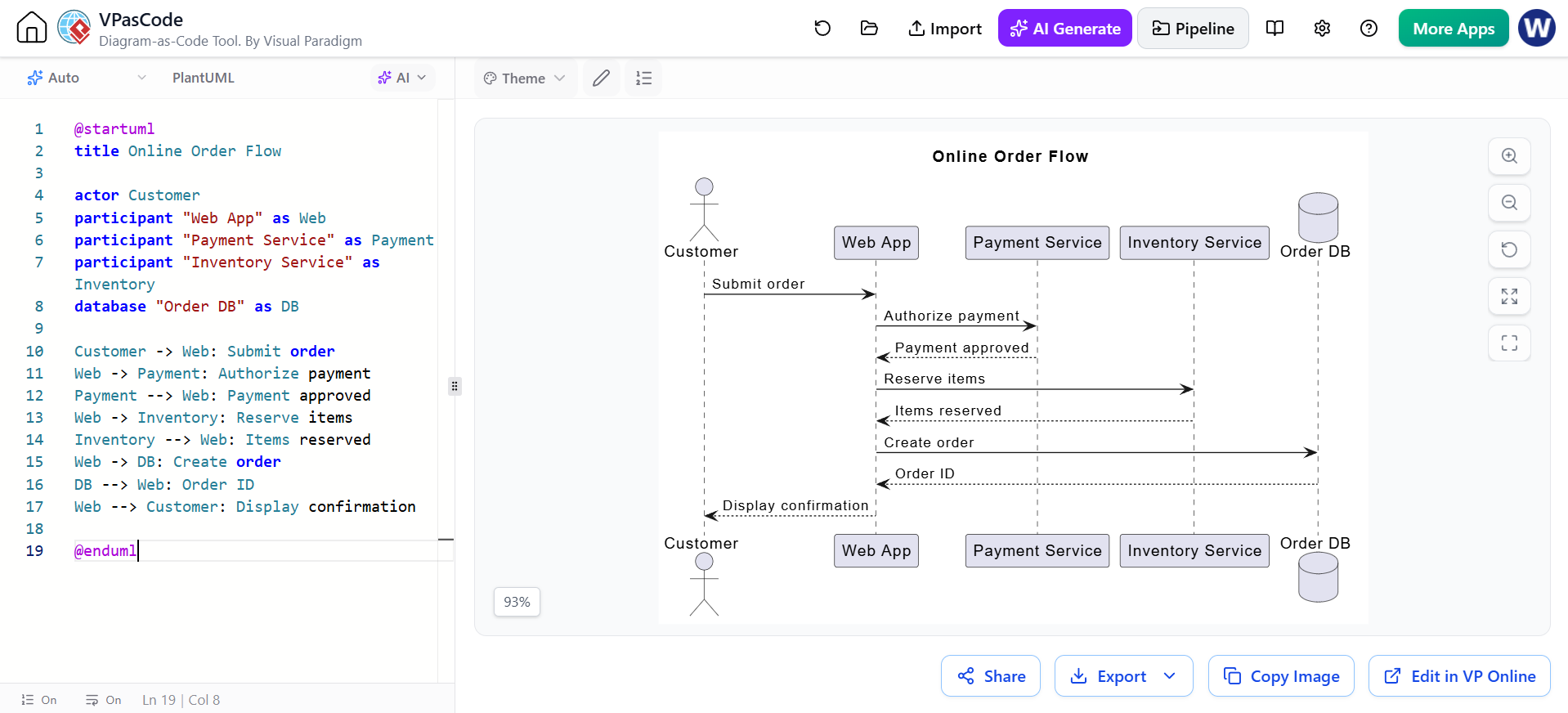
@startuml
title Online Order Flow

actor Customer
participant "Web App" as Web
participant "Payment Service" as Payment
participant "Inventory Service" as Inventory
database "Order DB" as DB

Customer -> Web: Submit order
Web -> Payment: Authorize payment
Payment --> Web: Payment approved
Web -> Inventory: Reserve items
Inventory --> Web: Items reserved
Web -> DB: Create order
DB --> Web: Order ID
Web --> Customer: Display confirmation

@enduml
VPasCode supports diagram-as-code workflows in which textual definitions can be rendered as visual diagrams and refined before publication.
Step 2: Review and refine the asset
Before committing an asset to the Pipeline, check:
-
Diagram title
-
Terminology and labels
-
Direction of relationships
-
Missing actors or systems
-
Layout and readability
-
Sensitive or restricted information
-
Whether the visual matches the current system design
-
Whether the intended audience can understand it
AI-generated diagrams should be reviewed carefully. AI can accelerate diagram creation, but domain experts should validate the architecture, relationships, assumptions, and terminology.
Step 3: Send or commit the asset to the Pipeline
After reviewing the diagram, send it to the Pipeline using the relevant export, publish, save, or commit action in the source application.
The Pipeline then manages the asset as a reusable cloud resource. Depending on the workflow, it can store the asset, assign it an identifiable reference, and record its initial revision.
At this point, teams should provide useful metadata, such as:
-
Clear asset name
-
Project or product name
-
Asset type
-
Owner
-
Business or technical domain
-
Status, such as Draft, Reviewed, or Approved
-
Description
-
Related system or service
-
Change summary
A good name is:
Payments Platform - Checkout Authorization Flow
A weak name is:
diagram-final-v3-new
Step 4: Insert the asset into OpenDocs
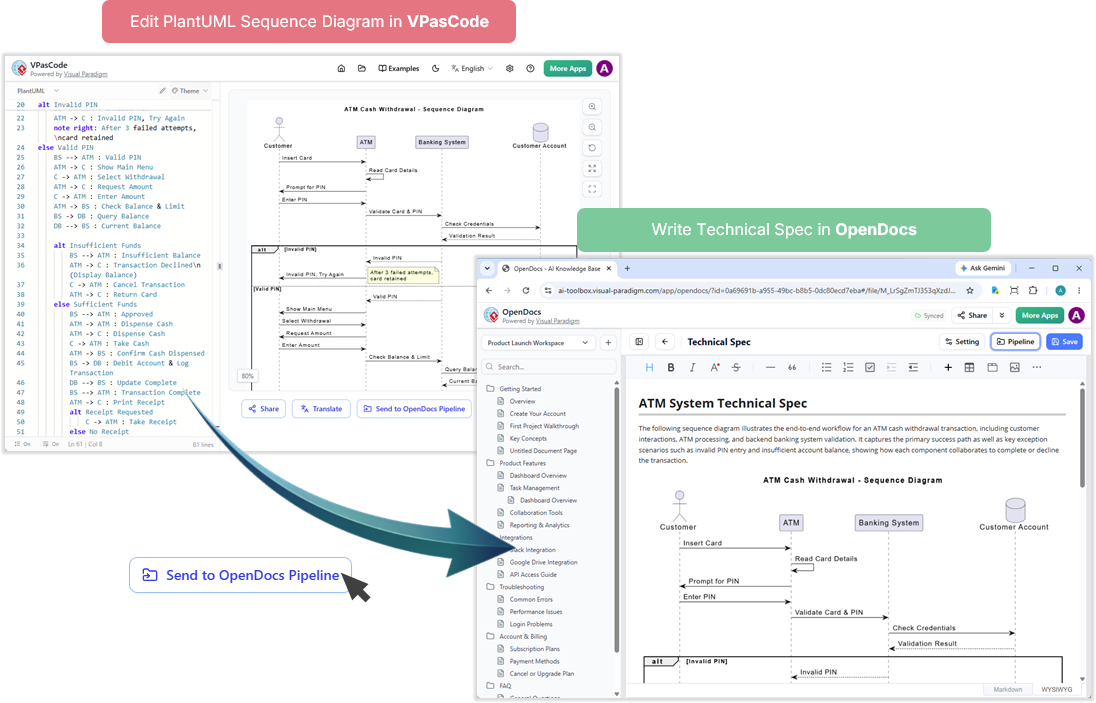
In OpenDocs:
-
Open an existing document or create a new one.
-
Navigate to the section where the visual belongs.
-
Use the visual asset insertion command or the relevant diagram insertion option.
-
Search for the Pipeline-managed asset.
-
Select the desired asset and revision.
-
Add surrounding explanatory text.
A diagram should rarely appear without context. Include:
-
Purpose of the diagram
-
Scope
-
Key assumptions
-
Important actors or components
-
Explanation of unusual flows
-
Date or review status
-
Owner or responsible team
For example:
This diagram describes the authorization flow for card payments.
The payment service is responsible for authorization, while the order
service creates the order only after payment approval. Failed payments
are returned to the web application without creating an order record.
The asset is embedded as a managed visual rather than as an independently uploaded screenshot.
Step 5: Publish or share the documentation
Once the document has been reviewed, it can serve as:
-
A software requirements specification
-
An architecture reference
-
An API guide
-
A project wiki
-
An onboarding resource
-
A training manual
-
A compliance or audit reference
-
A customer-facing product manual
OpenDocs content can also be distributed through formats such as flipbooks or bookshelves when teams need structured, broader access to documentation collections.
Step 6: Update the source asset
When the system changes, update the diagram in its original source tool.
For example, if multi-factor authentication is added to a login flow:
-
Open the original diagram in Desktop or VPasCode.
-
Add the MFA service and related interactions.
-
Review the updated layout.
-
Save or commit the new revision to the Pipeline.
-
Add a meaningful change note.
A useful change note might be:
Added OTP verification between the authentication service and MFA service.
Updated failure paths for expired and invalid codes.
Step 7: Review the update in OpenDocs
When a newer revision becomes available, the linked visual in OpenDocs can display an update indicator. The document author can then review the change and choose whether to update the embedded visual.
This approach preserves editorial control. Documentation does not necessarily have to change immediately every time a source model is edited; an author can review the revision first and apply it when appropriate.
Step 8: Roll back when necessary
If a new revision introduces an error or is not ready for publication, review the asset history and restore or select an earlier revision where supported.
Rollback is useful when:
-
A diagram was updated prematurely.
-
An experimental design was committed.
-
A change introduced incorrect relationships.
-
Documentation must temporarily reflect an earlier approved state.
-
An audit requires examination of a previous design.
6. Using the Pipeline with Different Tools
Visual Paradigm Desktop
Desktop is appropriate for complex modeling and enterprise-scale work.
A typical workflow is:
-
Open the project in Desktop.
-
Create or update the model.
-
Review the model for structural correctness.
-
Send the diagram or selected visual asset to the Pipeline.
-
OpenDocs users insert or update the managed asset.
This workflow is useful for:
-
Enterprise architecture
-
Large UML models
-
Database engineering
-
BPMN process libraries
-
Application architecture
-
Systems engineering
-
Architecture review documentation
Visual Paradigm Online
Online is useful when teams need browser-based collaboration.
A typical workflow is:
-
Create a diagram in the online workspace.
-
Invite collaborators to review or edit it.
-
Finalize the diagram.
-
Send it through the Pipeline.
-
Insert it into OpenDocs.
This is especially effective for:
-
Product planning
-
Process workshops
-
User journeys
-
Team collaboration
-
Roadmaps
-
Early-stage solution design
AI Diagramming Chatbot
The AI Chatbot is useful for rapid ideation and first drafts.
A practical workflow is:
-
Describe the system or process in natural language.
-
Ask for a specific diagram type.
-
Review the generated visual.
-
Correct terminology and relationships.
-
Send the result through the Pipeline.
-
Continue refining it in VPasCode or Desktop if necessary.
-
Publish it in OpenDocs.
For better results, specify:
-
Diagram notation
-
Actors
-
Components
-
Relationships
-
Main and alternate flows
-
Error conditions
-
Required level of detail
-
Intended audience
Example prompt:
Create a C4 container diagram for a subscription platform.
Include the customer portal, API gateway, identity service,
billing service, notification service, PostgreSQL database,
and external payment provider. Show the main data flows and
label each relationship with its purpose.
AI-generated visuals should be treated as an initial design or draft until reviewed by a qualified team member.
VPasCode
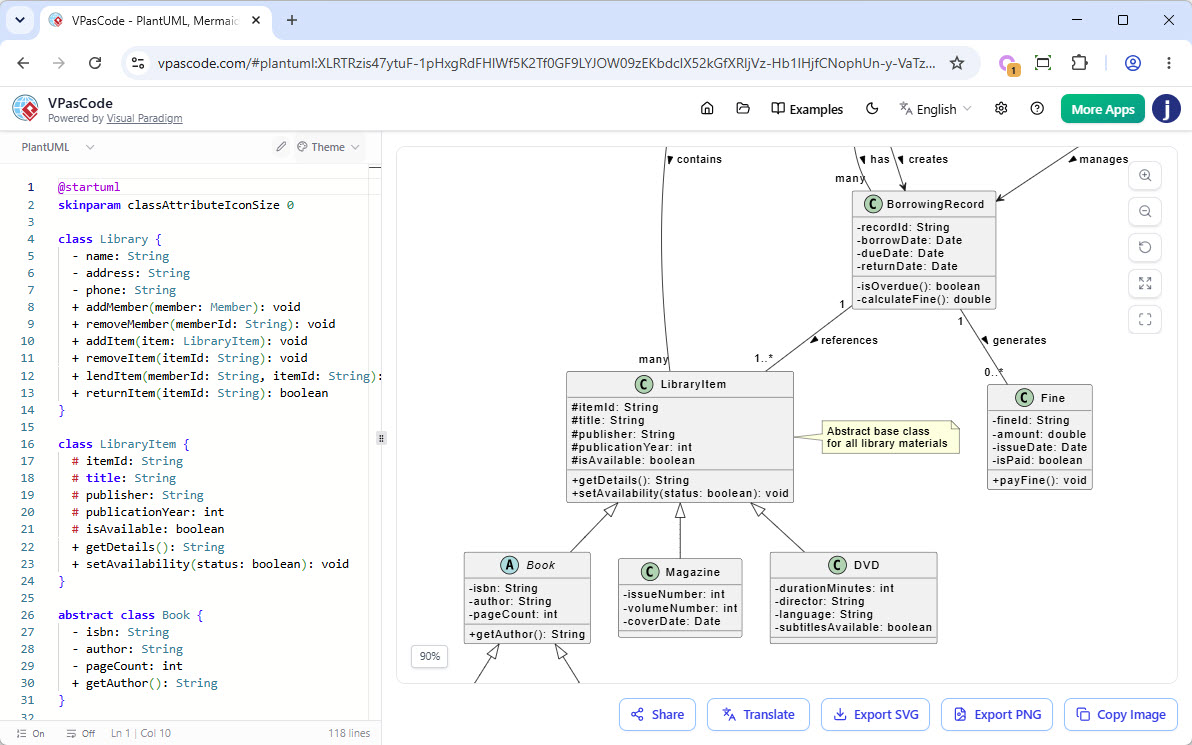
VPasCode is appropriate for users who prefer Diagram-as-Code.
Advantages include:
-
Text-based diagram definitions
-
Easier review of structural changes
-
Reusable diagram source
-
Compatibility with code-oriented workflows
-
Rapid iteration
-
Clearer change comparison for textual definitions
A common workflow is:
-
Generate or write PlantUML, Mermaid, Graphviz, Markmap, or another supported format.
-
Render the diagram.
-
Correct syntax and layout.
-
Send the visual to the Pipeline.
-
Import or refine it in Desktop if deeper modeling is required.
-
Embed it in OpenDocs.
VPasCode can also act as an intermediate step between AI-generated ideas and formal Desktop modeling.
7. Common Use Cases
Software architecture documentation
Architects can publish component, deployment, sequence, and infrastructure diagrams directly into system documentation.
When a service is added or removed, the source diagram is updated and the OpenDocs version can be refreshed without replacing image files manually.
API documentation
Teams can create sequence diagrams for endpoints such as:
-
POST /orders -
GET /customers/{id} -
POST /payments -
PUT /subscriptions
Each API section can include explanatory text and a current interaction diagram. This helps developers understand not only the endpoint parameters but also the services, databases, and external systems involved.
Product requirements
Product managers can create process flows, user journeys, story maps, and roadmaps, then embed them in product requirement documents.
This keeps the visual representation of a feature aligned with the written requirements.
Business process management
Business analysts can model current-state and future-state processes, publish them in OpenDocs, and maintain a revision history as procedures evolve.
Training and onboarding
Teams can combine diagrams, written explanations, flipbooks, and bookshelves to create structured training materials for new employees or customers.
Compliance and audit preparation
The Pipeline can support traceability by preserving revision information and contextual change notes. Teams can use it to show how an architecture, process, or control model changed over time.
The Pipeline does not replace an organization’s formal governance process, but it can provide useful evidence for review and historical tracking.
Database and data architecture
Database diagrams and data-flow models can be embedded alongside table descriptions, ownership information, data classifications, and integration notes.
8. Recommended Governance Model
A successful Pipeline implementation needs more than tool integration. Teams should agree on how assets are named, reviewed, approved, and updated.
Define ownership
Assign an owner to each important asset.
Examples:
-
Enterprise architecture team owns platform architecture diagrams.
-
Security team owns trust-boundary diagrams.
-
Product team owns customer journey maps.
-
Database team owns logical and physical data models.
Establish lifecycle states
Useful states include:
-
Draft
-
In Review
-
Approved
-
Published
-
Deprecated
-
Archived
Use consistent naming
A standard naming format might be:
[Domain] - [System or Process] - [Diagram Type]
Examples:
Identity - Login and MFA - Sequence Diagram
Commerce - Checkout - Activity Diagram
Payments - Authorization - Component Diagram
Require meaningful change notes
Every significant update should explain:
-
What changed
-
Why it changed
-
Who requested it
-
Which system or requirement was affected
-
Whether related documents need review
Separate experimentation from publication
AI-generated or exploratory diagrams should not automatically become authoritative documentation. Use a review process before marking assets as approved or publishing them broadly.
Review embedded assets regularly
Schedule reviews based on risk:
-
Critical architecture: monthly or after major releases
-
API diagrams: whenever contracts change
-
Business processes: quarterly or after policy changes
-
Training material: at least every release cycle
-
Low-risk reference diagrams: annually
9. Practical Documentation Pattern
A strong OpenDocs page can follow this structure:
# Payment Authorization Flow

## Purpose
Explains how the platform authorizes card payments before creating an order.

## Scope
Covers the web application, payment service, fraud screening,
order service, and payment provider.

## Diagram
[Pipeline-managed visual asset]

## Main Flow
1. The customer submits payment details.
2. The web application sends an authorization request.
3. The payment service validates the request.
4. The external provider approves or rejects the payment.
5. The order service creates an order after approval.

## Failure Scenarios
- Invalid payment details
- Provider timeout
- Fraud screening rejection
- Duplicate authorization request

## Ownership
Payment Platform Team

## Change History
- Added fraud screening step
- Added provider timeout handling
- Updated order creation sequence
This format combines human-readable explanation with a managed visual source.
10. Common Mistakes to Avoid
Treating the Pipeline as ordinary file storage
The main benefit is not simply storing an image in the cloud. The value comes from maintaining the source relationship, revision history, and documentation connection.
Publishing without reviewing
A diagram may be technically correct but still unsuitable for the audience. Check readability, terminology, scope, and sensitive details before publication.
Creating duplicate assets
Avoid sending slightly different copies of the same diagram to the Pipeline with unclear names. Update the existing authoritative asset when possible.
Using vague change notes
“Updated diagram” provides little value. Describe the actual architectural or process change.
Embedding diagrams without explanation
A visual should be accompanied by enough text for a reader to understand its purpose, boundaries, and important decisions.
Allowing AI output to become authoritative automatically
AI is effective for generating first drafts, but architecture, security, compliance, and business logic should be validated by subject-matter experts.
Ignoring document update indicators
A managed diagram can still become stale if available revisions are never reviewed. Assign responsibility for checking and applying updates.
11. Measuring the Benefits
Teams can evaluate the Pipeline using practical measures such as:
-
Time required to update a diagram in multiple documents
-
Number of stale diagrams found during reviews
-
Number of duplicate assets
-
Time spent exporting and re-uploading visuals
-
Percentage of major diagrams with a named owner
-
Percentage of documentation pages linked to approved assets
-
Number of rollback or revision-review events
-
Time required to onboard a new team member
-
Number of documentation defects caused by outdated visuals
The most important outcome is not the number of diagrams stored. It is the reduction in the gap between the current system design and the documentation used to understand it.
12. Recommended Adoption Plan
Phase 1: Start with one workflow
Choose a high-value scenario, such as:
-
Software architecture documentation
-
API sequence diagrams
-
Product requirement flows
-
Database documentation
Phase 2: Define standards
Agree on:
-
Naming conventions
-
Ownership
-
Revision notes
-
Review states
-
Publishing permissions
-
Update responsibilities
Phase 3: Convert existing documentation
Replace frequently outdated screenshots with Pipeline-managed assets. Begin with documents that are updated often or used by many teams.
Phase 4: Add AI and Diagram-as-Code workflows
Use the AI Chatbot for ideation and VPasCode for text-based refinement. Use Desktop when the model requires deeper enterprise analysis.
Phase 5: Establish continuous review
Include Pipeline asset reviews in:
-
Release planning
-
Architecture review boards
-
Sprint or iteration closeout
-
Change-management procedures
-
Documentation quality checks
Conclusion
The Visual Paradigm Pipeline turns diagram management from a file-handling task into a connected documentation workflow. Teams can create visuals in Desktop, Online, the AI Chatbot, or VPasCode; commit them to a centralized repository; embed them into OpenDocs; and update them through tracked revisions.
Its most important benefit is continuity. The diagram remains connected to the documentation, the documentation remains closer to the current system, and teams spend less time exporting, cropping, uploading, replacing, and searching for the correct version.
The recommended operating model is:
Create carefully, commit deliberately, document with context, review revisions, and publish only approved updates.
This post is also available in Deutsche, Español, فارسی, Français, English, Polski, Portuguese, Việt Nam and 简体中文.
