




Visual Paradigm VPasCode: Comprehensive Guide
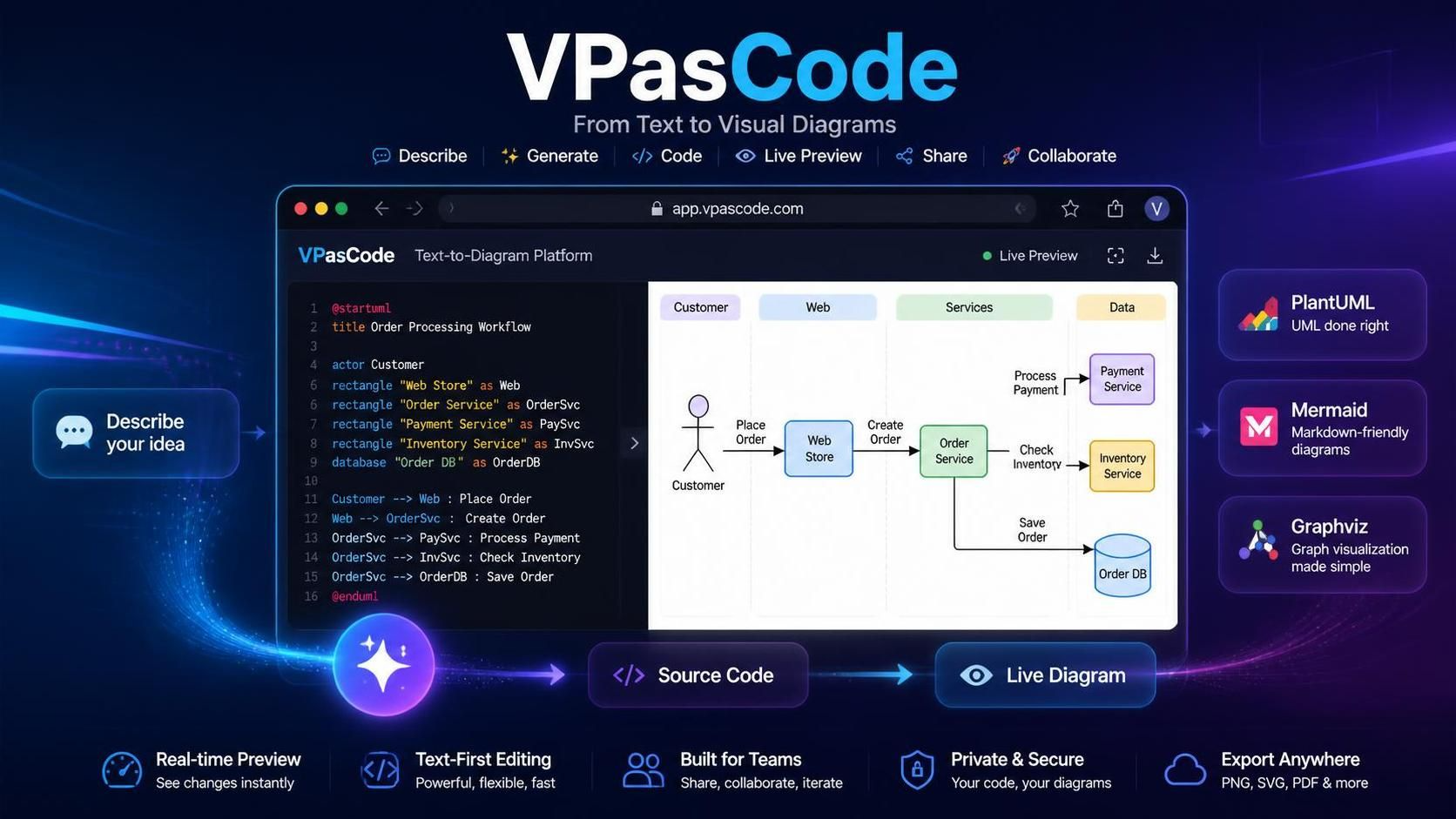
VPasCode is Visual Paradigm’s browser-based, text-to-diagram platform. It lets users create diagrams by writing diagram code, generating code with AI, or starting with a natural-language description. The diagram is rendered in real time beside the source code, allowing users to move quickly between requirements, code, and visual documentation. VPasCode supports diagram technologies including PlantUML, Mermaid, Graphviz, and other text-based formats.
What Is VPasCode?
VPasCode applies the diagram-as-code approach to visual modeling.
Instead of drawing every shape manually, you describe the diagram using text. The platform converts the text into a visual diagram.
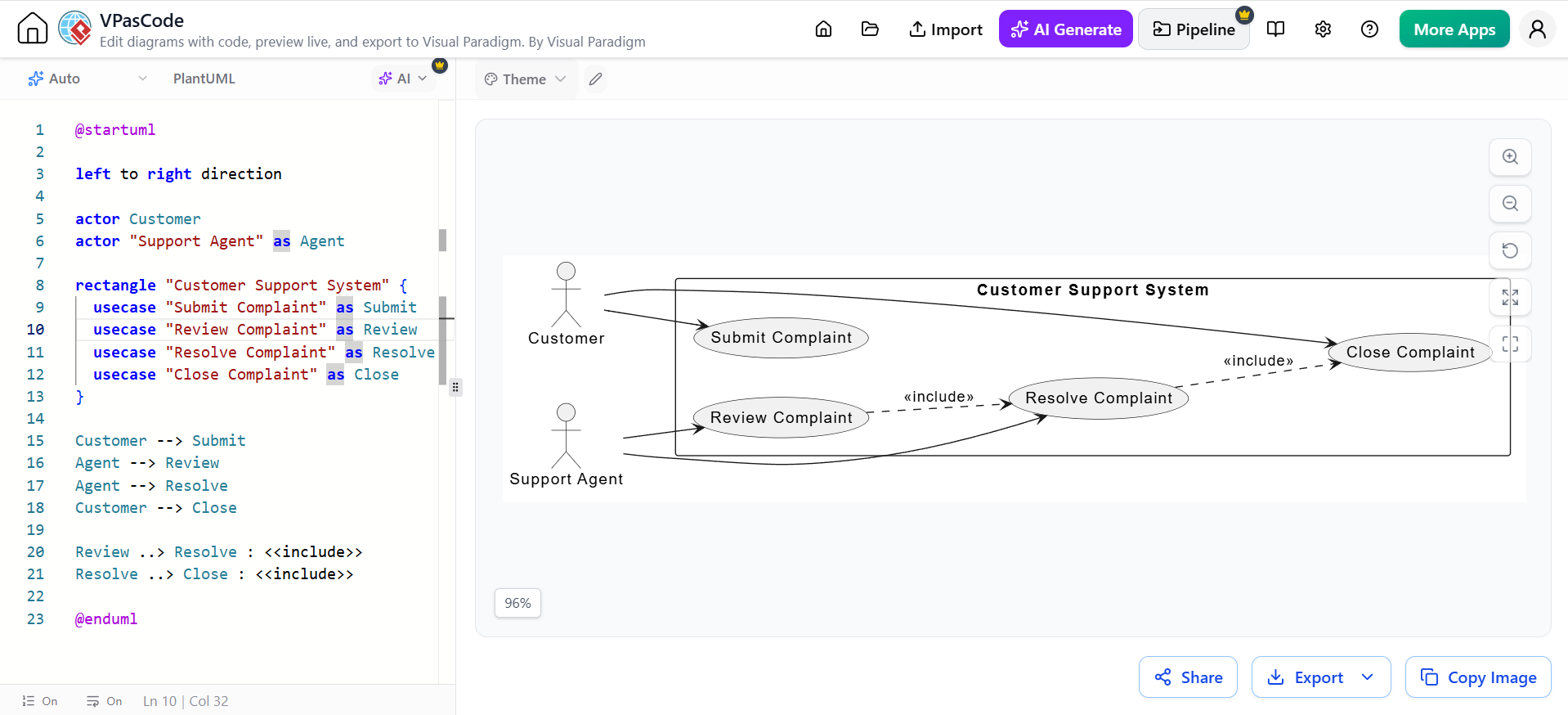
For example, a PlantUML use case diagram can be written as:
@startuml

left to right direction

actor Customer
actor "Support Agent" as Agent

rectangle "Customer Support System" {
  usecase "Submit Complaint" as Submit
  usecase "Review Complaint" as Review
  usecase "Resolve Complaint" as Resolve
  usecase "Close Complaint" as Close
}

Customer --> Submit
Agent --> Review
Agent --> Resolve
Customer --> Close

Review ..> Resolve : <<include>>
Resolve ..> Close : <<include>>

@enduml
VPasCode renders this source into a visual diagram without requiring users to manually place every element.
Main Features Overview
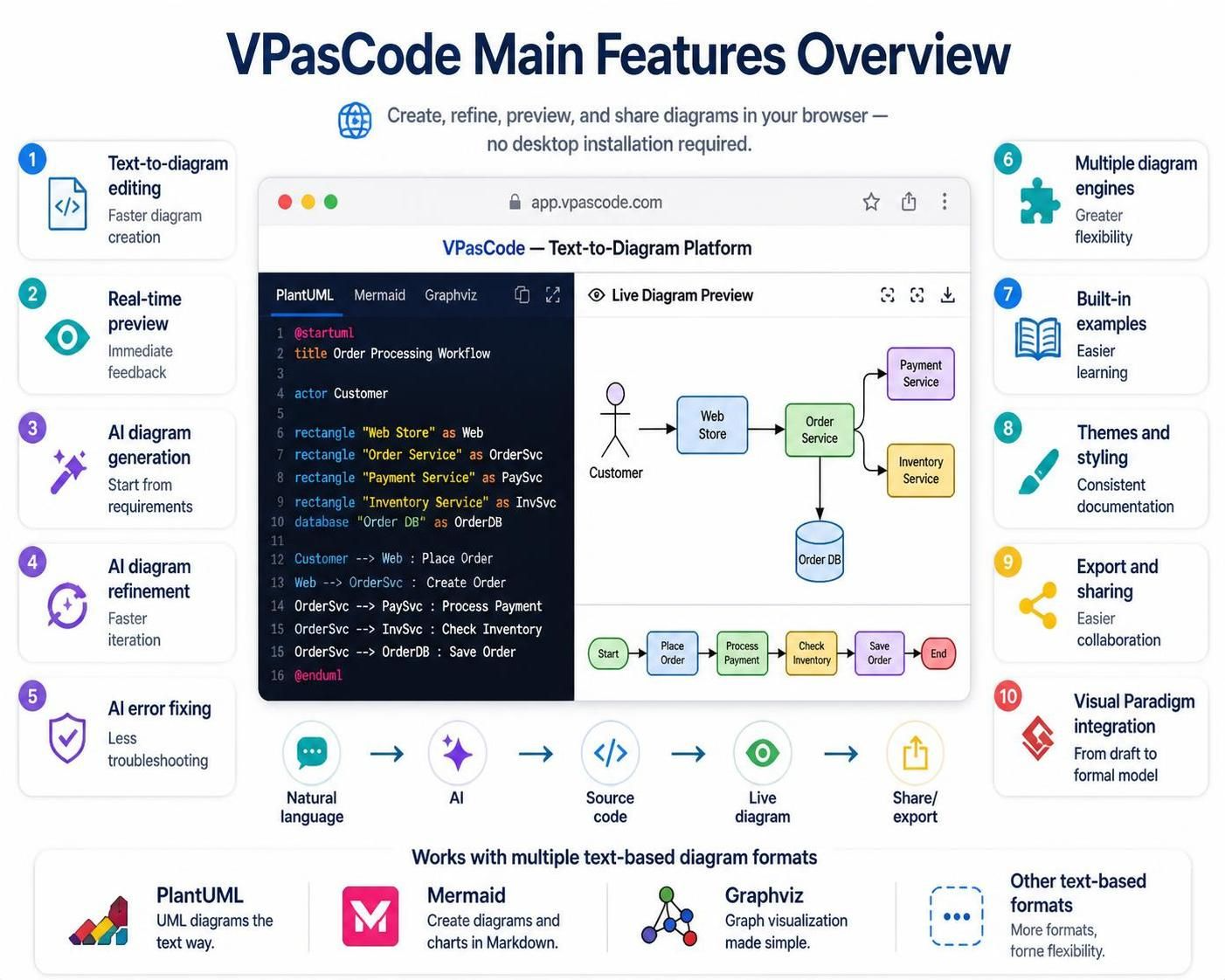
| Feature | What it provides | Typical benefit |
|---|---|---|
| Text-to-diagram editing | Create diagrams with PlantUML, Mermaid, Graphviz, and other supported formats | Faster diagram creation |
| Real-time preview | Shows the visual result beside the source code | Immediate feedback |
| AI diagram generation | Converts natural-language descriptions into diagram code | Useful for starting from requirements |
| AI diagram refinement | Modifies existing diagrams from plain-language instructions | Faster iteration |
| AI error fixing | Helps detect and correct diagram syntax problems | Reduces troubleshooting |
| Multiple diagram engines | Lets users select the syntax best suited to the task | Greater flexibility |
| Built-in examples | Provides templates and sample diagrams | Easier learning |
| Theme and styling support | Applies visual styles to supported diagrams | More consistent documentation |
| Export and sharing | Supports image export and shareable diagram links | Easier collaboration |
| Visual Paradigm integration | Connects AI-generated diagrams with Visual Paradigm tools | Smooth transition from draft to formal model |
The platform operates in a web browser, so users can begin diagramming without installing a desktop application or configuring a local environment.
Getting Started
1. Open VPasCode
Open the VPasCode workspace in a browser.
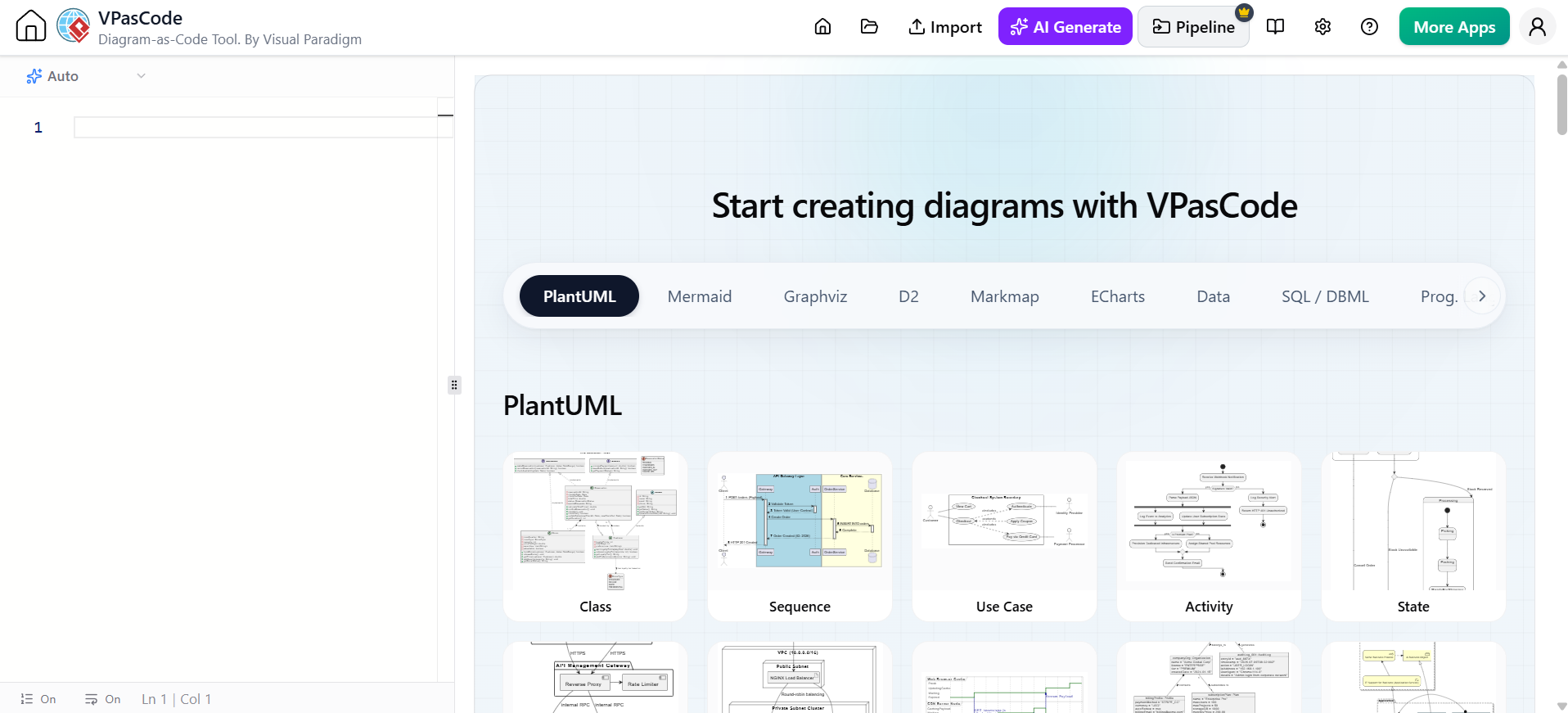
The workspace normally contains:
-
A diagram-code editor
-
A live diagram preview
-
AI assistance controls
-
Diagram examples or templates
-
Export and sharing options
2. Choose a diagram language
Select the syntax or diagram engine appropriate for your task.
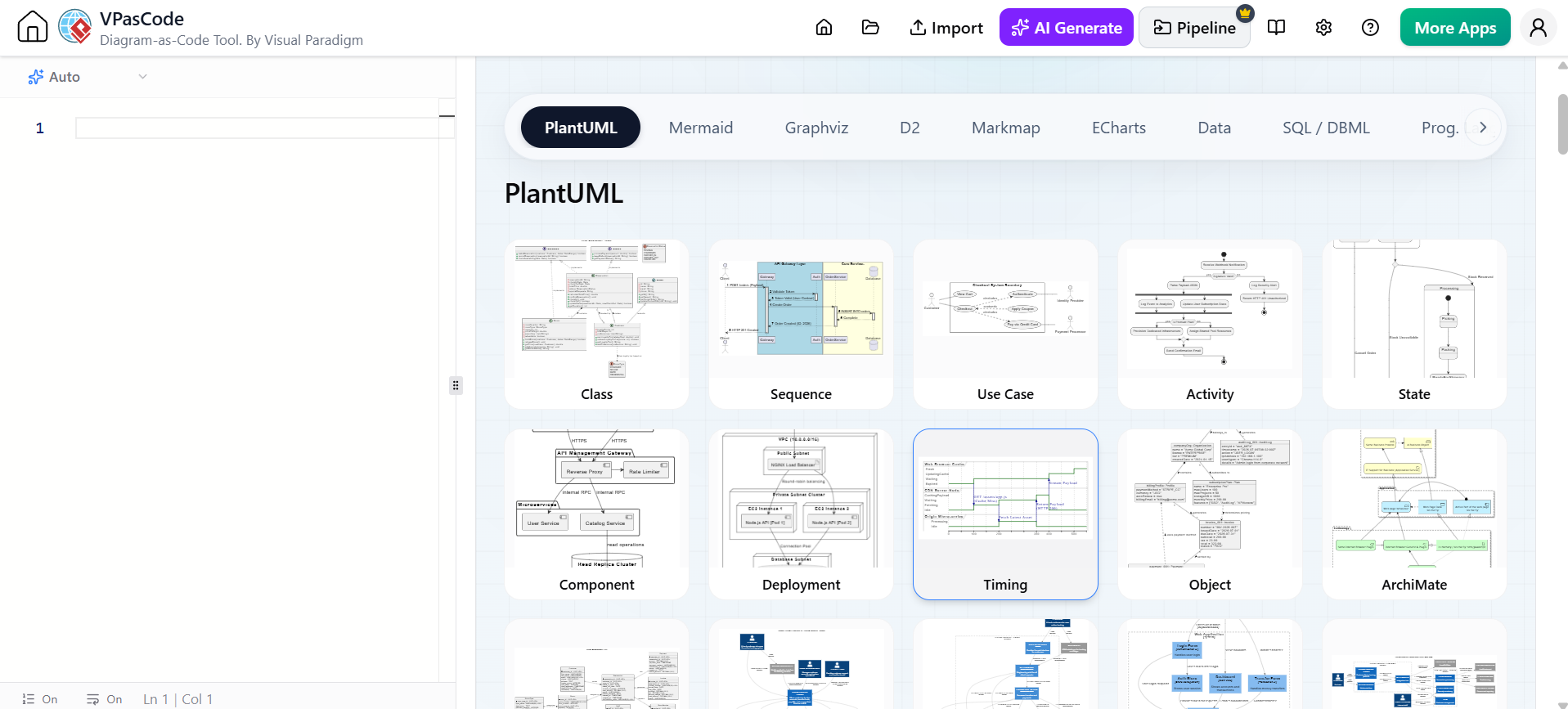
PlantUML
PlantUML is well suited to:
-
UML diagrams
-
Use case diagrams
-
Class diagrams
-
Sequence diagrams
-
Activity diagrams
-
Component diagrams
-
Deployment diagrams
-
C4 architecture diagrams
-
ArchiMate diagrams
PlantUML is particularly useful when a team needs detailed, formal, and maintainable technical documentation.
Mermaid
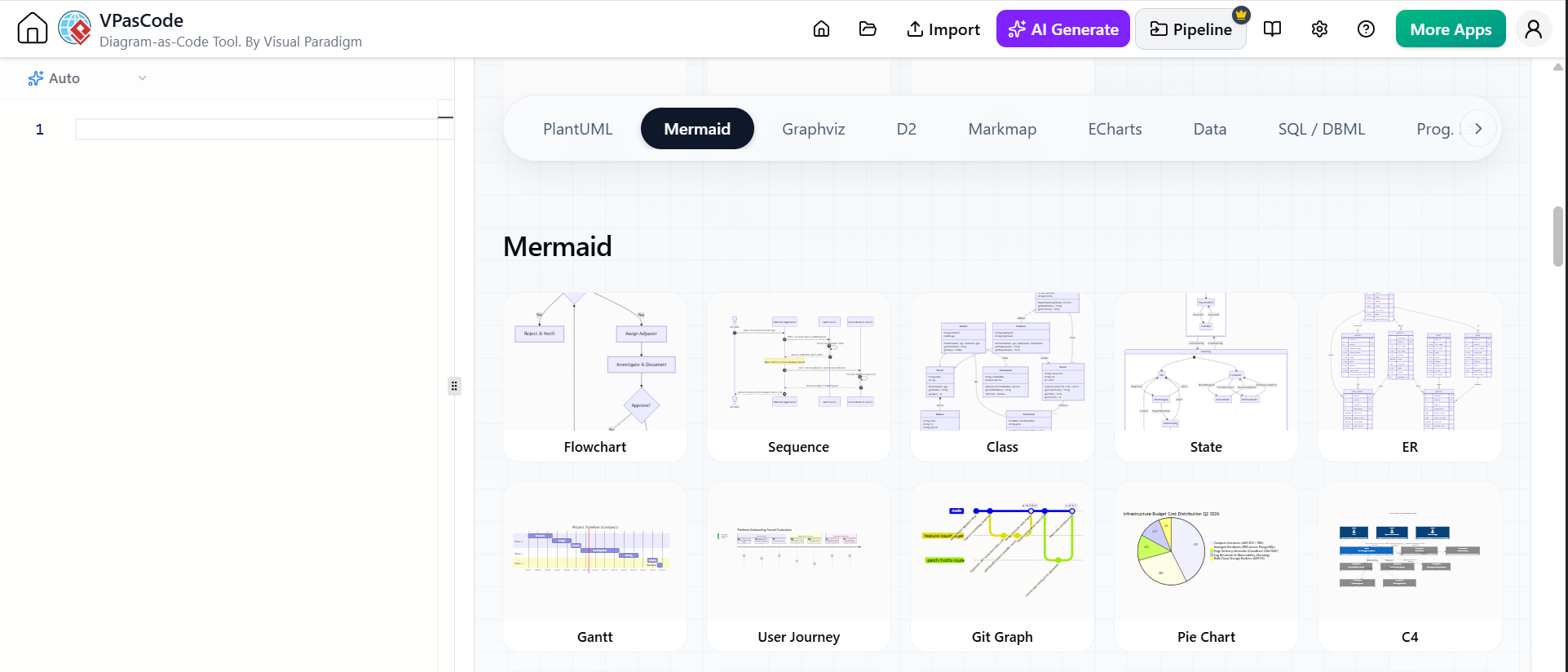
Mermaid is useful for:
-
Simple flowcharts
-
Markdown documentation
-
GitHub or GitLab documentation
-
Basic sequence diagrams
-
Gantt charts
-
State diagrams
Graphviz
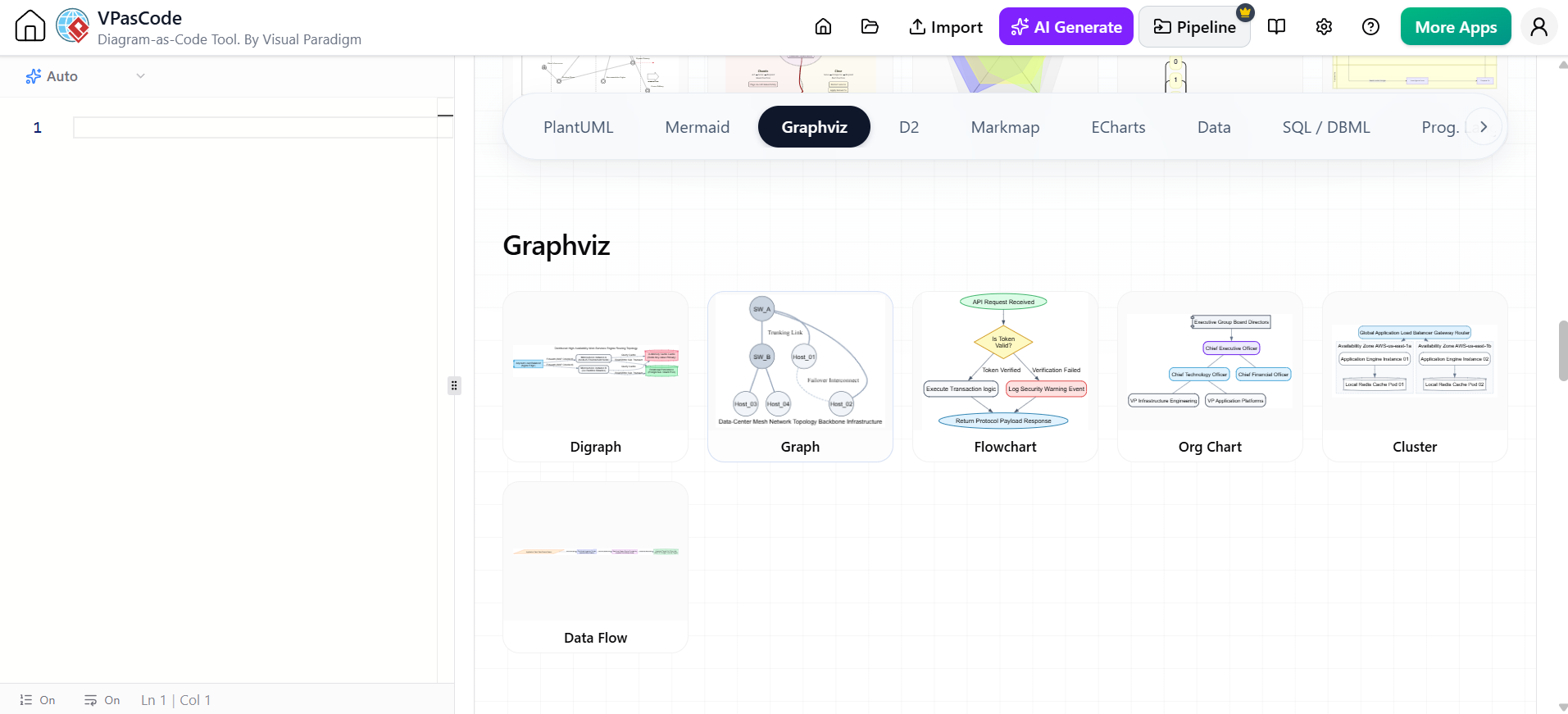
Graphviz is useful for:
-
Network structures
-
Dependency maps
-
Data flows
-
Infrastructure diagrams
-
Large relationship graphs
VPasCode’s multi-engine approach allows users to select the most appropriate notation instead of forcing every diagram into one syntax.
3. Start with an example
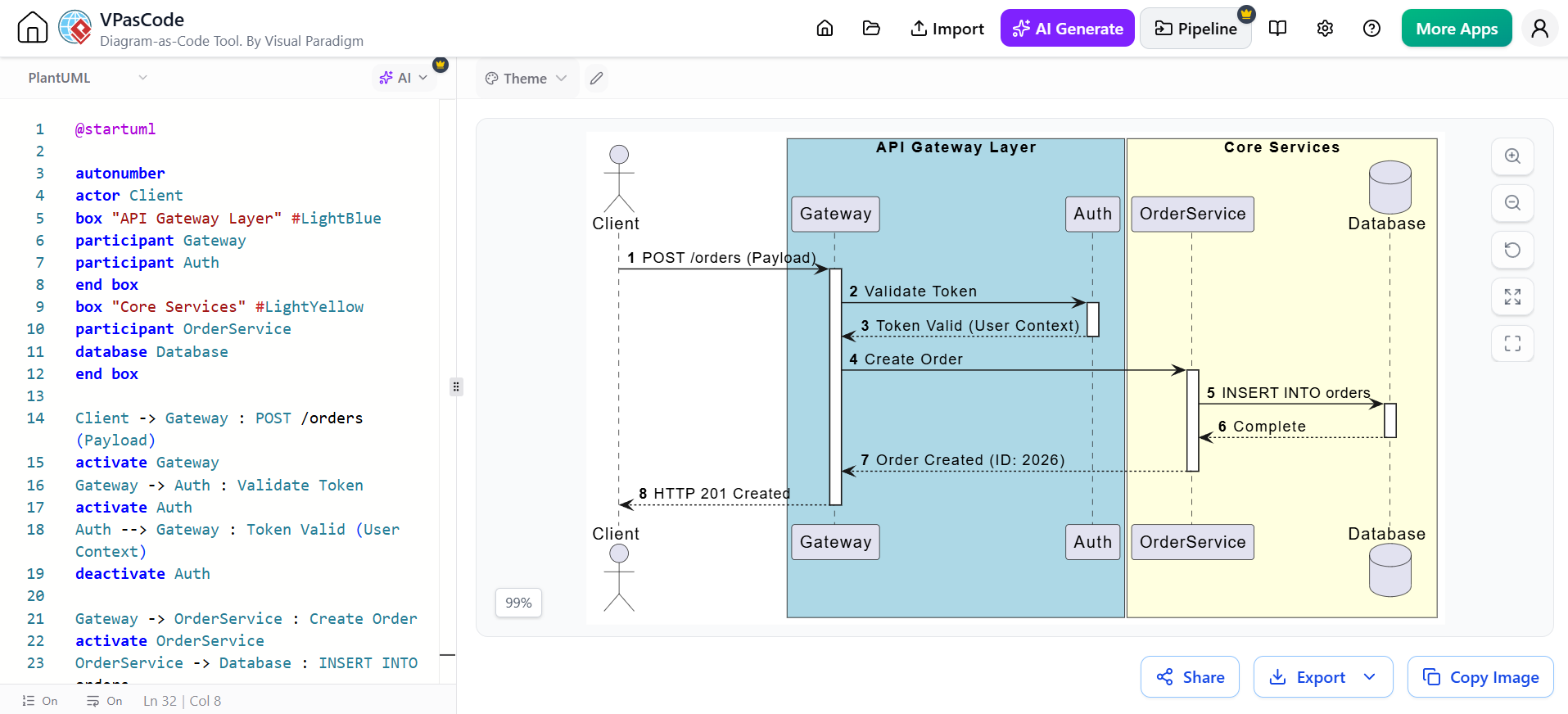
If you are new to diagram-as-code:
-
Open the examples or template area.
-
Select a diagram type.
-
Review the source code.
-
Observe how each line affects the visual diagram.
-
Replace the sample content with your own process or architecture.
Built-in examples are especially useful for learning syntax and starting common diagrams without writing everything from scratch.
Creating a Diagram with AI
1. Describe the diagram in natural language
Use a clear prompt that identifies the diagram type, participants, activities, and relationships.
Example:
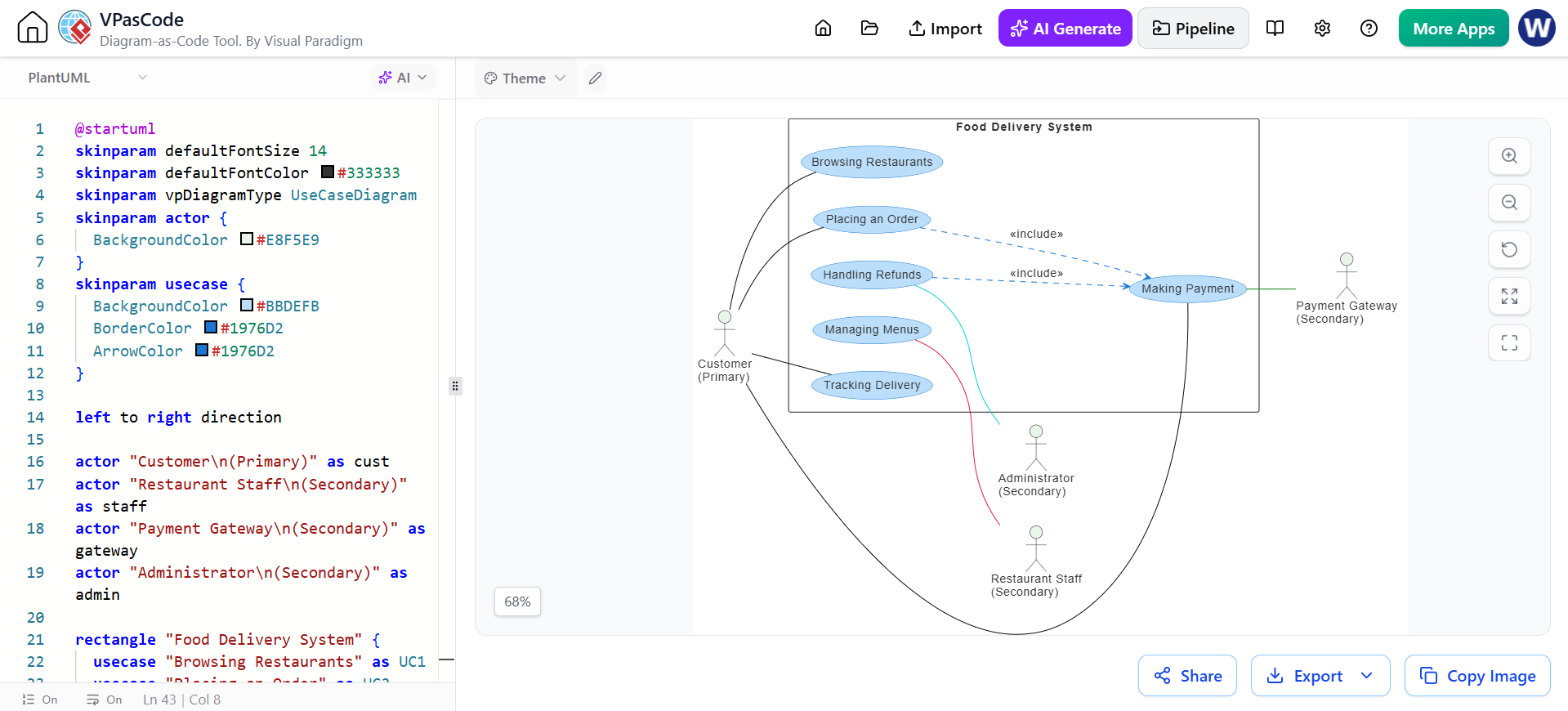
Generate a PlantUML use case diagram for an online food-delivery system. Include Customer, Restaurant Staff, Delivery Driver, Payment Gateway, and Administrator actors. Show use cases for browsing restaurants, placing an order, making payment, tracking delivery, managing menus, and handling refunds.
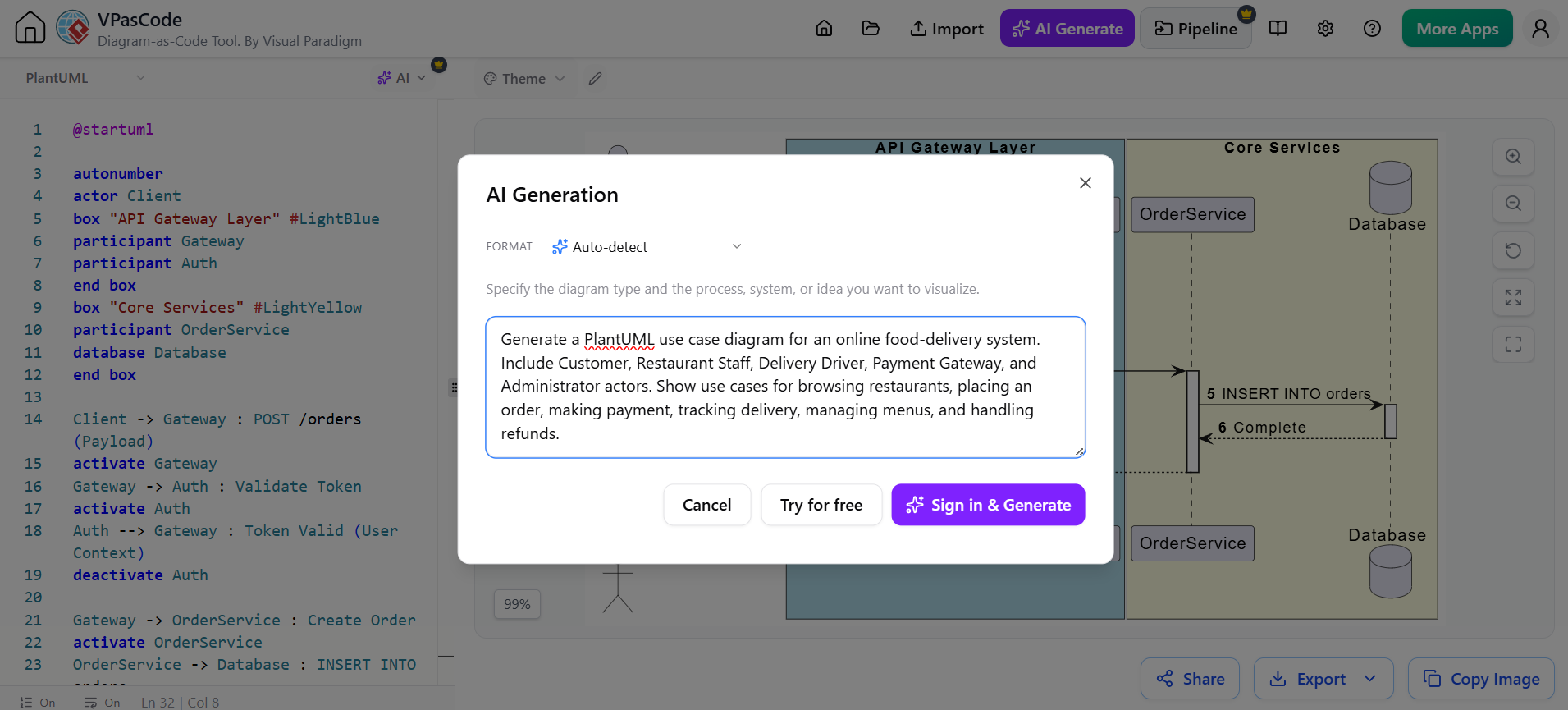
VPasCode’s AI can convert a natural-language description into diagram code, such as PlantUML or Mermaid.
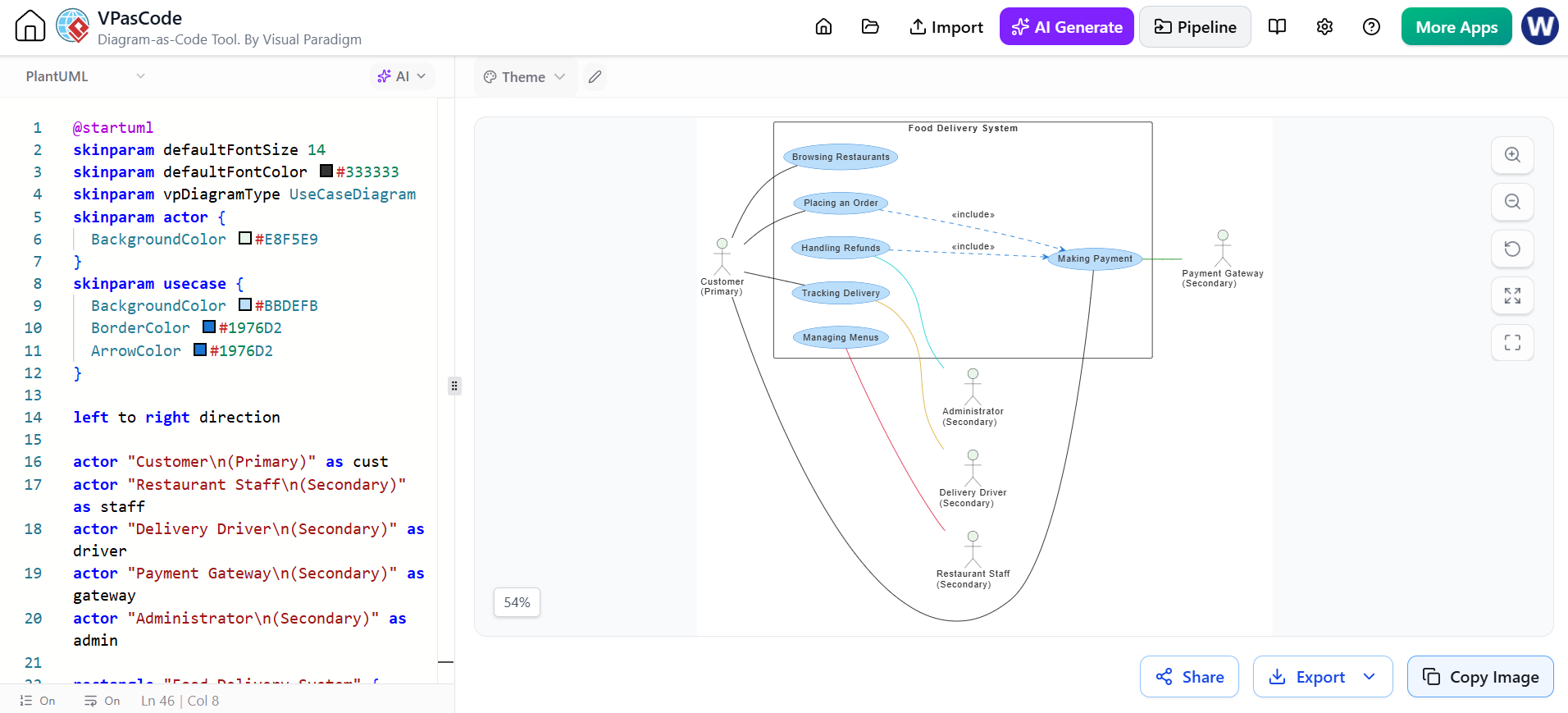
2. Review the generated source
After generation:
-
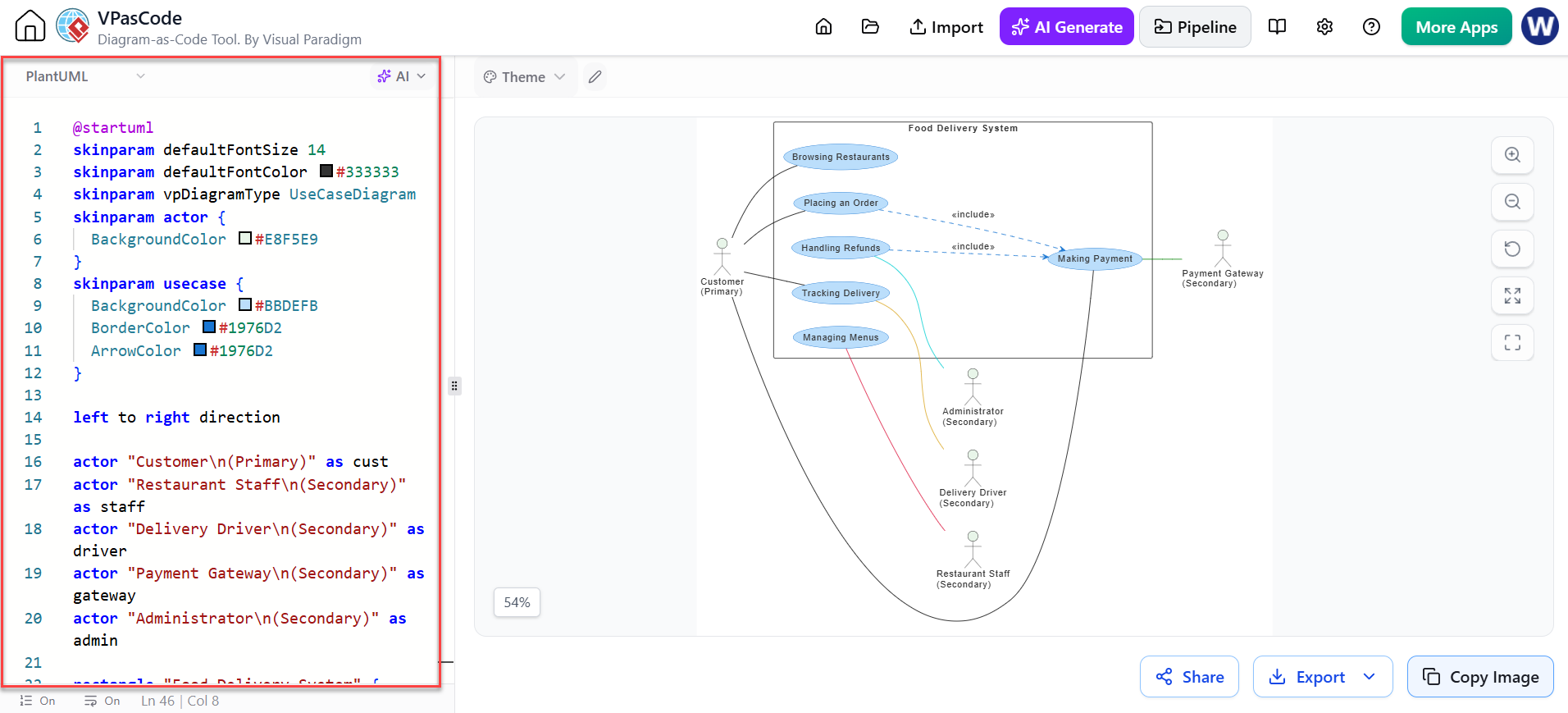
Read the code in the left pane.
-
Check the diagram type and syntax.
-
Confirm that all actors, tasks, systems, and relationships are included.
-
Compare the source with the visual preview on the right.
AI-generated diagrams are excellent starting points, but the result should be reviewed for business accuracy and modeling quality.
3. Refine the diagram with AI
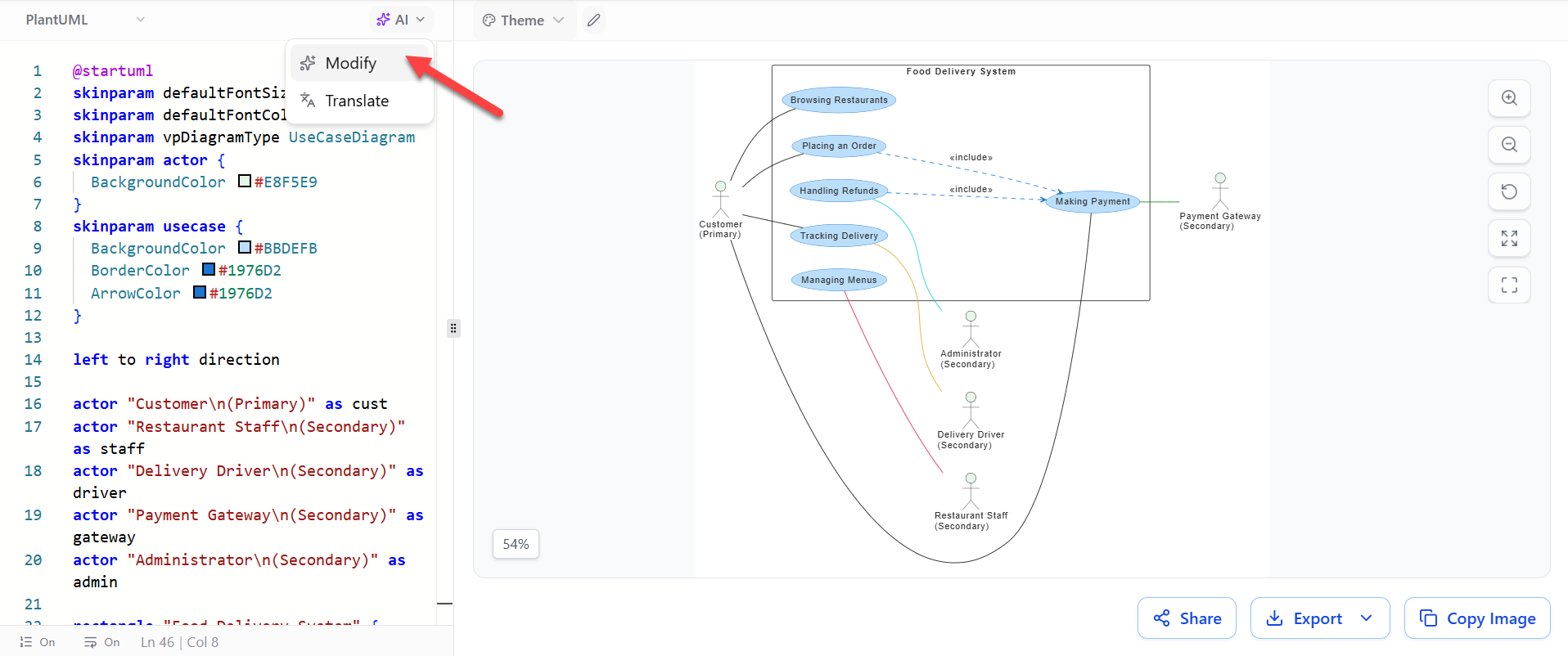
Use the AI modification feature to issue follow-up instructions.
Examples:
Add a Manager actor and connect the Manager to the refund approval use case.
Change this activity diagram into a standard non-swimlane activity diagram.
Add an error path when payment fails.
Group the use cases by customer, restaurant, and delivery operations.
Rename “Process Order” to “Validate and Confirm Order.”
The AI modification feature is designed to update existing diagram scripts through simple text commands rather than requiring users to manually rewrite every line.
4. Use AI to fix syntax errors
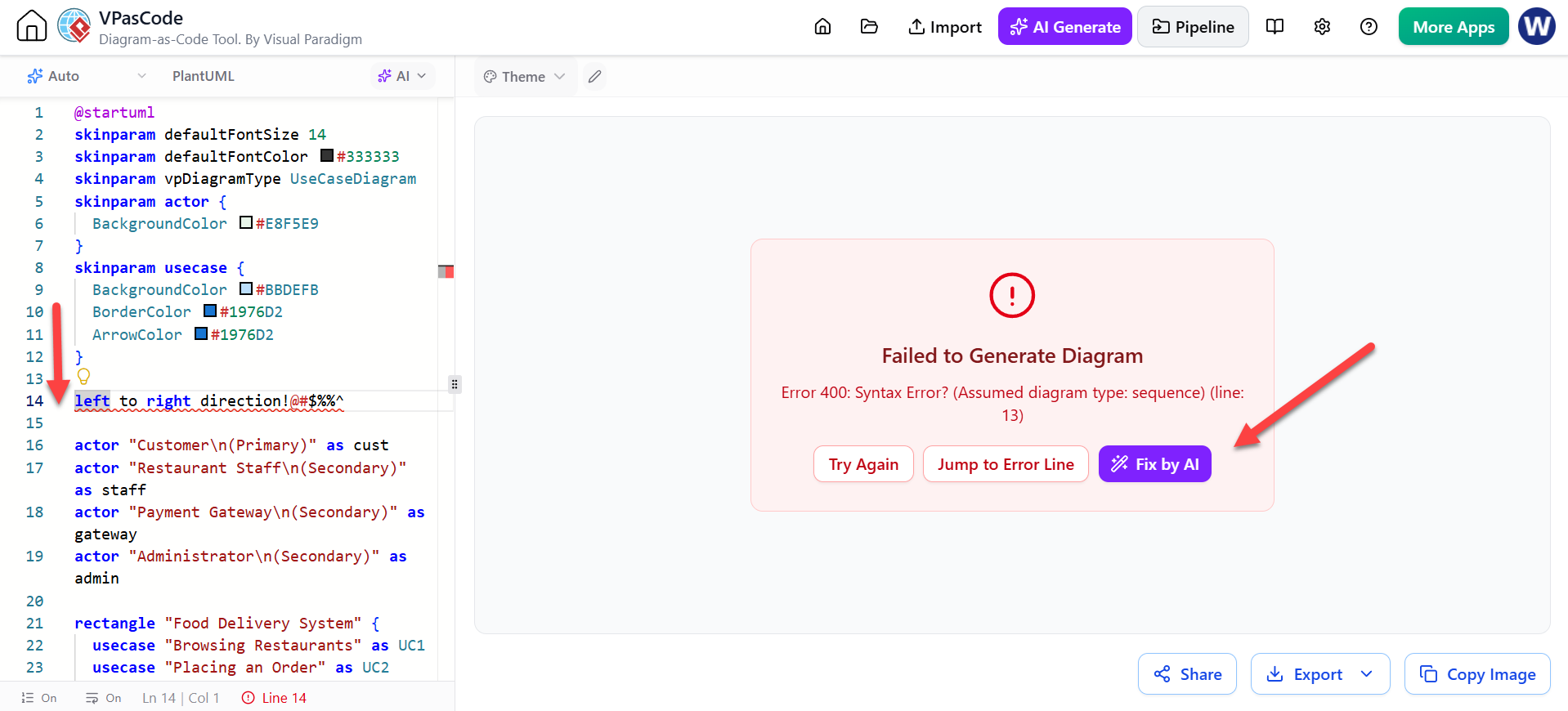
If the diagram fails to render:
-
Review the error message.
-
Open the AI code-fixing feature.
-
Ask the tool to fix the syntax while preserving the intended diagram.
-
Review the modified source.
-
Confirm that the rendered result is correct.
Example instruction:
Fix the PlantUML syntax error without changing the actors, use cases, or relationships.
The AI error-fixing feature is intended to reduce interruptions caused by missing commands, invalid syntax, or incorrectly structured diagram code.
Editing the Diagram as Code
1. Edit the source directly
The left side of the VPasCode workspace contains the diagram source. Edit the code directly to make precise changes.
For example:
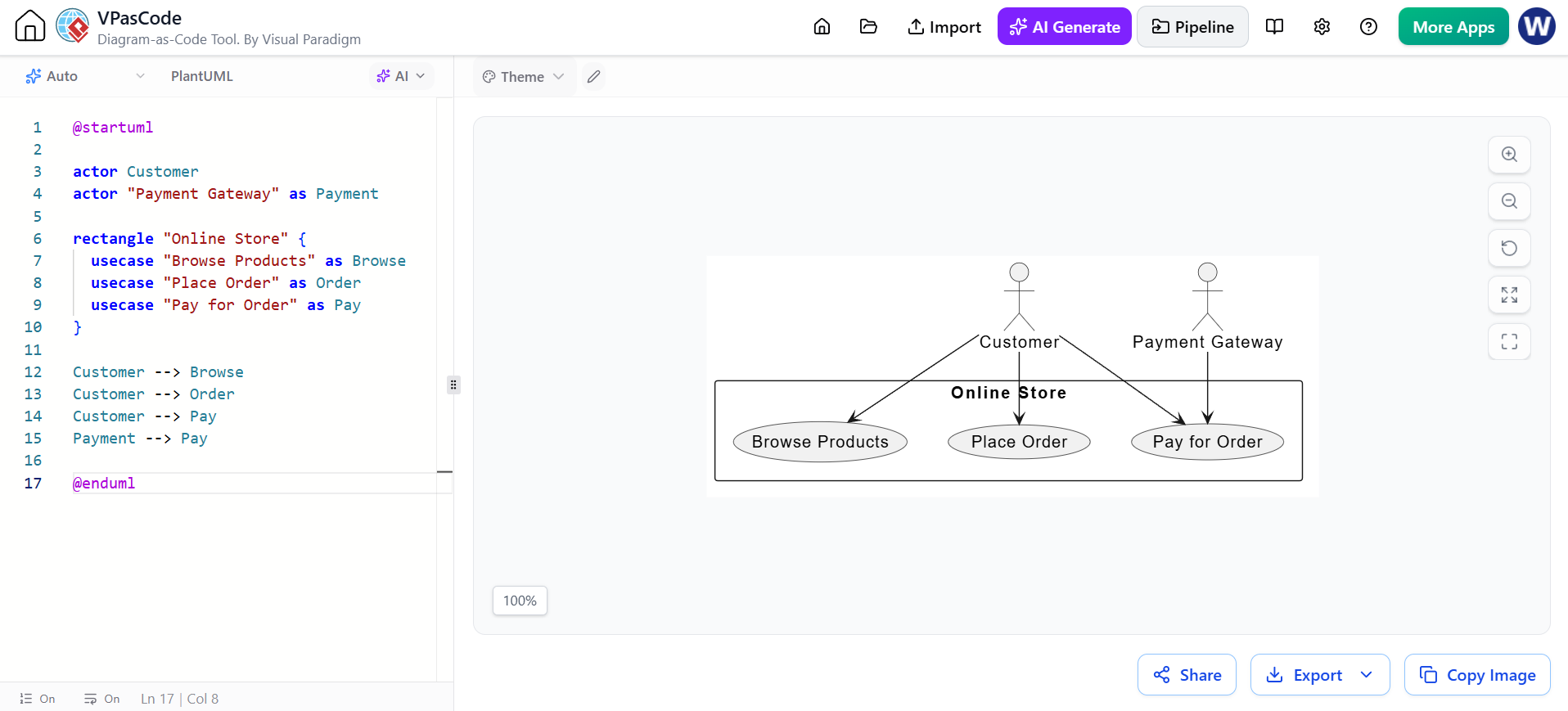
@startuml

actor Customer
actor "Payment Gateway" as Payment

rectangle "Online Store" {
  usecase "Browse Products" as Browse
  usecase "Place Order" as Order
  usecase "Pay for Order" as Pay
}

Customer --> Browse
Customer --> Order
Customer --> Pay
Payment --> Pay

@enduml
You can change:
-
Element names
-
Relationships
-
Layout directions
-
Participants
-
Conditions
-
Notes
-
Groups
-
Themes
-
Colors
-
Visibility
-
Diagram structure
2. Use the live preview
The right side of the workspace displays the rendered diagram.
As the source changes:
-
The editor processes the updated code.
-
The preview refreshes.
-
You immediately see the impact of the change.
-
You can continue adjusting the source until the result is correct.
The side-by-side live preview is one of the most important productivity features because it removes the need to repeatedly export and reopen diagrams after every edit.
3. Use small, controlled changes
For complex diagrams, modify one section at a time:
-
Add a participant.
-
Add its relationships.
-
Check the preview.
-
Add the next element.
-
Check the preview again.
This makes syntax errors easier to locate and prevents accidental changes to unrelated parts of the diagram.
4. Add comments to explain the source
Use comments to document sections of the diagram:
@startuml

' Actors
actor Customer
actor Administrator

' System boundary
rectangle "Order Management System" {
  usecase "Create Order" as CreateOrder
  usecase "Review Order" as ReviewOrder
}

' Relationships
Customer --> CreateOrder
Administrator --> ReviewOrder

@enduml
Comments make the source easier for other team members to understand and maintain.
Editing with the Visual Paradigm Online Diagram Editor
VPasCode is ideal for source-based editing, but some users prefer a graphical interface. After generating or importing the diagram, the user can open it in the Visual Paradigm Online diagram editor for direct GUI editing.
1. Import or open the diagram
Depending on the workflow:
-
Generate the diagram with the AI Chatbot.
-
Select Open in VPasCode, Import to Visual Paradigm, or the equivalent integration command.
-
Open the diagram in the Visual Paradigm Online diagram editor.
-
Wait for the diagram canvas and shape palette to load.
The integration allows users to begin with an AI-generated concept and continue with detailed source or visual editing.
2. Use the shape palette
The left-side palette contains diagram elements appropriate to the selected diagram type.
For BPMN or activity modeling, this may include:
-
Start events
-
End events
-
Tasks
-
Subprocesses
-
Gateways
-
Pools
-
Swimlanes
-
Sequence flows
-
Message flows
-
Data objects
-
Annotations
For UML modeling, the palette may include:
-
Actors
-
Use cases
-
Classes
-
Interfaces
-
Components
-
Nodes
-
States
-
Messages
-
Associations
-
Generalizations
-
Dependencies
3. Add elements graphically
To add an element:
-
Select a shape from the palette.
-
Drag it onto the canvas.
-
Place it in the appropriate position.
-
Double-click the element.
-
Enter its name.
-
Confirm the change.
4. Move and resize elements
Use the canvas to:
-
Move elements
-
Resize shapes
-
Align items
-
Distribute items evenly
-
Reposition labels
-
Improve spacing
-
Rearrange relationships
This is particularly useful for final presentation work, where layout and readability are more important than source-code structure.
5. Create relationships
To connect elements:
-
Select a connector or relationship tool.
-
Drag from the source element to the target element.
-
Select the appropriate relationship type.
-
Add a label if required.
-
Confirm the arrow direction.
For example, in a use case diagram:
-
Connect an actor to a use case with an association.
-
Connect required behavior with
include. -
Connect optional behavior with
extend. -
Connect specialized actors or use cases with generalization.
6. Edit labels and properties
Use the graphical editor to change:
-
Names
-
Descriptions
-
Relationship labels
-
Element types
-
Colors
-
Fonts
-
Line styles
-
Notes
-
Visibility
-
Diagram documentation
7. Validate the final diagram
Before completing the model, check:
-
Every element has a clear name.
-
Relationships are connected to the correct elements.
-
Arrows point in the intended direction.
-
No elements overlap.
-
The diagram has a clear reading order.
-
The model follows the rules of its notation.
-
The visual layout is suitable for its audience.
Exporting and Sharing
After completing the diagram, VPasCode can be used to share or export the result.
Common options include:
-
Exporting to PNG
-
Exporting to SVG
-
Sharing a live diagram link
-
Copying the source code
-
Embedding the diagram in documentation
-
Sending the diagram to other Visual Paradigm tools
SVG is preferable for technical documentation because it scales without losing quality. PNG is convenient for presentations, email, and quick sharing. The platform advertises both image export and shareable URLs.
Practical Usage Cases
Software architecture
Use VPasCode to model:
-
Microservice architecture
-
API communication
-
Deployment topology
-
Cloud infrastructure
-
Service dependencies
-
C4 architecture levels
Example prompt:
Generate a PlantUML C4 container diagram for an online banking system with a web application, mobile application, authentication service, payment service, transaction database, and external banking network.
Business process modeling
Use it to create:
-
BPMN diagrams
-
Activity diagrams
-
Approval workflows
-
Customer journeys
-
Operational processes
-
Exception flows
Example prompt:
Create a BPMN process for invoice approval. Include lanes for Requester, Manager, Finance, and Accounts Payable. Add a rejection path that returns the invoice to the requester.
Requirements analysis
Use it to visualize:
-
User stories
-
Use cases
-
Actors
-
System boundaries
-
Functional dependencies
-
Acceptance scenarios
Example prompt:
Generate a use case diagram for an online library system with Member, Librarian, Payment Service, and Administrator actors.
Database and data modeling
Use text-based diagramming to describe:
-
Entities
-
Tables
-
Relationships
-
Attributes
-
Data pipelines
-
JSON or SQL structures
Technical documentation
VPasCode is useful for maintaining diagrams alongside:
-
Source code
-
Markdown files
-
Architecture decision records
-
API documentation
-
Project wikis
-
Design specifications
Education and training
Teachers and students can use it to:
-
Demonstrate UML notation
-
Learn PlantUML syntax
-
Compare source code with visual output
-
Practice modeling requirements
-
Create diagrams without complex drawing software
Team workshops
During planning or refinement sessions, a team can:
-
Describe a system or process.
-
Generate a first diagram with AI.
-
Review it collaboratively.
-
Refine the source or visual model.
-
Share the result as a common reference.
Who Should Use VPasCode?
Software developers
Developers can use VPasCode to document:
-
System architecture
-
Class structures
-
API interactions
-
Sequence flows
-
Deployment environments
-
Service dependencies
It is particularly useful for developers who prefer storing diagrams as text and updating them alongside code.
Solution and enterprise architects
Architects can use it to create:
-
C4 diagrams
-
Component diagrams
-
Deployment diagrams
-
Enterprise architecture views
-
Integration maps
-
Application landscapes
The ability to combine AI generation with precise source editing helps architects move from rough concepts to structured technical communication.
Business analysts
Business analysts can use VPasCode for:
-
BPMN processes
-
Activity diagrams
-
Use case diagrams
-
Requirements visualization
-
Stakeholder communication
-
Process improvement workshops
Product managers and Agile teams
Product teams can use it to visualize:
-
User journeys
-
Feature flows
-
System behavior
-
Sprint scope
-
Product workflows
-
Acceptance scenarios
Technical writers
Technical writers can use it to maintain diagrams that are:
-
Reproducible
-
Easy to update
-
Consistent
-
Suitable for version-controlled documentation
-
Exportable to common image formats
Students and beginners
Beginners benefit from the combination of:
-
Natural-language AI generation
-
Built-in examples
-
Real-time visual feedback
-
Direct source editing
-
Graphical editing options
Users do not need to memorize all syntax before creating their first diagram.
What Makes VPasCode Stand Out?
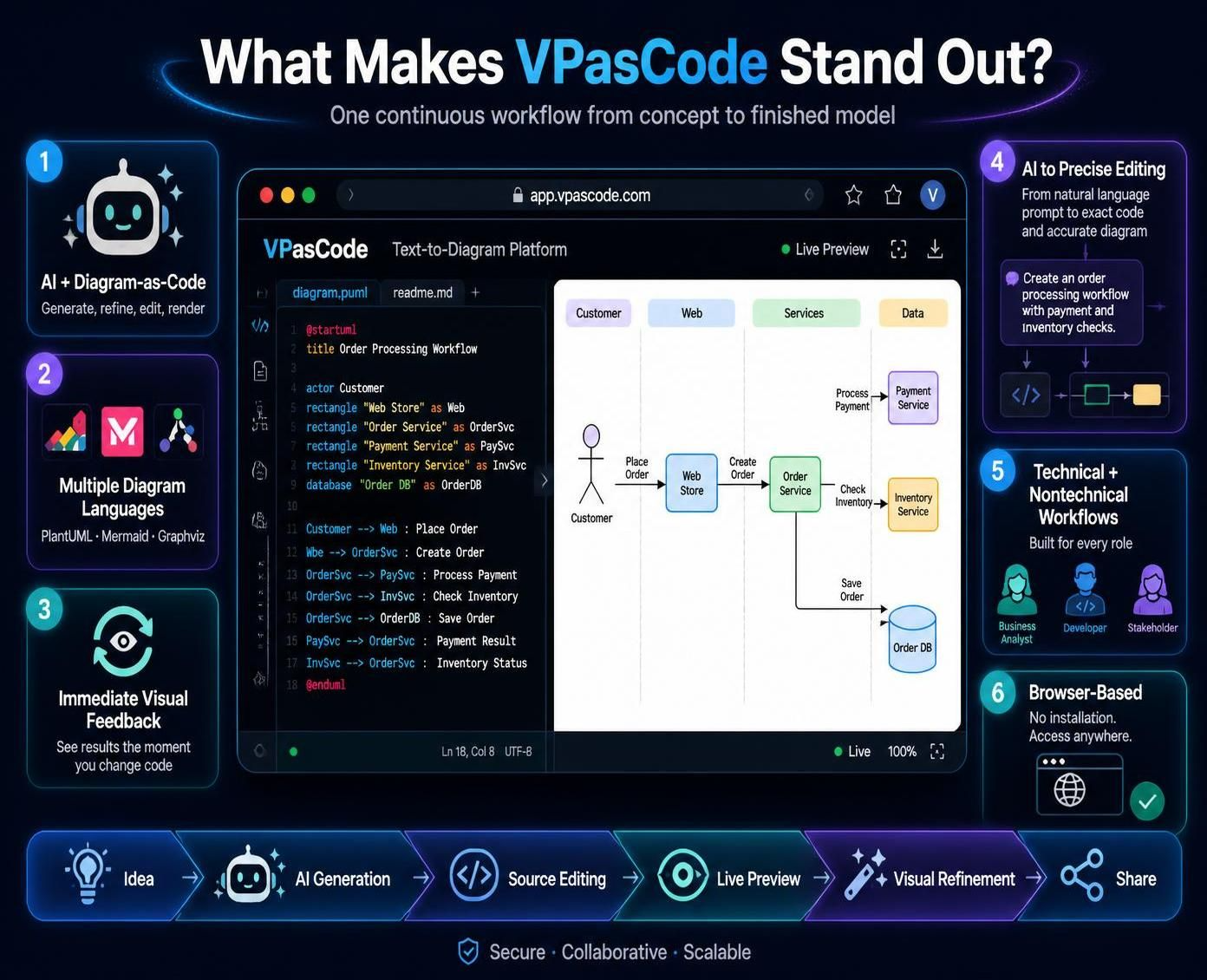
1. It combines AI and diagram-as-code
Many tools focus primarily on either AI generation or manual diagram drawing. VPasCode combines:
-
Natural-language generation
-
AI refinement
-
Source-code editing
-
Live rendering
-
Visual diagram editing
-
Export and sharing
This creates a continuous workflow from idea to finished model.
2. It supports multiple diagram languages
Users can work with PlantUML, Mermaid, Graphviz, and other supported formats in one environment. This is valuable because different diagrams benefit from different notations.
3. It provides immediate visual feedback
The live preview lets users see a diagram change as soon as they modify the source. This is useful for learning syntax, correcting layouts, and experimenting with relationships.
4. It connects AI generation with precise editing
AI is useful for producing a first draft, but professional diagrams often require exact wording, structure, and layout. VPasCode provides a bridge from AI-generated content to line-level source editing and visual refinement.
5. It supports both technical and nontechnical workflows
A business analyst may start with a natural-language process description. A developer may edit PlantUML code. A stakeholder may prefer to adjust the diagram visually. VPasCode supports all three approaches.
6. It is browser-based
Because VPasCode works in the browser, users can start without local installation, plug-ins, or manual environment configuration.
Why VPasCode Is Friendly for AI
Natural-language input
Users can describe what they want instead of starting with syntax.
For example:
Create a sequence diagram showing a customer logging in through a web application, API gateway, authentication service, and user database.
The AI can transform this description into diagram code.
AI-assisted iteration
The most useful AI workflow is iterative:
-
Generate a first version.
-
Inspect the diagram.
-
Ask AI to add or remove elements.
-
Review the result.
-
Edit the source manually if precision is needed.
-
Open the diagram in the GUI editor for final layout work.
AI works with existing diagrams
AI can modify an existing diagram instead of only generating a new one. This supports instructions such as:
Add a failure path after the payment service.
Translate all labels into French.
Add a new administrator actor.
Simplify this architecture into a high-level context diagram.
AI support includes generation, modification, error fixing, and translation capabilities.
AI lowers the syntax barrier
Users who do not know PlantUML or Mermaid can still create a useful first draft. They can then learn by comparing the natural-language instruction with the generated code and rendered output.
Why VPasCode Fits an Agile Approach
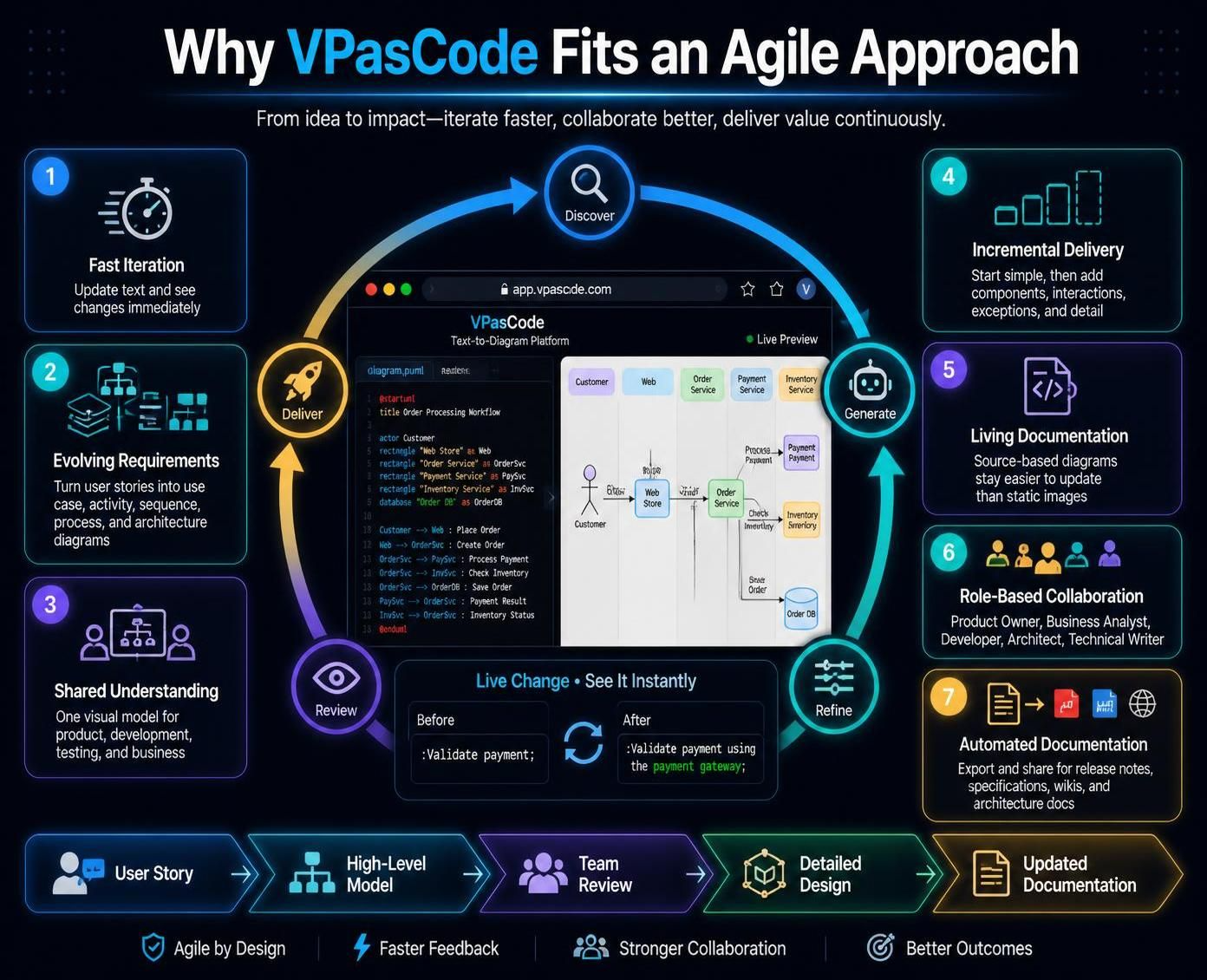
1. Fast iteration
Agile teams frequently change requirements. A text-based diagram can be updated faster than a manually redrawn diagram.
For example, a team can change:
to:
:Validate payment using the payment gateway;
and immediately see the updated diagram.
2. Supports evolving requirements
During backlog refinement, the team can translate a user story into:
-
A use case diagram
-
An activity diagram
-
A sequence diagram
-
A process flow
-
A system architecture view
The diagram can evolve as the story becomes better understood.
3. Encourages shared understanding
A generated diagram gives developers, testers, product owners, and business stakeholders a common visual model to discuss.
Instead of discussing an ambiguous requirement only through text, the team can review:
-
Actors
-
System boundaries
-
User actions
-
Decision points
-
Alternative flows
-
Integration points
4. Works well with incremental delivery
Agile teams can start with a simple diagram and add detail over time:
-
Create a high-level system context.
-
Add major components.
-
Add interactions.
-
Add exceptions.
-
Add implementation details.
-
Refine the layout for documentation.
This avoids trying to produce a perfect model before the team understands the problem.
5. Supports living documentation
Because the diagram is represented as source code, it can be updated whenever the system changes. This makes it more practical to maintain than a static image that quickly becomes outdated.
6. Enables collaboration between roles
Different team members can use different editing methods:
-
Product owner: natural-language AI prompts
-
Business analyst: BPMN or activity-diagram refinement
-
Developer: PlantUML source editing
-
Architect: structural and integration modeling
-
Technical writer: final formatting and documentation
7. Helps automate documentation
Teams can export diagrams for release notes, architecture documentation, technical specifications, and project wikis. They can also share live diagram links so stakeholders can access the latest version.
Recommended Agile Workflow
Use the following workflow during an Agile project:
-
Describe the requirement in natural language.
-
Generate a first diagram with AI.
-
Review the model with the product owner and development team.
-
Refine the diagram using AI instructions.
-
Edit the source for precise technical changes.
-
Open the diagram editor for layout and formatting.
-
Export or share the result with the team.
-
Update the source when the user story or implementation changes.
Best Practices
-
Use clear and specific prompts.
-
Name activities with action verbs.
-
Keep diagrams focused on one purpose.
-
Avoid putting too much detail into a single diagram.
-
Use lanes only when responsibility matters.
-
Label gateway outcomes clearly.
-
Review AI-generated relationships carefully.
-
Make small source-code changes and check the preview frequently.
-
Use comments to organize longer PlantUML scripts.
-
Keep the source with the related documentation or project artifacts.
-
Use the GUI editor for final layout and presentation improvements.
-
Export to SVG when high-quality scaling is important.
-
Treat AI output as a draft that requires human review.
Summary
VPasCode stands out because it combines natural-language AI generation, multiple diagram languages, real-time rendering, source-code precision, and graphical editing in one browser-based workflow. It is useful for developers, architects, business analysts, product managers, Agile teams, technical writers, educators, and students.
Its strongest workflow is:
Describe with text → generate with AI → refine with AI → edit the source → preview in real time → format visually → share the finished diagram.
This combination makes VPasCode especially effective for Agile teams that need diagrams to evolve quickly alongside requirements, code, and product decisions.
References
-
Welcome to Visual Paradigm VPasCode: Diagram-as-Code (DaC): Official introduction to the unified platform that brings Mermaid, PlantUML, and Graphviz into one text-to-diagram workspace .
-
Introducing Visual Paradigm 18.1: A New Era of Unified Ecosystems: Overview of VPasCode’s features including AI error fixing, language translation, and free tier capabilities .
-
60-Second VPasCode Quickstart Guide: Step-by-step tutorial to create your first diagram in under a minute with Mermaid and PlantUML examples .
-
Supported Diagram Engines & Formats: Comprehensive list of supported formats including PlantUML, Mermaid.js, Graphviz, D2, SQL, JSON, and source code visualization .
-
From Code to Clarity: A Beginner’s Guide with VPasCode and OpenDocs: Tutorial on creating sequence, C4 Container, and class diagrams with direct integration to OpenDocs documentation .
-
Diagram-as-Code Tool: Unified PlantUML, Mermaid & More: Explanation of why developers adopt text-to-diagram tools and how VPasCode unifies different syntax engines .
-
5-Minute VPasCode Quickstart: Beginner-friendly guide covering flowchart creation, real-time preview, export options, and AI-powered error fixing .
-
VPasCode: Diagramming at the Speed of Thought: Review highlighting AI superpowers, supported frameworks, and comparison of free vs premium tiers .
