




From Code to Clarity: A Beginner’s Guide to Seamless Diagramming with VPasCode and OpenDocs
Introduction
In the fast-paced world of software development and product management, documentation often lags behind code. Engineers spend hours crafting complex system architectures, while technical writers struggle to keep visuals updated in static documents. The result? Outdated diagrams, broken links, and a knowledge base that doesn’t reflect reality.
Enter VPasCode and OpenDocs, two powerful tools from Visual Paradigm that are changing the game. VPasCode allows you to create rich, professional diagrams using simple text syntax (like PlantUML or Mermaid), while OpenDocs serves as an AI-powered knowledge management platform. The magic happens when you connect them: with the new VPasCode to OpenDocs Pipeline Integration, you can send diagrams directly from your code editor into your documentation with a single click. No more exporting, downloading, or re-uploading. This tutorial will walk you through setting up this workflow, creating realistic diagrams, and leveraging AI features to streamline your documentation process.
Setup & Tooling: Getting Started
Before diving into diagram creation, ensure you have access to the necessary tools.
-
VPasCode: Visit VPasCode to start creating text-to-diagram visuals. It supports PlantUML, Mermaid.js, and Graphviz.
-
OpenDocs: Navigate to the OpenDocs Dashboard to manage your team’s knowledge base.
-
Visual Paradigm Account: Ensure you have an active account. While free tiers offer real-time previewing and exports, paid editions (Visual Paradigm Online Combo Edition or Desktop Professional Edition) unlock advanced AI features like error fixing and translation.
Connecting the Pipeline
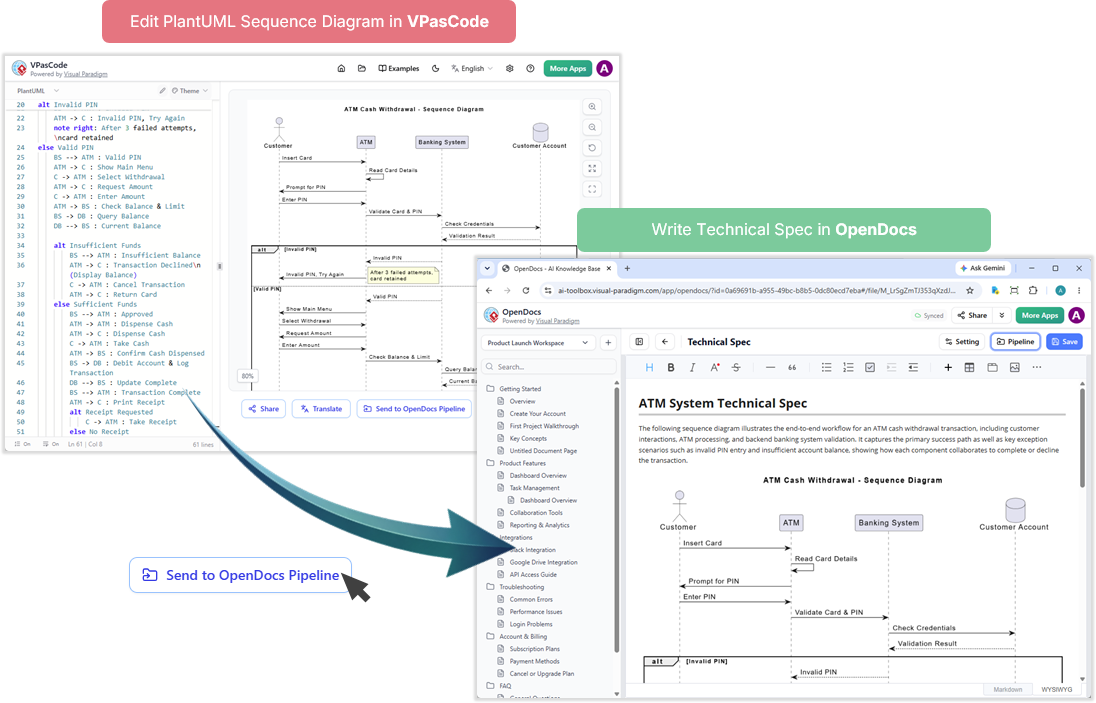
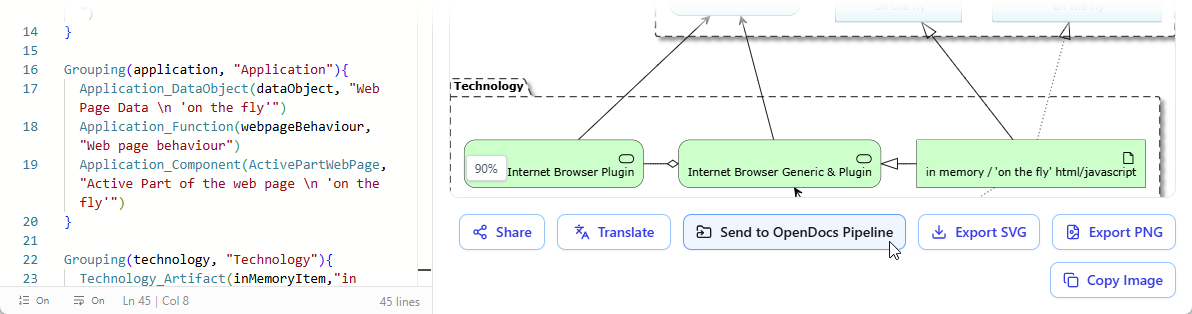
The integration is built-in, so no complex API keys are required. Simply log in to both platforms with the same Visual Paradigm credentials. When you’re ready to share a diagram, the “Send to OpenDocs Pipeline” button in VPasCode will securely route your visual to your OpenDocs workspace.
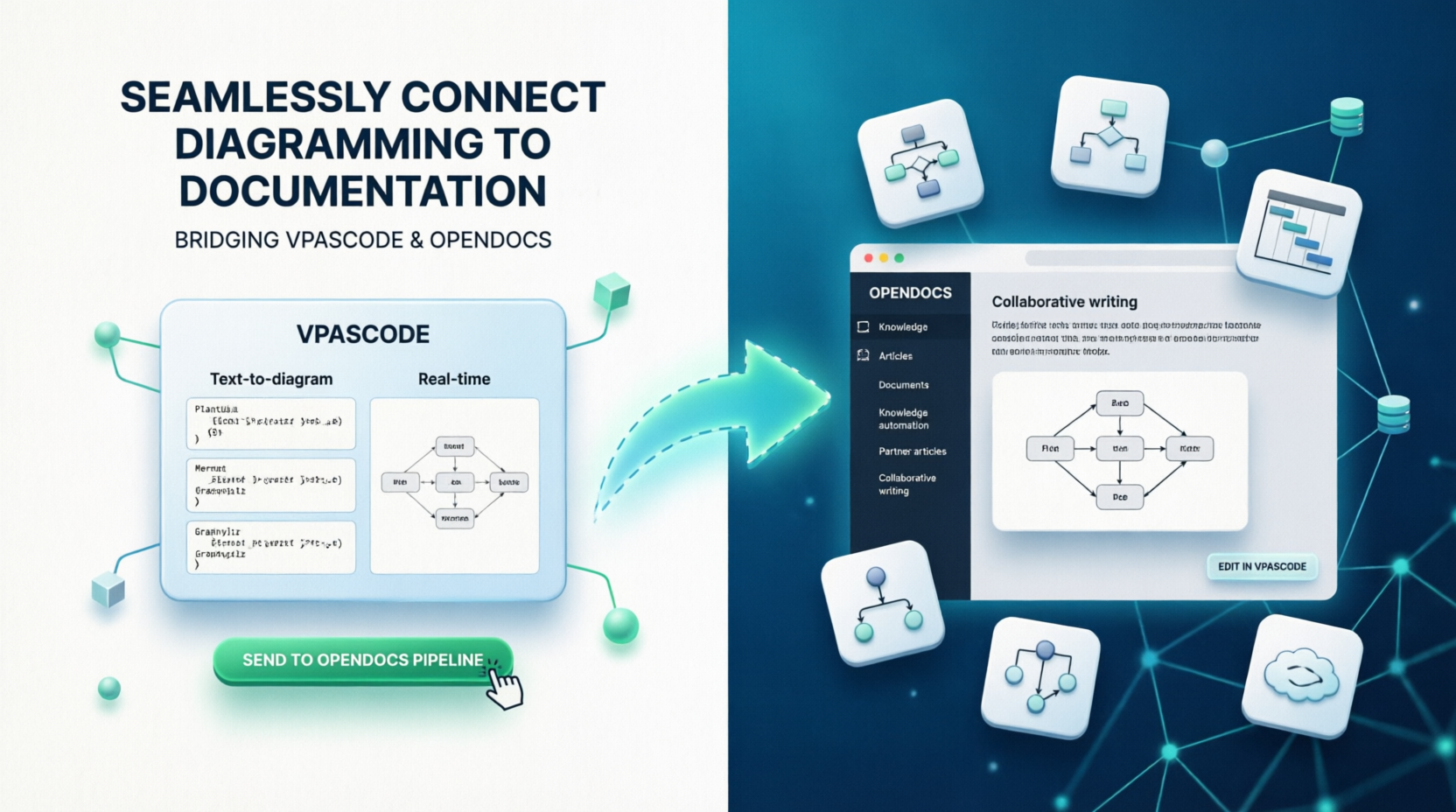
Diagram-as-Code in Action: Practical Examples
Let’s explore how to create real-world diagrams using PlantUML in VPasCode. Below are three common scenarios: a Sequence Diagram for API interactions, a C4 Container Diagram for system architecture, and a Class Diagram for data modeling.
Example 1: Sequence Diagram for User Authentication
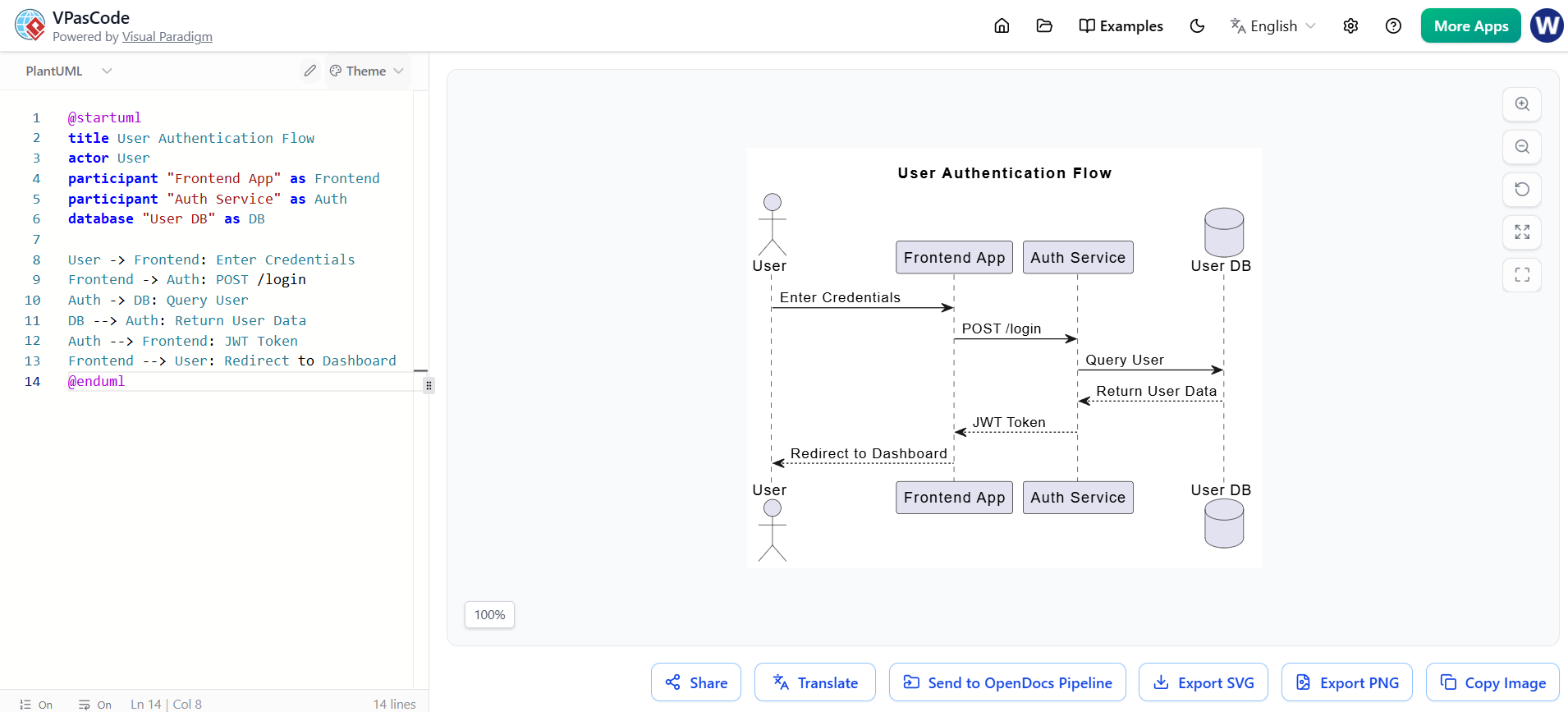
Imagine you’re documenting how a user logs into your application. Instead of drawing boxes and arrows manually, write the following PlantUML code in VPasCode:
@startuml
title User Authentication Flow
actor User
participant "Frontend App" as Frontend
participant "Auth Service" as Auth
database "User DB" as DB

User -> Frontend: Enter Credentials
Frontend -> Auth: POST /login
Auth -> DB: Query User
DB --> Auth: Return User Data
Auth --> Frontend: JWT Token
Frontend --> User: Redirect to Dashboard
@enduml
Once rendered, click “Send to OpenDocs Pipeline” to push this diagram directly into your technical specification document.
Example 2: C4 Container Diagram for Microservices
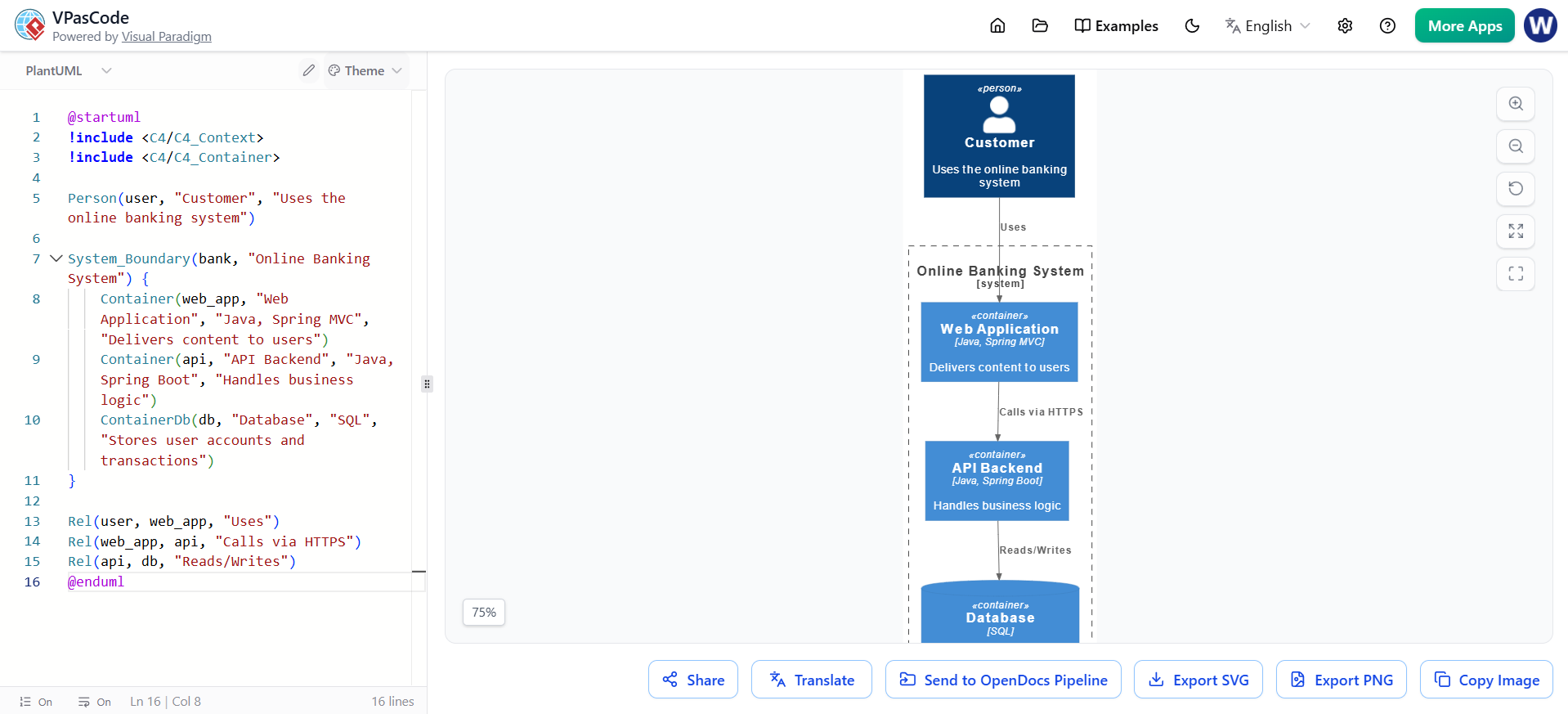
For high-level architecture, use the C4 model. Here’s a simple container diagram showing a web app interacting with backend services:
@startuml
!include <C4/C4_Context>
!include <C4/C4_Container>

Person(user, "Customer", "Uses the online banking system")

System_Boundary(bank, "Online Banking System") {
    Container(web_app, "Web Application", "Java, Spring MVC", "Delivers content to users")
    Container(api, "API Backend", "Java, Spring Boot", "Handles business logic")
    ContainerDb(db, "Database", "SQL", "Stores user accounts and transactions")
}

Rel(user, web_app, "Uses")
Rel(web_app, api, "Calls via HTTPS")
Rel(api, db, "Reads/Writes")
@enduml
This visual helps stakeholders understand system boundaries without getting bogged down in code details.
Example 3: Class Diagram for Product Management
If you’re modeling a product catalog, a class diagram clarifies relationships between entities:
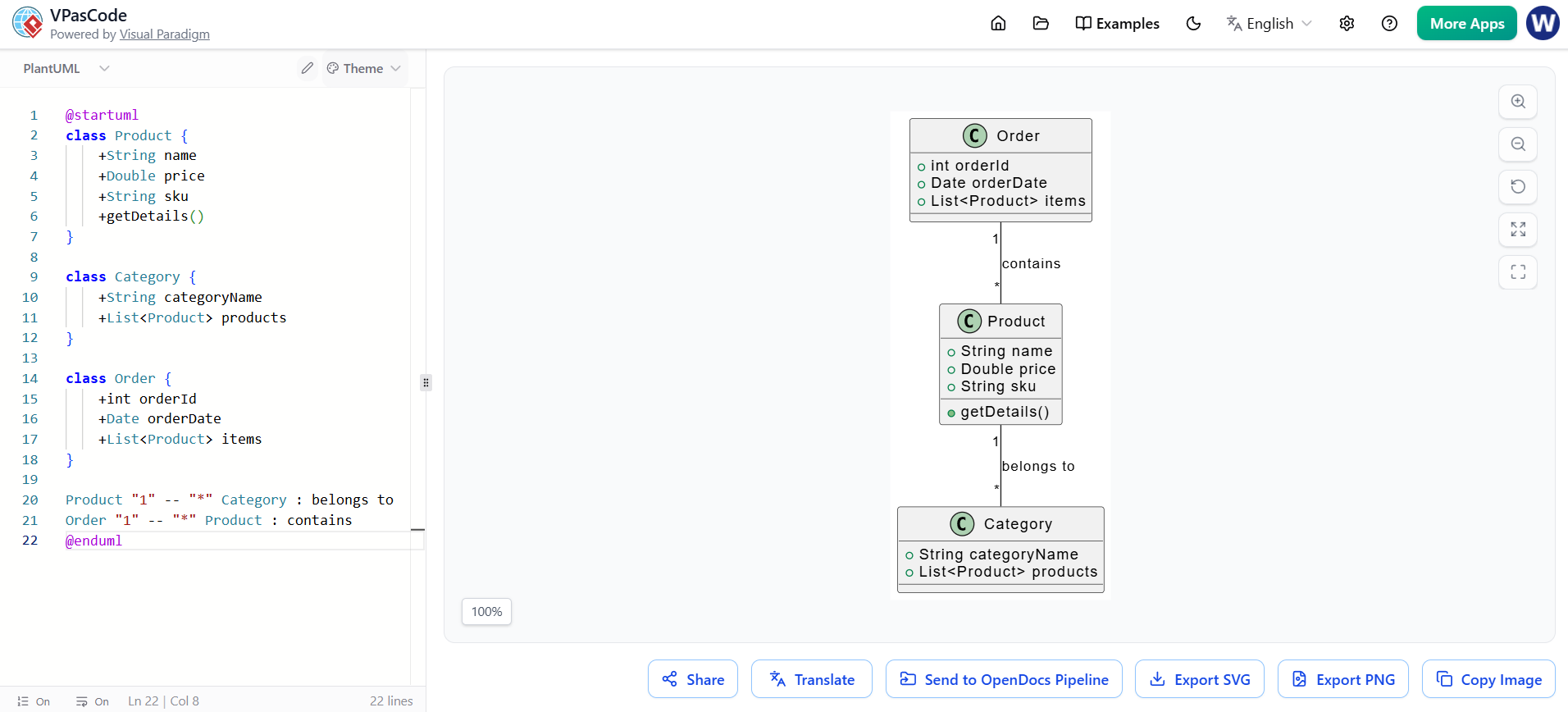
@startuml
class Product {
    +String name
    +Double price
    +String sku
    +getDetails()
}

class Category {
    +String categoryName
    +List<Product> products
}

class Order {
    +int orderId
    +Date orderDate
    +List<Product> items
}

Product "1" -- "*" Category : belongs to
Order "1" -- "*" Product : contains
@enduml
AI-Powered Features: Enhancing Your Workflow
Visual Paradigm’s AI capabilities take diagramming to the next level. If you’re stuck or want to speed up creation:
-
AI Code Error Fixing: Made a syntax mistake in PlantUML? The AI can detect and suggest fixes, saving you time debugging.
-
AI Translation: Need to localize documentation? Use AI to translate diagram labels or descriptions into multiple languages.
-
Prompt-to-Diagram: In OpenDocs, use the AI chatbot to generate a diagram from a natural language prompt. For example, type “Create a sequence diagram for a payment processing flow” and the AI will generate the PlantUML code, which you can then refine in VPasCode.
UX Feedback & Workflow Wins
Users who’ve adopted the VPasCode-to-OpenDocs pipeline report significant productivity gains:
-
Version Control: Since diagrams are code-based, you can track changes in Git, making it easy to revert or compare versions.
-
Collaboration: Team members can edit diagrams in VPasCode and instantly update shared docs in OpenDocs, ensuring everyone works from the latest version.
-
Pain Points Resolved: No more hunting for outdated PNGs or worrying about broken image links. The pipeline ensures visuals stay synchronized with documentation.
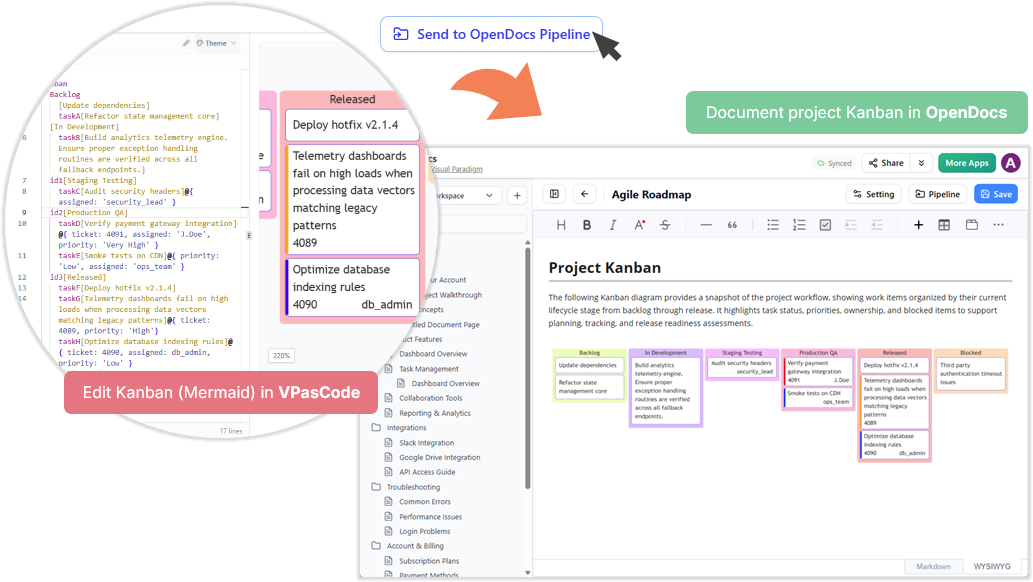
For Agile teams, this is a game-changer. Imagine updating a sprint retrospective Kanban board in VPasCode and pushing it to your team handbook in seconds:
Best Practices & Tips
To maximize efficiency, follow these best practices:
-
Use Descriptive Titles: Add titles to your PlantUML diagrams (e.g.,
title User Login Flow) for clarity in documentation. -
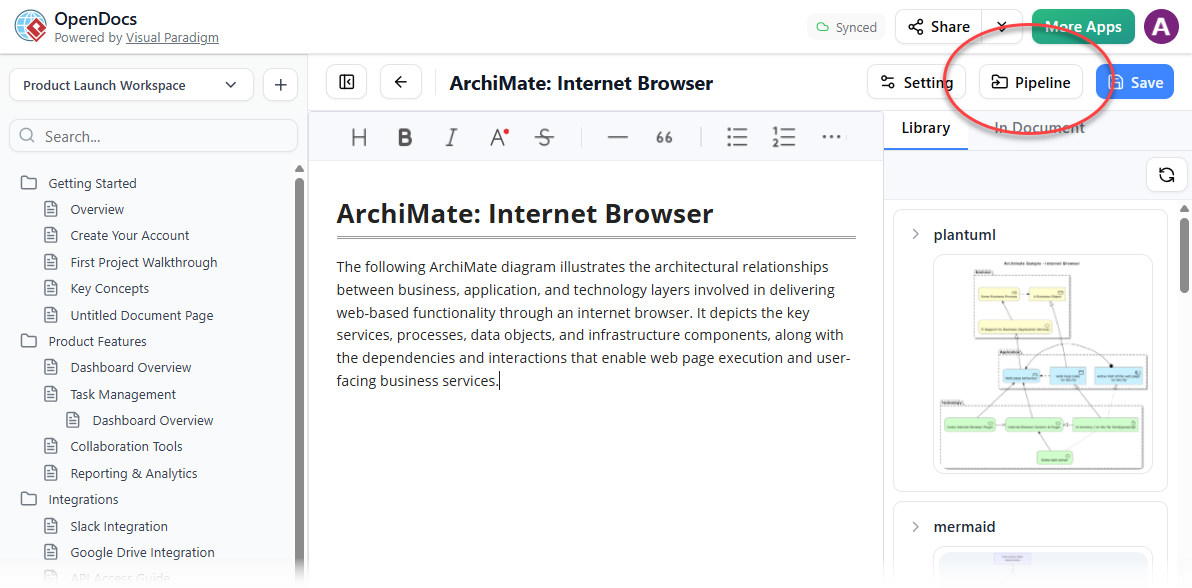
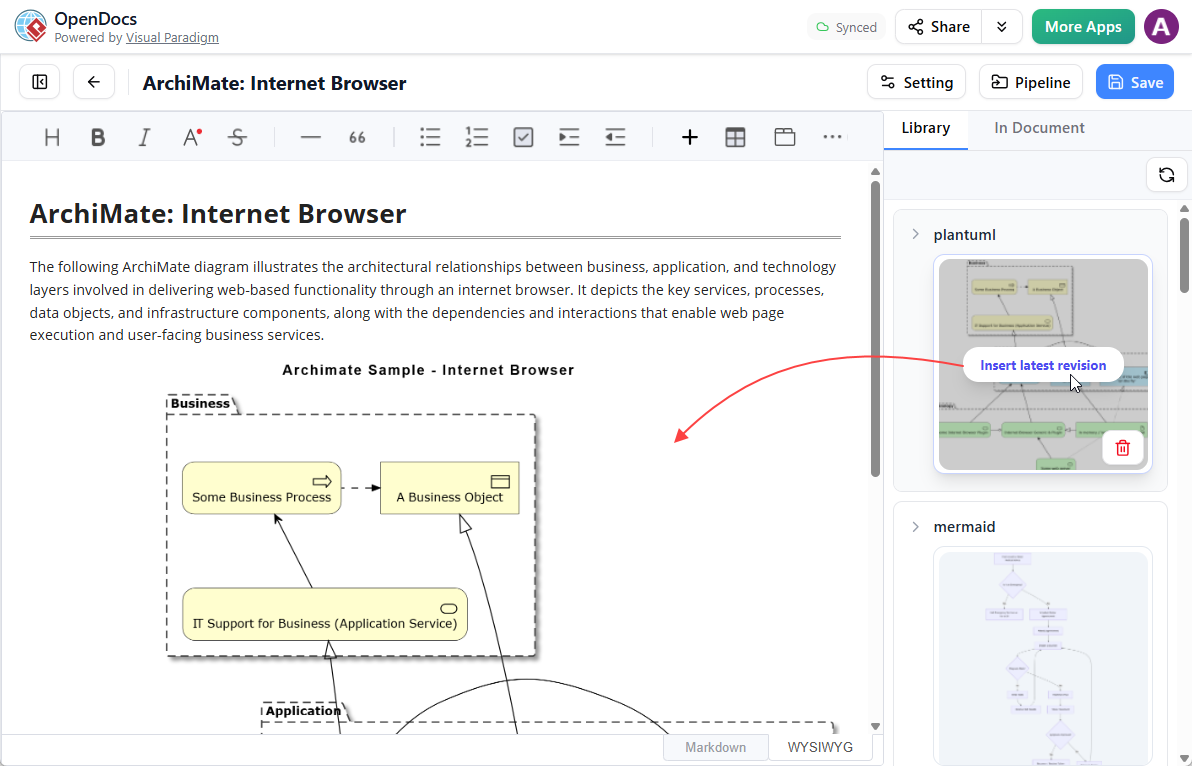
Leverage the Pipeline Pane: In OpenDocs, use the Pipeline pane to organize sent diagrams. Hover over thumbnails to insert them quickly.
-
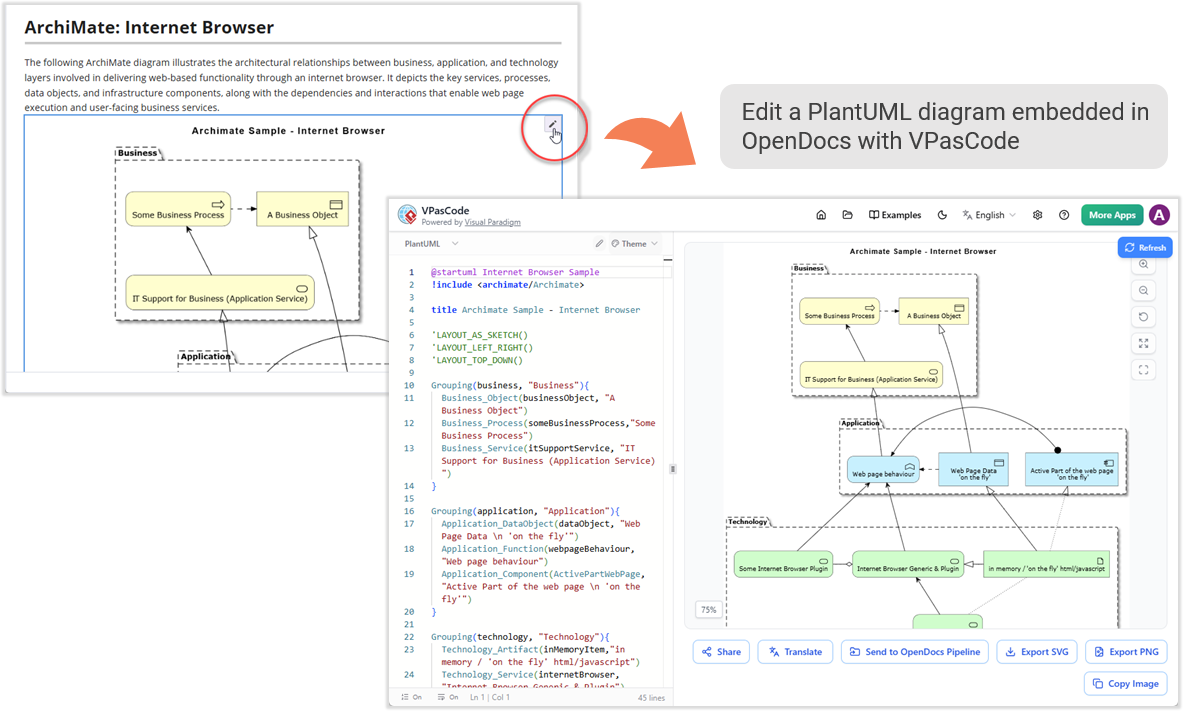
Iterate with the Pencil Button: If a diagram needs updates, click the pencil icon in OpenDocs to reopen it in VPasCode. Make changes, resend, and replace the old version seamlessly.
-
Integrate with the Ecosystem: Combine VPasCode with other Visual Paradigm tools. For example, export enterprise-grade blueprints from Visual Paradigm Desktop or cloud diagrams from VP Online into OpenDocs.
Conclusion & Recommendations
The integration of VPasCode and OpenDocs represents a significant leap forward in technical documentation. By treating diagrams as code, you gain precision, version control, and ease of updates. The seamless pipeline eliminates manual steps, allowing engineers and writers to focus on content rather than formatting.
Who should adopt this?
-
Software Engineers: Who want to document architecture without leaving their coding environment.
-
Technical Writers: Who need up-to-date visuals without chasing developers for exports.
-
Product Managers: Who collaborate on roadmaps and retrospectives with cross-functional teams.
Start by experimenting with simple PlantUML diagrams in VPasCode and sending them to OpenDocs. As you grow comfortable, explore AI features and integrate with the broader Visual Paradigm ecosystem. With this workflow, your documentation will no longer be an afterthought—it will be a living, breathing part of your development process.
Ready to supercharge your workflow? Visit VPasCode and OpenDocs today to experience the power of seamless diagramming and documentation.
This post is also available in Deutsche, Español, فارسی, Français, English, Bahasa Indonesia, 日本語, Polski, Portuguese, Ру́сский, Việt Nam, 简体中文 and 繁體中文.
