How to Create a Bar Chart?

How to Create a Bar Chart?

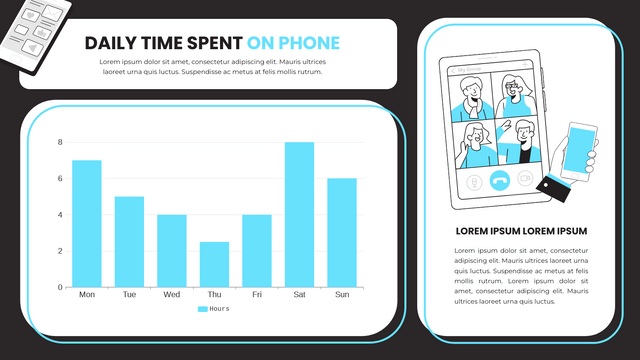
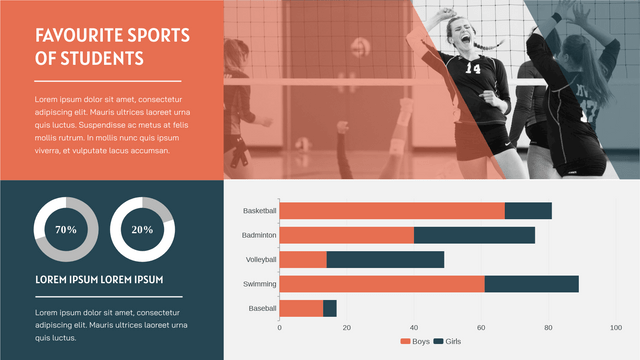
We often record data for a particular use and sometimes we may need to present the data through graphics. In Visual Paradigm Online, you can create various charts freely like bar charts, column charts, pie charts, etc. This chart tool can help you to display any data by using text, symbols, and graphics. You can easily visualize the data that you have collected as graphics and they are presentable. This is a guide for teaching you to create a bar chart with Visual Paradigm Online. You can watch the attached video or read…continue reading →
Categorize your designs using tags

Categorize your designs using tags

Create great design online easily and effortlessly with Visual Paradigm's intuitive online graphic design tool. After creating a design, your work will be saved on Workspace in the VP Online. When creating a lot of work, you may feel a mess, and not easy to find your old work in your workspace. Don't worry about that, because you can categorize your designs using tags in your workspace of VP Online. This video will show you how to categorize your designs using tags in VP Online. https://www.youtube.com/watch?v=VL-FUj2fTk4&width=854&height=480 Categorize your designs using tags In VP…continue reading →
Apply gradient color to shape the caption

Apply gradient color to shape the caption

A color gradient is a color that changes from one color to another color. A color gradient can either be vertical, horizontally, or diagonally. Using a color gradient can help you get attention and direct eyesight, making your work more engaging. This video will show you how to apple gradient color to shape caption in the Visual Paradigm Online. https://www.youtube.com/watch?v=L_RZx8BMLbk&width=854&height=480 Apply gradient color to the element's caption In VP Online, you can apply gradient color to the element's caption. Select the element, then go to Settings Panel, text, and select Gradient. Click on…continue reading →
How To Create A Difference Chart

How To Create A Difference Chart

What Is A Difference Chart Unlike the other chart showing the data directly, difference chart show the difference between 2 groups of data. It is divided in to 2 side, the positive side and the negative side. By finding the difference the value of the 2 sides, we get the data to shown in this chart. When To Use Difference Chart As it shows the difference instead of the data, difference chart is not suitable for recording. It is more suitable when doing analysis as the data shown is already a result of…continue reading →
How to create an area chart?

How to create an area chart?

We often record data for a particular use and sometimes we may need to present the data through graphics. In Visual Paradigm Online, you can create various charts freely like bar charts, column charts, pie charts, etc. This chart tool can help you to display any data by using text, symbols, and graphics. You can easily visualize the data that you have collected as graphics and they are presentable. This is a guide for teaching you to create a area chart with Visual Paradigm Online. You can watch the attached video or read…continue reading →
How To Animate A Photo

How To Animate A Photo

After finishing a booklet by the flipbook maker, do you want to make it looks more attractive? Adding animation to photo is a good way to do so. This article will show you how to do so. https://www.youtube.com/watch?v=XQaKM4hK3cA&width=854&height=480 How To Add Animation To Photo First of  all, click the icon at the bottom of the editor to open the animation timeline. (Click one more time if you want to close it) After that, select the photo you want to edit, and choose the animation for it. When you place the mouse over the…continue reading →
How to create a stacked rose chart?

How to create a stacked rose chart?

We often record data for a particular use and sometimes we may need to present the data through graphics. In Visual Paradigm Online, you can create various charts freely like bar charts, column charts, pie charts, etc. This chart tool can help you to display any data by using text, symbols, and graphics. You can easily visualize the data that you have collected as graphics and they are presentable. This is a guide for teaching you to create a stacked rose chart with Visual Paradigm Online. You can watch the attached video or…continue reading →
Apply a gradient fill color to shape

Apply a gradient fill color to shape

Create a stunning design with our intuitive online graphic design editor, which features a wide variety of features to help you create your design. This video can show you how to apply a gradient fill color to shape in the Visual Paradigm Online. https://www.youtube.com/watch?v=-2Pgd4QRtKU&width=854&height=480 When editing your design, you can apply gradient color to an element. Tip: Before you can style anything, you must select it. Click on a shape to select it, or hold Shift down and click on multiple shapes to select many. Select the element, then go to Settings Panel,…continue reading →
Configure an Animation Effect

Configure an Animation Effect

When using Visual Paradigm Online, you can add animation to your design to make it more attractive. When animating flipbooks, some effects can be further customized. This video will show you how to configure an animation effect. https://www.youtube.com/watch?v=ZAq33Aoh-CA&width=854&height=480 How To Add Animation To Element Click the animation icon at the bottom of the editor to open the animation timeline. Select the element, and the animation panel will open on the right, you can choose an animation for the element. Tip: When you place the mouse over the icons, there will be a live…continue reading →
Make a shape enter and exit a diagram

Make a shape enter and exit a diagram

When using Visual Paradigm Online, you can add animation to your design to make it more attractive. When animating your flipbook, you can specify the entry, and exit effect of an object. This video will show you how to configure an animation effect. https://www.youtube.com/watch?v=Slxz0WRpxb8&width=854&height=480 Click the animation icon at the bottom of the editor to open the animation timeline. Select the object you would like to animate, and the animation panel will open on the right, you can select an Enter animation effect for the object. When you place the mouse over the…continue reading →